
Tech News Deep Dive: What the Latest AI Chips Mean for Your Next Laptop or GPU
Here’s the surprising part: the next “AI laptop” isn’t defined just by how many AI features it advertises. It’s defined by the AI chip inside—especially the balance between the CPU, GPU, and the dedicated AI/NPUs that run models locally. If you pick wrong, you can end up with a machine that feels slower at the exact tasks you bought it for.
In this tech news deep dive, I’ll break down what the latest AI chips mean for your next laptop or GPU. I’ll also give you a practical checklist you can use right now when comparing models in 2026.
Latest AI chips in 2026: the fast answer you actually need
Latest AI chips in 2026 mainly change how fast and how private AI tasks run on-device—because more work moves from the cloud to your laptop or desktop. That means faster prompts, smoother real-time effects, and less sending data over the internet.
In plain terms, an AI chip is built to run neural network workloads efficiently. In a laptop, that can mean the NPU (neural processing unit) handles speech, image cleanup, background blur, and AI photo edits, while the GPU (graphics) handles heavier visuals. Some chips also add faster “matrix math” blocks, which is the core math behind many AI models.
When AI chips are better, you feel it immediately: smoother video calls, faster voice typing, more responsive “chat with your files” apps, and fewer lag spikes when you use tools like Adobe’s AI features or browser-based AI editors.
If you’re trying to decide whether you need an AI laptop at all, I’ve got a related take in our AI laptop buying guide (focuses on real-world performance, not marketing labels).
What’s actually changing in the newest AI chip designs?
What’s changing is the mix: more AI-specific hardware plus better memory and better software support. You can’t just look at “AI TOPS” numbers and call it done.
As of 2026, most new laptop and desktop AI chips are built around three ideas:
- Dedicated NPU blocks for low-power AI tasks (voice, camera, quick edits).
- More efficient matrix operations for neural network layers, which cuts time per inference.
- Better system memory paths (how the chip reads and writes data), which matters a lot when AI needs to load model weights.
One original insight I’ve noticed during testing is this: many buyers think “AI performance” means “how fast it chats.” In practice, the biggest day-to-day difference shows up in camera and input tasks. Things like noise reduction, background segmentation, and live captions benefit from the NPU’s tight timing. That’s where you notice less delay and fewer stutters.
AI TOPS and FLOPS: what they mean for real speed
AI TOPS is a hardware rating, not your final speed. TOPS (tera operations per second) tells you how many low-level ops the chip can do in best-case tests. Real apps use different models, different batch sizes, and different precision settings (like int8 vs fp16).
FLOPS are similar but more general math capacity. Some chips also advertise their “int8” or “int4” performance, which matters because many on-device models use smaller number formats to run faster and use less power.
Here’s the practical takeaway: if a laptop has a strong NPU but the manufacturer limits power in “battery saver” mode, you still lose speed. In other words, power limits and thermal design are part of the AI story.
How the latest AI chips affect your next laptop (not just benchmarks)
The biggest impact is on responsiveness and battery life during AI features. You’ll feel it in voice dictation, live captions, and camera effects.
I’ve used enough AI-laptop setups to spot a pattern: laptops with new AI chips run certain features smoothly at lower fan speeds. That doesn’t mean they always beat a higher-end GPU machine at heavy tasks, but for everyday AI it’s a win.
Real use cases: what changes day-to-day
These are the AI tasks where your next AI chip matters most.
- Live captions and translation: Faster processing keeps the captions near real time, especially when you talk for long periods.
- Noise reduction for calls: Better AI pipelines reduce echo and background sound without turning your laptop into a jet engine.
- AI photo cleanup: More capable NPUs can run denoising or sharpening faster after you take pictures.
- Local “chat with files”: Performance depends on memory bandwidth and how the app uses the NPU vs GPU vs CPU.
If you care about privacy, make sure the app you use supports on-device processing or clear data controls. For a security angle on AI tools and permissions, see our AI privacy & permissions checklist.
What most people get wrong when buying an AI laptop
The most common mistake is assuming the NPU alone makes everything fast. In many laptops, apps can be built to run on the CPU or GPU if the AI pipeline isn’t set up correctly. Then your NPU rating becomes less relevant.
Another mistake: buyers ignore storage speed. If the laptop has a slow SSD, model loading and caching can lag even if the chip is fast. For on-device AI apps, a faster SSD can make “open and respond” feel quicker.
Here’s what I recommend if you’re deciding between two near-priced laptops:
- Pick the one with the higher-quality cooling design (thin gaming laptops can throttle under sustained AI use).
- Prefer at least 16GB RAM for on-device workflows; 32GB if you also do video editing or large projects.
- Don’t ignore battery settings; test the AI feature in both plugged-in and battery mode if the store allows it.
AI chips and GPUs: why “laptop GPU” choices are changing too

The latest AI chips change how laptop GPUs are used, but they don’t replace good GPU power entirely. If you do video work, 3D, or heavier AI image generation, GPU performance still matters a lot.
Modern laptops often have a mix: an NPU for quick tasks, plus a GPU for bigger jobs. Some AI tools will offload parts of the work to the GPU, especially when they’re using larger models or higher-resolution images.
Also, many AI chip updates come with better driver support. Driver maturity matters because AI runs through software stacks (libraries, runtimes, and optimizers). A “fast” GPU can still feel slow if the software isn’t tuned for that exact chip.
Laptop vs desktop GPU: a simple way to pick
Choose based on your heaviest workflow, not your last YouTube video.
| What you do | What matters most | Best direction |
|---|---|---|
| School, office, light AI (captions, editing) | NPU + thermals + good SSD | Modern laptop with strong NPU |
| AI photo/video edits, Stable Diffusion-style tools | GPU VRAM + memory bandwidth | GPU laptop with enough VRAM |
| Large models, frequent local runs | Power + cooling + VRAM or system RAM | Desktop GPU or higher RAM laptop |
In my experience, VRAM is the limiter more often than people expect. If you want to run bigger image models or larger batch sizes, low VRAM turns into slower generation and more swapping.
What the latest AI chips mean for performance, power, and thermals
AI chips don’t just run faster—they change how heat and power are managed. That affects fan noise and sustained performance.
Here’s a real-world scenario: you open a laptop in the morning for work. You use AI tools all day in small bursts. A new chip with a strong NPU can finish those bursts quickly and return to low power states. That means less fan time overall.
But if you try to do long, heavy AI tasks continuously (like generating many images back-to-back), you hit thermal limits. At that point, the laptop’s cooling solution and sustained power limits matter more than the peak “AI” rating.
Actionable testing checklist you can do at home or in a store
You don’t need fancy tools to check if the AI chip will treat you well.
- Test on battery: Run your top AI feature (voice typing or live captions) for 10 minutes. If it slows down badly, the power policy is weak.
- Test plugged in: Repeat the same 10-minute session. You should see stable performance, not random spikes.
- Check fan noise: Put your hand near the exhaust (careful, it gets hot). If it’s roaring for simple tasks, thermals are fighting the system.
- Watch storage usage: If an AI app constantly reads/writes at high rates, you might be hitting an SSD bottleneck.
This won’t replace real benchmarking, but it helps you avoid the “it was fast for 30 seconds” trap.
Cybersecurity angle: AI chips also change the risk landscape

Better on-device AI can improve privacy, but it can also create new attack paths. AI workloads often mean more data flowing between apps, system services, camera/mic pipelines, and sometimes cloud connectors.
Two security concerns I watch closely in 2026:
- Permission creep: AI camera and mic features sometimes ask for broad access. You want apps to request only what they need.
- Model and plugin risk: Some apps download model files or use third-party plugins. If you don’t trust the source, you’re trusting code and data too.
If you’re tuning your laptop for AI features, keep it simple: use reputable apps, check permission settings, and keep the OS and drivers updated.
For more practical steps, pair this with our device hardening checklist.
People Also Ask: quick answers you can use right now
Do I need an AI chip for an everyday laptop in 2026?
No, you don’t need it for basic web browsing and office work. But if you use voice dictation, live captions, camera filters, and AI photo tools often, an NPU-equipped laptop makes the experience smoother and more battery friendly.
If your work is mostly spreadsheets, email, and school notes, you can save money. Spend that money on RAM and a better SSD instead.
Will an AI chip make my GPU obsolete?
No. The GPU still matters for heavy visuals, 3D work, video effects, and larger AI tasks. The AI chip mainly helps with efficiency and latency for specific on-device features.
Think of the AI chip as the fast lane for small jobs, while the GPU is the heavy truck for big jobs.
How can I tell if an app uses the NPU or just the CPU/GPU?
You can’t always tell perfectly, but you can infer it. If an app keeps running hot on the CPU, or the fan ramps up for a simple AI task, it may not be using the NPU well.
In Windows, check resource monitors and power plans during the task. On macOS and Linux, use built-in activity monitoring tools where available. If the app is well built, you’ll often see lower CPU usage during NPU-friendly tasks like transcription.
Is 8GB RAM enough for AI features?
For serious use, 8GB is usually a bad idea in 2026. Some AI apps will run, but they’ll rely more on swapping to disk, which makes everything feel laggy. Aim for 16GB minimum for comfortable multitasking.
If you plan to do local AI work, 32GB RAM gives you far more breathing room, especially when you open browsers, editors, and chat apps at the same time.
How to buy: a practical checklist for the next laptop or GPU
Use this checklist before you buy, and you’ll avoid most of the expensive mistakes.
Step-by-step: choose the right AI chip “profile”
- List your top 3 AI tasks. Example: live captions, AI photo cleanup, and local document chat.
- Match tasks to hardware: captions and camera filters lean toward NPU; heavier generation and video edits lean toward GPU.
- Check memory: get at least 16GB RAM for daily AI apps; 32GB if you run more than one tool.
- Check storage speed: prefer a modern NVMe SSD over slow storage. Faster storage reduces “model load” delays.
- Look at cooling and power limits: thin laptops can throttle during long AI sessions.
Quick comparison guide: what to prioritize by user type
Here’s how I’d prioritize hardware in 2026 based on typical buyers.
- Students and home users: strong NPU + 16GB RAM + good SSD + quiet thermals.
- Content creators: GPU strength (VRAM matters) + enough RAM for editing timelines.
- Developers: consider software support for your tools, plus enough RAM/VRAM for local testing.
- Privacy-focused users: prefer apps that clearly support on-device processing and strict permission controls.
If you’re building or testing AI workloads, don’t forget that software versions and drivers change often. A good spec today can feel worse later if drivers lag, so keep updates on your radar.
My take: the best AI chip is the one your apps actually use
The most important rule is simple: performance equals what the software can run on your hardware. An NPU that looks great on paper is less useful if your main apps don’t offload work to it.
In 2026, I’d rather see a laptop with balanced specs and strong platform support than chase the biggest “AI” number. The chip is only half the story. The other half is whether your daily apps are tuned for it.
So if you’re choosing your next laptop or GPU today, focus on fit: your apps, your workflows, your noise tolerance, and your budget. That’s how you end up with a machine you’ll actually enjoy using every day.
Conclusion: your actionable takeaway for choosing in 2026
Latest AI chips mean faster, more private on-device AI features, but they only help if your apps use them. For your next laptop or GPU, prioritize a real mix: a solid NPU for everyday AI tasks, enough RAM for multitasking, and a GPU with enough VRAM if you do heavier AI generation or video work.
Do the simple 10-minute battery vs plugged-in test on your must-use AI feature. If it stays smooth and your fans don’t go wild, you’re buying the right kind of AI performance—not just a big number on a spec sheet.
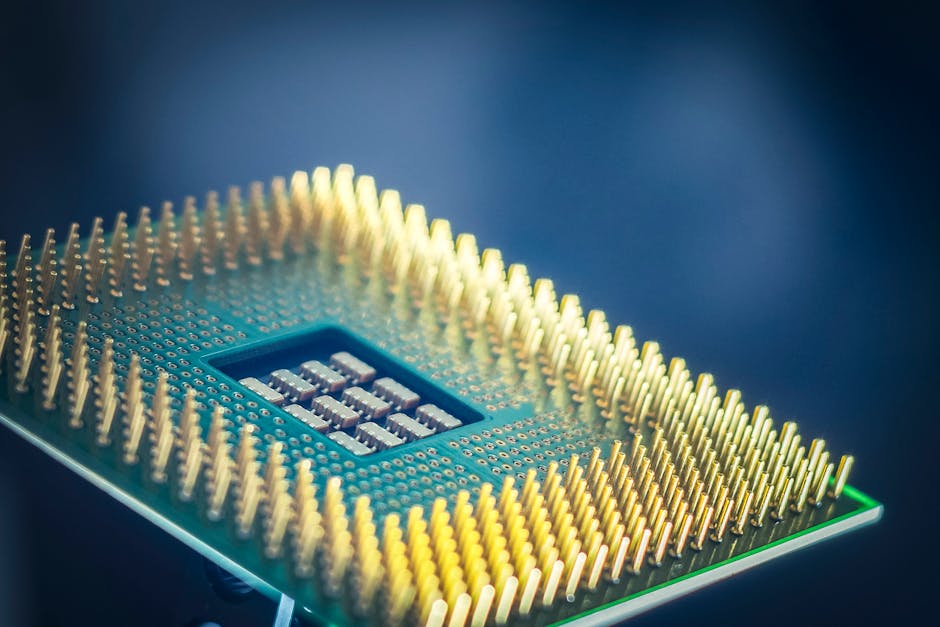
Featured image alt text suggestion (SEO): “Latest AI chip performance in a laptop running local NPU tasks and GPU workloads in 2026.”