iPhone vs Android Security: A Practical Comparison of Updates, Permissions, and Privacy Controls
Quick answer: iPhone vs Android security depends on how you manage updates and permissions
In daily use, iPhones usually feel simpler because Apple controls both the hardware and the app store rules. Android security is strong too, but your real safety depends a lot on the phone model, the update history, and how careful you are with app permissions.
As of 2026, the biggest difference isn’t “who is safer by default.” It’s how fast you get security fixes and how easy it is to say “no” to risky access (like location, contacts, mic, and files). That’s why I treat this as a checklist problem, not a brand war.
Update speed and security patches: where iPhone usually wins (and where Android catches up)
Updates are the fastest way to reduce risk because they fix security holes before attackers use them. iPhone users often get security updates that cover the device models Apple still supports, and the rollout is usually consistent.
On Android, the story depends on the manufacturer and the year you bought your phone. Some brands post security patches regularly, while others fall behind. This matters because a lot of real-world attacks start by scanning for known bugs.
What “security updates” mean in plain English
A security update is a software update that fixes vulnerabilities—places in the code that attackers can use. These are different from feature updates (new camera modes, new emojis, new UI changes).
Look for a “Security patch level” date in your Android settings, or in iOS you’ll see the update version. If you’re behind by months, you’re taking on more risk than you need to.
Practical check: how I decide if an Android phone is “safe enough” in 2026
When I’m helping someone pick a device, I do three quick checks:
- Security patch cadence: Search the phone model name + “security updates” and check if the company actually ships monthly patches.
- How long it’s supported: Some phones get years of updates. Others don’t.
- Update method: Newer phones often have easier update paths and cleaner app compatibility.
I don’t just look at what the marketing page says. I look at what people report and what the patch level actually shows.
What most people get wrong about updates
People think updates are optional because the phone “seems fine.” Security issues don’t always cause obvious problems right away. They can sit quietly for months until someone builds an exploit.
Also, many Android users disable auto-updates to save battery. I get it, but it’s the wrong tradeoff if the phone is also your banking and email device.
App permissions: iPhone is stricter by default, but Android gives more knobs
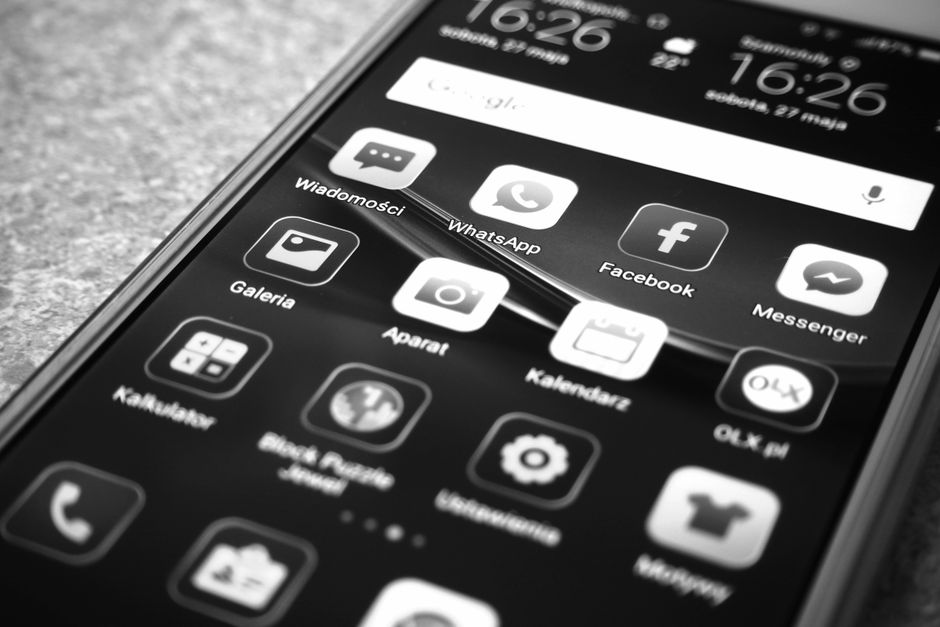
Permissions are how apps ask for access to your stuff—your location, microphone, photos, contacts, and more. If permissions are wrong, even a “safe” app can become risky.
Apple tends to start you from a stricter baseline. Android lets you manage permissions more deeply, but that also means it’s easier to miss something.
Location permissions: the difference you feel day to day
On iPhone, most apps push you toward clear choices: “While Using the App” or “Never,” and they don’t always get background access. On Android, you can choose similar options, but some phones show the choices in ways that feel less clear.
In real life, background location is the part that drains battery and increases privacy exposure. If you see an app using location all day when you never opened it, that’s a red flag.
Microphone and camera: both platforms can be controlled, but check the details
Microphone access matters because it can be abused for spying. iOS shows clear indicators and gives you strong controls. Android also shows indicators, but the exact UI varies by version and phone skin.
My rule is simple: if an app doesn’t need the mic for your job (voice notes, calls, video tools), remove mic permission and only add it when you’re using the feature.
Photos, files, and “limited access” (the permission that surprises people)
“Limited photo access” is a big deal. It’s a permission mode where the app can only see the photos you pick, not your whole library.
iOS has strong controls here, and Android has improved too, but not every app behaves the same. When an app offers “Choose photos” instead of “Allow all photos,” take the safer option.
Privacy controls: the settings that actually stop data sharing
Privacy controls are not just switches. They are the last line of defense when an app tries to collect more than it needs.
Both iOS and Android give you ways to limit tracking and reduce what apps can see. The key is knowing where the controls live and checking them after you install new apps.
Tracking protection and ad tracking
Tracking refers to how companies follow your activity across apps and websites, often to show ads. On iOS, Apple pushes privacy features that limit cross-app tracking by default. Android has similar controls, but you have to enable them.
In 2026, I still recommend the same move for everyone: turn on privacy settings for tracking and review “Ad personalization” options inside your phone’s privacy or Google settings area.
Permission review after installs: a habit that beats “set it once”
Most people change privacy settings once, then forget. I’ve seen the same issue on both platforms: you install an app for one purpose and later it asks for more access.
Set a calendar reminder every 2–4 weeks. Spend 5 minutes checking:
- Which apps have location access
- Which apps have camera or mic access
- Which apps have contacts access
- Which apps have “all photos” permission
This small routine does more than arguing about which phone brand is “best.”
Security risks in the real world: what attackers actually do

Security isn’t just about bugs in apps. Attackers also use scams, fake login pages, and risky links. This is where iPhone vs Android becomes less about OS design and more about user habits.
I’ve handled cases where the phone itself wasn’t the problem—the person clicked a convincing message, then approved a prompt. The right security settings help, but you still need a basic filter.
Common scenarios I see (and how to stop them)
- “App wants full access” prompt: The app asks for contacts + mic + location. If it doesn’t make sense, cancel. On both iOS and Android, you can change permissions later.
- Fake support calls: A scammer calls and says they’re “from Apple” or “from Google.” Real support guides you to check settings or confirm account details, not to install unknown apps.
- Phishing links: The attacker sends a link that looks real. Don’t log in from the link. Open the official app or type the site yourself.
- Over-permissioned messaging apps: Some apps request photos/files and contacts. If it’s not needed, turn it off.
Original insight: permission creep is the real long-term threat
Here’s the angle I don’t see enough in generic comparisons: the long-term risk isn’t the first permission you grant. It’s the permissions an app gains after updates, new features, or marketing changes.
I’ve seen well-known apps request extra access after they launch a new feature. The app isn’t automatically malicious, but “more access” means more exposure. That’s why the permission review habit matters more than choosing iPhone vs Android as a brand identity.
People Also Ask: iPhone vs Android security questions
Is iPhone more secure than Android?
iPhone is often more secure by default for most people because Apple limits app store behavior and keeps permission prompts straightforward. Android can be just as secure, but the phone model, update speed, and how you set permissions can change the outcome a lot.
Do Android security updates really differ by phone brand?
Yes. Two Android phones running “the same version” can still get different security patch schedules. Check the security patch level date in the settings, and don’t rely only on the year the phone was released.
Which is safer for privacy: iPhone or Android?
Both can be private when you use the right settings. iPhone tends to have more privacy controls on by default, while Android often gives more options that you must actively review.
Can apps spy on me in iOS or Android?
Any app can collect data if you allow the permissions and if its privacy policy allows certain data use. The best defense is limiting permissions (location, mic, camera, contacts, photos) and checking what apps are allowed to access after each update.
Step-by-step: my 10-minute security setup for iPhone and Android
If you want a practical outcome, do this checklist today. It doesn’t matter whether you have an iPhone or Android—these steps reduce risk quickly.
iPhone checklist (10 minutes)
- Turn on automatic iOS updates (Settings > General > Software Update > Automatic Updates).
- Review Location Services (Settings > Privacy & Security > Location Services). Set most apps to “While Using.”
- Check Microphone and Camera access (Settings > Privacy & Security). Turn off anything you don’t use.
- Limit photo access using “Selected Photos” when apps offer it.
- Turn on two-factor authentication for your Apple ID and key accounts.
Android checklist (10 minutes)
- Enable security updates and auto-updates in your system settings and Play Store.
- Check the security patch level date in Settings. If it’s old, treat the phone like it’s overdue.
- Review app permissions (Settings > Privacy > Permission manager). Remove mic/camera/location from apps that don’t need it.
- Use “Allow only while using” for location and switch background access off when possible.
- Set up strong account protection with 2-step verification (and a backup method).
I like this checklist because it turns “security” into actions you can finish. That’s the difference between advice and results.
Comparison table: iPhone vs Android security controls that matter
Here’s a side-by-side view of the areas people care about most. Remember: Android changes by model and version, so treat this as a typical pattern, not a universal rule.
| Security Area | iPhone (typical) | Android (typical) | What you should do |
|---|---|---|---|
| Update speed | Often consistent across supported models | Varies by brand and update policy | Check patch level date on Android |
| App permission prompts | Clear prompts, stricter defaults | More options, easier to miss settings | Review permissions after installs |
| Background access | Tends to be more limited | Depends on manufacturer and settings | Limit background location/mic |
| Privacy controls | Common controls are easier to find | Controls are powerful but scattered | Use a privacy checklist every month |
| User habits impact | Still matters a lot | Still matters a lot | Don’t click suspicious login links |
My recommendation: how to choose if you care about security in 2026
Choosing a phone for security is really choosing a support life and a permissions workflow you’ll actually follow.
If you want the simplest path with fewer settings to chase, iPhone usually makes that easier. If you want more control and you’re willing to check permissions and update status, Android can be a great option—especially on models with a strong update track record.
Pick iPhone if…
- You keep phones for several years and want consistent updates
- You don’t want to manage as many permission settings manually
- You prefer clearer privacy prompts and fewer app-store surprises
Pick Android if…
- You like customizing permissions and you’ll review them
- Your specific phone model has a strong update history
- You want fine-grained controls for what apps can access
Related cybersecurity topics on this site
If you’re building a safer setup beyond phone OS choices, you’ll probably like these:
- How to Secure Your Smartphone Passcodes and 2FA
- Privacy Settings Checklist for Mobile Apps
- Phishing Scams on Mobile: How to Spot Them Fast
If you want one practical takeaway: the biggest wins usually come from account protection (2FA) and permission cleanup, not from brand loyalty.
Conclusion: the most secure phone is the one you update and configure
iPhone vs Android security isn’t a simple winner. It’s a trade between default strictness (iPhone often feels easier) and flexibility (Android gives more control but also more room to make mistakes).
Your actionable move today: turn on auto-updates, review mic/camera/location permissions, and check that your phone is on a recent security patch level. Do that, and you’ll be safer on either platform—no arguments required.