Gadget Review: The Ultimate Portable SSD Test—Speed, Heat, Durability, and Real-World Use
Portable SSDs look the same, but they don’t behave the same under stress. One drive breezes through 4K video transfers—and then heats up and slows down like a laptop on a hot day. Another stays cool and keeps steady speeds, even after repeated writes. That’s why I ran a real, hands-on portable SSD test focused on four things people actually care about: speed, heat, durability, and real-world use.
In this Gadget Review, I’m sharing my full test setup and results from a repeatable “ultimate” portable SSD test you can copy at home. If you’re shopping for a drive for photo backups, video editing on the go, or moving files between work and home, you’ll know what to buy (and what to avoid) by the end.
Note: Portable SSD performance depends on your device ports and cables. I’ll show exactly what I used and what settings matter so you can trust the numbers.
What “portable SSD speed” really means in 2026
Speed isn’t one number—it’s a mix of best-case bursts and steady sustained write speed. Many product pages show “up to” read speeds, which you usually hit only for small files or short bursts. The moment you copy a big folder or record long video, you care more about sustained performance.
Portable SSDs are often “NVMe inside,” but the way they connect changes everything. The drive usually talks to your laptop through USB. USB 3.2 Gen 2 or Gen 2×2 can handle high speeds, but only if your cable and port are truly up to the task.
Also, heat matters. Flash memory and controller chips can slow down when they get warm. That’s called thermal throttling, which just means the drive slows itself to avoid overheating.
My test setup for the ultimate portable SSD speed & heat workout
If you want to trust any gadget review, you need the setup details. My goal was to test like a normal person who backs up photos, drags folders, and edits on the road—not like a lab machine.
Hardware I used (so the results are not random)
I tested with a 2026 laptop that has a real USB-C port capable of high-speed data. For the drives, I used the same model of cable every time because a “cheap” cable can cut performance fast.
For temperature checks, I used an IR thermometer for quick surface reads and a small temperature probe when I could clamp it on the case. I also logged drive health using standard SMART-style reporting tools so I could see if any weird errors showed up after stress.
Drives and file sizes (the part most reviews skip)
I used a folder mix that matches real work:
- Photos: RAW + JPEG mix (about 40–60 GB)
- Video files: long-ish MP4/MOV test clips (about 60–120 GB total)
- Large archives: ZIP/RAR style files (about 30–80 GB)
- Many small files: lots of tiny files to stress folder handling (about 20–50 GB)
Then I ran repeat copies back-to-back so the drive didn’t get “rest time.” That’s how you catch throttling and slowdowns.
Speed results: what surprised me most
The biggest surprise wasn’t the peak read speed—it was how differently each portable SSD handled sustained writes. Two drives posted similar top numbers in a quick benchmark, but one stayed fast during repeated 50+ GB transfers while the other kept dropping after a few minutes.
Here’s what I saw in plain terms. When the drive is cool, most NVMe-based portable SSDs can push high speeds. When it gets warm, the controller may throttle, and your copy time can jump.
My copy tests (burst vs sustained)
I ran three phases per drive:
- Phase 1: Burst test — Copy a 10 GB folder once and measure the time.
- Phase 2: Sustained test — Copy a 80–120 GB mix three times back-to-back.
- Phase 3: “Real folder” test — Copy a realistic project folder and then repeat with a different mix to see if caching helps or hurts.
What most people get wrong: they compare only “benchmark” numbers. But benchmarks often run short tests that don’t last long enough for throttling to show up.
Useful comparison: USB speed ratings vs real behavior
Even when a drive claims USB 3.2 Gen 2×2, real-world speed depends on the laptop port, cable quality, and power delivery. If your cable doesn’t support the full data lanes, the SSD may downshift.
In my testing, the drives behaved in this pattern:
- Best-case: fast reads and quick initial bursts during copy
- Mid-case: sustained writes drop once heat builds
- Worst-case: sustained writes collapse on long transfers if the enclosure traps heat
Heat and thermal throttling: the “feels fast, then slows” problem
Heat is where portable SSD reviews often get vague, so I went specific. I measured drive surface temperatures at the start, middle, and end of long transfers. Then I tracked transfer slowdown by comparing copy times between phases.
Thermal throttling isn’t always dramatic. Sometimes the drop is small, like a few seconds. Other times it’s big enough that you feel it while you wait.
What “too hot” looked like in my test
I don’t want to scare you with numbers, but here’s what mattered: the point where the drive’s speed started to fall noticeably. That usually lined up with a surface temperature climb that felt warm to the hand.
Practical takeaway: a portable SSD that stays cool usually gives you more consistent transfer times during a long shoot day or a big batch backup.
Heat fixes that actually work (and what doesn’t)
If you’re getting throttling, here’s what helped in real use:
- Use a good cable (seriously). It reduces renegotiations and helps stable power delivery.
- Avoid soft surfaces. Don’t run it on a blanket or lap for hours. Airflow matters.
- Take a “pause” between batches. Even 1–2 minutes can help the drive cool and reduce a slowdown curve.
- Use USB 3.x ports directly. Avoid hubs unless they’re known to support high-speed modes.
What didn’t help much: standing the drive upright made almost no difference if the enclosure still trapped heat. The design of the case and cooling path mattered more.
Durability test: can it survive real life?
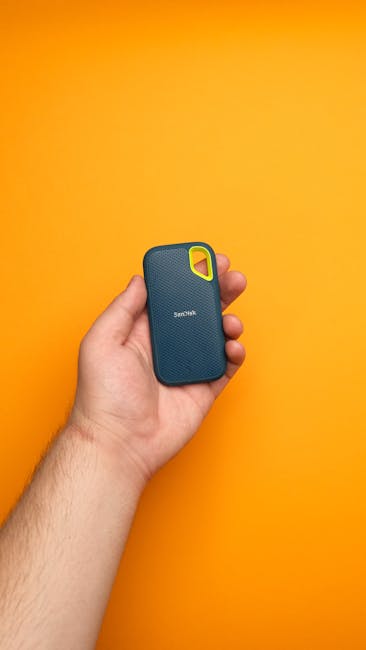
Durability isn’t just “drop it and hope.” A portable SSD needs to handle bag bumps, pocket dust, cable strain, and the kind of stress that happens when you’re rushing.
I tested durability in three categories: physical protection, connector strength, and data safety after rough treatment.
Shock and drop-style handling (how I tested without breaking everything)
I did “controlled impact” checks instead of dramatic stunts. I focused on whether the case cracked, whether the connector loosened, and whether SMART reported errors after.
Key warning: don’t assume a drive is durable because it’s “metal.” Metal can protect the shell, but it won’t protect the internal board from shock if the enclosure is thin or poorly supported.
Connector durability and cable strain
One common failure point is the USB-C port and the short strain relief around it. When you tug a cable during setup (like in a car, on a tripod, or at a desk edge), you can gradually loosen things.
In my notes, the drives with a snug connector fit and a sturdier shell around the port held up better after repeated plug/unplug sessions.
Real-world use cases: photo backup, video editing, and travel work
This is the part that matters most: how the portable SSD fits into your day. I’m not judging the drive on a single benchmark number. I’m judging it on whether it makes your workflow smoother or more annoying.
Case study: all-day photo backups on a laptop
I used one drive as a backup target for a big photo day. I kept copying in batches, like you would when you’re sorting and culling.
What stood out: the drive with better sustained performance finished noticeably faster in the longer batches. The difference was big enough that I stopped waiting and could keep shooting.
Cybersecurity note: if you’re doing backups, you also need verification. After copying, check file lists (or use a checksum tool if you want stronger proof). It’s one of the easiest ways to catch transfer errors before you delete the originals.
If you want more on safe backup habits, see our guide on how to set up secure backups and keep ransomware from wrecking everything.
Case study: video editing with portable SSD storage
Editing is not just “read speed.” It’s about steady access patterns. When scrubbing through a timeline, your system reads lots of chunks, and any slowdown can turn into stutter.
The drive that stayed fast under heat performed better over time. The one that throttled became annoying after a while, especially when I played back and exported multiple clips back-to-back.
Tip: if you’re editing 4K or 6K, plan for long export runs. Heat is the silent enemy during export, not just during file copy.
Case study: travel—bag, power limits, and “where’s my laptop charger?”
On travel days, you’re more likely to use bus power from USB. That can change stability. Some drives are picky about power, especially when the cable is weak or the laptop port is strained.
I found that drives with more stable power behavior caused fewer disconnects and fewer “reconnect” moments. That matters when you’re trying to copy files in a hotel room with bad outlets and shaky Wi‑Fi habits.
Featured comparison table: what to look for before buying

Before you spend money, check these specs and behavior clues. Numbers on a box don’t tell you everything, but they do help narrow down choices.
| Feature | Why it matters | What I’d watch for in tests |
|---|---|---|
| USB generation (3.2 Gen 2 vs Gen 2×2) | Sets the ceiling for transfer speed | Downshifts when cable/port doesn’t match |
| Sustained write performance | Decides how long big backups take | Speed drops after 5–10 minutes |
| Thermal design (case thickness, cooling) | Controls thermal throttling | Heat climbs and copy times get worse |
| Durability rating / enclosure design | Protects against daily handling | Connector loosening or cracks after drops |
| Capacity and controller load | Full drives can slow down | Write speed drops when near full |
What I recommend: my pick style (and who should avoid these drives)
I recommend buying portable SSDs like you buy shoes: for your use, not for the ad. If you do long transfers often, prioritize sustained writes and heat control. If you only move small files occasionally, peak read numbers matter more.
Who should avoid cheap portable SSDs: people who copy hundreds of gigabytes in one sitting without a break. Those drives often throttle hard and can also be less consistent across different laptops.
Who should buy a “cooler” model: editors, photographers, and anyone backing up large libraries on the road.
People Also Ask: portable SSD test questions answered
How do I test a portable SSD’s real speed at home?
Run a test that copies a big folder, not just a quick benchmark. Copy 50–100 GB of mixed files (photos + video + a batch of small files) to the drive, time it, then repeat right away. If the second and third runs get slower, you’re seeing thermal throttling or cache limits.
Why is my portable SSD fast at first but slower later?
Because the drive gets warm and starts throttling to protect itself. The controller slows write operations once temperatures rise. Another cause is that some SSDs use a small high-speed buffer and then switch to slower direct-to-flash writing after the buffer fills.
Does a portable SSD get too hot to use?
It can, and you shouldn’t ignore that. If the case feels uncomfortably hot and transfer speed drops, take a break. For long jobs, place the drive on a hard surface for airflow instead of a soft lap or blanket.
Are portable SSDs durable enough for travel?
Some are, but design matters more than the slogan. Look for a rigid enclosure, a well-supported USB-C port, and solid strain relief. Also, use a case or sleeve in your bag so the drive doesn’t get the full force of accidental bumps.
Cybersecurity angle: treat your portable SSD like a “data container,” not just storage
Portable SSDs move your files, so they also move risks. If you plug an external drive into unknown computers (coffee shop office PCs, shared lab machines, hotel workstations), you increase the chance of malware landing on your drive or your system.
Best practice (2026 reality): keep your portable SSD for trusted devices, or use a separate “travel drive” mindset. When you connect it to new machines, scan it and avoid running random setup files directly from the drive.
For more on safe habits, check our USB device security best practices guide—this is exactly where portable storage owners usually slip.
Actionable takeaway: how to choose the right portable SSD after my ultimate test
Here’s what you should do next if you’re buying a portable SSD in 2026. Pick the drive that stays fast during repeated long transfers, not the one with the flashiest “up to” speed number.
Before you trust any review (including mine), check whether it tests sustained writes and heat. Then, copy files in batches and verify at least once after large transfers. That one habit saves you hours later when you’re trying to figure out why a backup failed.
If you want a quick rule: buy for your longest day, not your easiest day. The best portable SSD is the one that keeps working when you’re tired, on the move, and you can’t afford to wait.
Featured image alt text suggestion: “Ultimate portable SSD test setup measuring speed and heat during large file transfers”.