SSD vs. HDD: Which Storage Upgrade Improves Speed the Most for Gaming and Productivity?
Quick answer: If you want the biggest speed jump for gaming and work, choose an SSD. Going from an HDD to any SSD (especially NVMe) usually cuts game loading and Windows boot time by a lot more than small CPU or RAM tweaks.
I’ve done this upgrade on multiple PCs over the last few years, and the “wow” moment is almost always the same: you stop waiting. The spinning drive just feels slow every time you open a game, launch a project, or copy big folders.
In 2026, storage upgrades are also one of the easiest upgrades you can do yourself—if you pick the right kind of SSD and set it up correctly.
SSD vs. HDD: the key difference that actually affects game and app speed
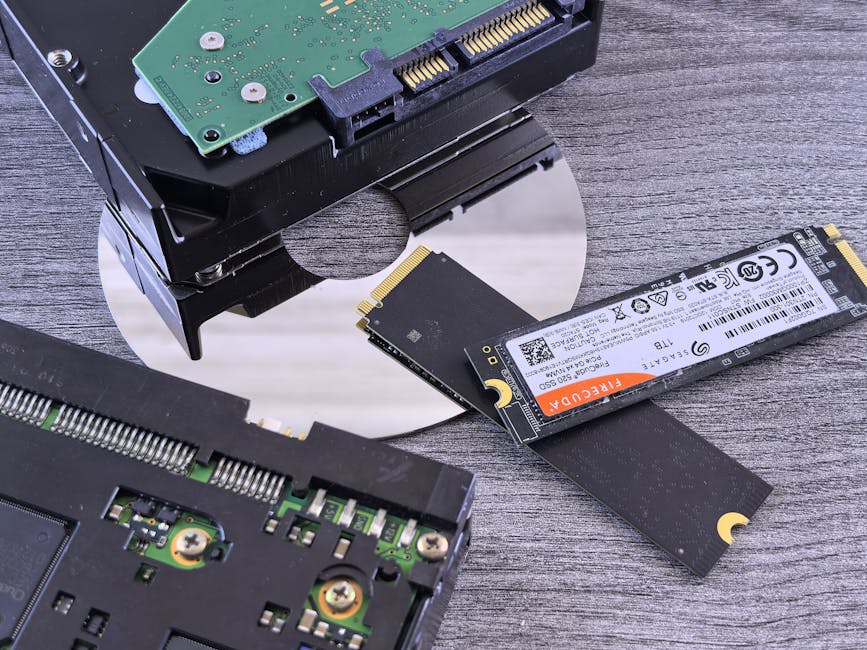
The core difference is how data is stored and found. An HDD is a spinning drive with moving parts, while an SSD uses flash memory with no moving parts.
HDD refers to a hard disk drive. It reads data by spinning platters and moving a read/write arm.
SSD refers to a solid-state drive. It reads data electronically, so access is much faster.
Why you care: games and productivity apps don’t just “need a big file.” They need lots of small bits of data quickly. SSDs handle that pattern far better.
How much faster is an SSD than an HDD? Real-world expectations (2026)
Speed isn’t just “max transfer rate.” For gaming and work, the biggest win is usually lower access time—how fast the drive finds the next chunk of data.
Here’s what I typically see when swapping an older HDD system drive for an SSD in a real setup (not a lab demo):
| Task | Typical HDD experience | Typical SSD experience | What you’ll notice |
|---|---|---|---|
| Windows boot | 30–90 seconds | 8–30 seconds | Less waiting, faster “ready” time |
| Game launch | 20–90 seconds | 10–45 seconds | Quicker entry to the match |
| Loading into a map/level | 30–120 seconds | 10–60 seconds | Less time on the loading screen |
| Opening big apps (Photoshop/Blender-like workloads) | Slow “freeze” moments | Snappier app start and file open | Fewer pauses when you click around |
| Copying large folders | Slow to mid speeds | Much faster copy times | Shorter “working while it copies” time |
One important note: a SATA SSD (the common 2.5-inch drive) is already a big improvement. An NVMe SSD (faster M.2 style) can be even better, especially for large game installs and heavy project files.
But even the “slower” SSD will usually beat an HDD in the exact moments you hate most.
Gaming performance: where SSDs help (and where they won’t)

SSD upgrades improve gaming speed most in places tied to reading data, not just raw FPS.
Here’s what SSDs tend to make better:
- Loading screens: faster level loads and quicker transitions.
- Texture streaming: less blurry “pop-in” after you move.
- Install size and file access: games install faster and files open faster.
- Stutter during gameplay: if your drive was the bottleneck, you’ll feel it.
Here’s what SSDs usually won’t do by themselves:
- Increase average FPS when your GPU is already the limit.
- Fix a weak CPU if you’re getting low frame rates due to simulation or AI load.
- Change your monitor refresh rate or frame pacing if the GPU can’t keep up.
My practical rule: if you’re waiting on a loading screen or the game stutters while it’s streaming, SSD is the right upgrade. If your FPS is low all the time, start thinking about GPU/CPU before spending on faster storage.
Productivity speed: SSDs make your computer feel “awake” again
For productivity, SSDs mainly help with responsiveness. You click, and the system has data ready instead of thinking hard.
In daily work, SSD speed shows up in things like:
- App launch: browser startup, creative apps, and IDEs open quicker.
- Project open time: large project files load faster.
- Swapping files: when Windows uses pagefile or your apps store temp files, SSD keeps it smoother.
- File operations: exporting, copying media, extracting archives.
One original insight I learned the hard way: many “slow PC” complaints are really “slow scratch space.” If your working folder (downloads, media cache, scratch/temp folders) sits on an HDD, you’ll feel lag even if your CPU is fine.
So when you upgrade, don’t just move the OS. Move the things you constantly touch: downloads, working project folders, and app caches.
Which SSD type is best for gaming + work: NVMe vs SATA?
For most people in 2026, NVMe SSDs give the best all-around experience, but SATA SSDs still give a huge boost.
NVMe SSDs connect directly over PCIe. They typically feel faster for large installs and big file work.
SATA SSDs use the older SATA connection. They’re still a major upgrade from HDD, especially for boot and app load.
What I recommend:
- If your system supports NVMe: pick an NVMe SSD for the main drive (OS + main games/apps).
- If you only have SATA slots: a SATA SSD is still the best money you can spend for speed.
- If you already have an NVMe drive: add a second SSD for games and big projects, then keep your OS drive for apps and system files.
What most people get wrong when buying SSDs for an upgrade
Here are the mistakes I’ve seen again and again in real builds and help chats.
- Buying the wrong physical size: some people order a 2.5-inch SSD but their PC only has M.2 slots (or the other way around).
- Forgetting the motherboard supports the right NVMe generation: newer boards support faster PCIe lanes, but even older boards benefit a lot from SSDs.
- Thinking “more speed” means better: you don’t need the most expensive PCIe 5.0 drive to feel better. A solid PCIe 3.0/4.0 NVMe is plenty for gaming and everyday work.
- Not cloning and losing time: wiping the system and reinstalling everything takes hours. Cloning can save a full weekend.
- Putting downloads and caches back on the HDD: the upgrade feels weaker because your “active files” still sit on the old drive.
If you want a clean setup, decide first: are you cloning, or are you doing a fresh install? Both work. Cloning is faster. Fresh install is cleaner.
Step-by-step: upgrade from HDD to SSD without breaking anything
Below is the simplest safe path I recommend for 2026. It’s not the fastest trick, but it’s the least stressful.
1) Check your PC ports and choose the right SSD
Look for an M.2 slot (NVMe) or a 2.5-inch SATA bay (SATA). If you’re not sure, check your motherboard model and search for “M.2 slots” or “SATA ports.”
Tip: NVMe drives are often labeled by size like 2280. That means 22mm wide and 80mm long.
2) Back up important files (don’t skip this)
Even cloning can fail. A backup doesn’t slow you down much compared to losing photos, projects, or game saves.
If you work with sensitive projects, also consider using tools and habits we cover in our cybersecurity content, like keeping backups and locking accounts.
3) Clone the HDD to the SSD (best for most people)
Cloning copies your current Windows and files so you can boot right away. Use reputable cloning software and follow the prompts carefully.
After cloning, shut down, swap the drives, and boot. If it doesn’t start on the first try, check BIOS/UEFI boot order.
4) After you boot: move your “active folders”
This step is where the upgrade feels extra fast. Change settings so your downloads, work folders, and app caches go to the SSD.
Common places to move:
- Downloads folder
- Documents / Desktop
- Game install library
- Photos/video project folders
- App temp/scratch folders (in app settings)
5) Confirm drive health and enable what you need
In Windows, check drive health tools and confirm features like TRIM for SSDs. TRIM helps the SSD keep performance steady over time.
If you use a laptop, also check power settings. Sometimes “balanced” mode is fine, but you want the system to avoid aggressive power saving on the storage side.
SSD vs. HDD for gaming and productivity: which should you buy?
If you’re deciding today, here’s the clean choice logic I use.
| Your current setup | Best upgrade | Why |
|---|---|---|
| OS + games on an HDD | NVMe SSD for OS + key games | Biggest reduction in boot time, loading screens, and stutter |
| OS on SSD, games on HDD | Second SSD (prefer NVMe if available) | Game streaming and loading get the biggest improvement |
| OS on SATA SSD, heavy app work is slow | Upgrade to NVMe (or add NVMe cache/work drive) | Helps with big file work and frequent reads/writes |
| Storage is mostly for media archive | HDD is still fine | Cheaper per TB for files you don’t constantly access |
People Also Ask: SSD vs. HDD questions gamers and workers ask a lot
Is an SSD or HDD better for gaming?
An SSD is better for gaming because it reduces loading time and helps with game data streaming. The biggest benefit shows up when your game is installed on the SSD, not just when Windows is on an SSD.
If you’re on an HDD right now, moving games to a SATA SSD alone usually feels like an upgrade. Moving to NVMe feels even smoother, especially with bigger modern games.
Will switching from HDD to SSD increase FPS?
Switching from HDD to SSD usually doesn’t boost your average FPS much if your GPU is the bottleneck. What it often improves is the “feel” of the game: fewer loading waits and less stutter when new areas load.
If your FPS is already high but your game hitches, storage is the likely cause. If your FPS is low everywhere, focus on GPU/CPU first.
What’s the best SSD for gaming in 2026?
The best SSD for gaming in 2026 is one that fits your system and gives you enough space for your library. For most setups, a mid-range NVMe SSD with good reliability is the sweet spot.
I don’t chase the fastest numbers when gaming is the goal. I chase setup comfort: enough storage, reliable performance, and the right slot type so I don’t waste time returning parts.
If you want a simple shopping checklist, see our how to upgrade your PC storage guide for port checks and safe cloning steps.
Do I need an NVMe SSD, or is SATA enough?
SATA is enough for most people. If your PC only supports SATA SSDs, you still get a major speed jump over an HDD.
NVMe is the better pick when you have the M.2 slot and want the smoothest results for big game installs, huge projects, and frequent file work.
Should I replace my HDD completely or keep both?
Keep both if you can. Use the SSD for Windows, games, and active projects. Keep the HDD for backup storage, old games you don’t play often, and large media archives.
This hybrid setup is also a practical safety move: if something goes wrong with the SSD, you’re not losing everything at once.
Where cybersecurity fits: storage speed and safer habits
Fast storage doesn’t just improve performance. It also changes how quickly you can verify files and recover from issues.
In real life, ransomware and malware often hit when users are rushing. Having a clean backup strategy and fast drives means restores and recovery steps are less painful.
If you want related tips, check our cybersecurity posts on backups, patching, and safe downloads. The storage upgrade is the speed win; the security habits are the protection win.
Conclusion: the upgrade that improves speed the most is an SSD—then place your games on it
If you only do one thing, do this: replace your HDD with an SSD and install your games (and active work files) on the SSD.
For gaming, that’s where the biggest “I’m not waiting anymore” change happens. For productivity, it’s the responsiveness you feel every time you open an app, export a project, or search through folders.
My final, practical takeaway for 2026: buy the right SSD for your ports, clone if you want speed and less hassle, and move downloads/work/game libraries off the old drive. That’s how you turn storage upgrades into real everyday speed.
Featured image alt text suggestion: “SSD vs HDD upgrade for gaming and productivity showing faster loading on an NVMe SSD”