
Ransomware Recovery Playbook: What to Do in the First 60 Minutes After an Attack
I’ve seen this play out more than once: the moment a ransomware note appears, everyone panics and starts clicking random buttons. That’s how small damage turns into weeks of lost access. The good news is the first 60 minutes follow a pattern, and if you stick to it, you can stop the bleeding and make recovery way easier.
Ransomware Recovery Playbook: in the first hour, your top goals are simple: contain the damage, keep proof of what happened, and protect backups from being wiped. This article gives you a clear, minute-by-minute checklist you can actually use in 2026 when you’re under pressure.
Ransomware Recovery Playbook Takeaway: Contain first, document everything, then restore
Ransomware Recovery Playbook actions are about order. If you restore too early, you can pull the attacker’s changes back into your network. If you don’t document, you lose details that help incident response and insurance claims. And if you don’t contain, the malware spreads to file servers, backups, and shared drives.
Quick definition: Ransomware is malware that encrypts your files and demands payment to get them back. Recovery is the work of getting systems back to normal using clean backups and safe rebuilding steps.
Minute 0–5: Confirm it’s ransomware and isolate affected systems
In the first 5 minutes, your job is to stop the spread. When people see strange file names and a ransom note, they assume it’s ransomware and keep typing passwords. That’s risky.
What to check right now (no guessing)
Look for clear signs like:
- New file extensions across many folders at once (example:
.lockedor.crypt). - A ransom note text file or HTML page dropped into many directories.
- Windows event logs showing mass file rename/encrypt behavior.
- Multiple user accounts suddenly failing or logging in from unusual places.
If you can, find one affected device and one unaffected device. That lets you compare what changed. In my experience, you’ll usually see the encrypted pattern first on a workstation or a file share that the workstation syncs to.
Isolation steps that don’t make it worse
Do not “soft restart” infected machines. Reboots can keep the attackers connected and can help them encrypt more data.
- Unplug the network for affected machines. If it’s a laptop, remove Ethernet and turn off Wi‑Fi. If it’s a server, pull the switch port or disable the network interface.
- Disable shared access from the infected host. If you can do this fast, stop SMB shares so other devices can’t pull encrypted files.
- Block inbound traffic at your firewall for the attacker’s likely ports (common ones: RDP 3389, SMB 445, WinRM 5985/5986). If you’re unsure, at least block lateral movement traffic between internal subnets.
What most people get wrong: they disconnect only the one computer they see. Meanwhile, the attacker already touched the file server and backup system. Isolate anything that shows encryption activity or suspicious logins.
Minute 5–15: Preserve evidence and get the incident response team aligned
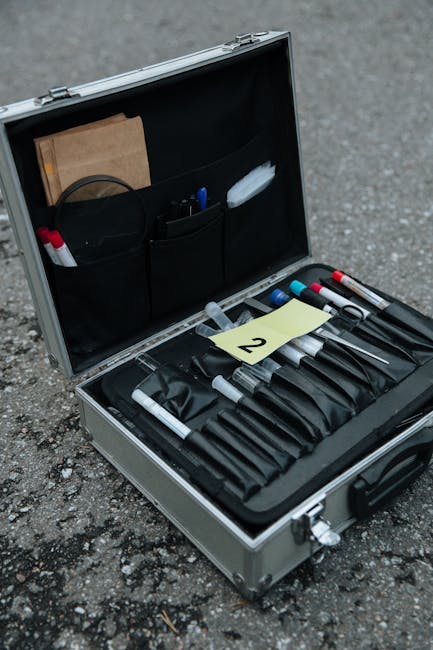
Evidence matters even if you plan to rebuild everything. Attackers leave clues in logs, memory, and network traces. Those clues help you find the entry point and the “second stage” that keeps returning.
Stop changing things, start capturing them
Do these things before you wipe systems:
- Record the timeline: exact time you noticed symptoms, time you disconnected devices, and who did what.
- Collect key logs from at least one affected machine and one admin workstation. For Windows, start with Event Viewer logs for authentication failures and system changes.
- Export system info (for example, running services list, scheduled tasks, and startup items). If your team uses Microsoft Sysmon, capture those logs too.
- Save the ransom note (full file copy and screenshot). Don’t edit it.
If you’re using a tool like Microsoft Defender for Endpoint, check the alert page for device actions taken. If you’re using SentinelOne or CrowdStrike Falcon, pull the timeline view for the infected endpoint.
Assign roles fast (it keeps people from stepping on each other)
Even a small team needs roles. Here’s a simple setup I recommend:
- Incident Lead: directs actions and records the timeline.
- Containment Lead: isolates network and blocks traffic.
- Evidence Lead: captures logs and copies ransom notes.
- Recovery Lead: validates backups and plans rebuild.
- Comms Lead: updates leadership and key partners (like MSPs and insurance).
Tell everyone one rule: no one runs cleanup scripts until Evidence Lead says it’s okay.
Minute 15–30: Protect backups and stop backup encryption
This is the part people underestimate. Ransomware doesn’t just hit PCs. In many real cases, it targets shared drives and backup locations right after it gets a foothold. In 2026, ransomware groups also use tricks to find “where backups live” through permissions and network shares.
Check backup type first
Your best move depends on your backup setup:
- Local disk backups (USB drives, NAS, attached drives): often get encrypted if left connected.
- Network backups (Windows Server Backup over SMB, backup share): can be hit via the same access ransomware uses.
- Cloud backups (AWS, Azure, GCP, SaaS backup tools): may be safe if immutability is enabled.
- Immutable backups: stored in a way the attacker can’t change or delete (example: object lock / WORM settings).
If you’re not sure what you have, don’t guess. Check your backup dashboard and inventory in the control room, then move quickly.
Backup protection checklist (do this immediately)
- Disconnect backup targets that are directly reachable by the infected systems. If backup disks are mapped as drives, unmap them and power down where needed.
- Disable backup jobs that might start writing over bad data. If a job runs after encryption begins, it can save the encrypted versions as if they were normal.
- Turn off “sync” folders (OneDrive/SharePoint sync folders are common). If ransomware has access to those sync endpoints, you’ll spread the damage into the cloud.
- Preserve “last known good” backup copies by freezing a snapshot. If you use virtualization, keep a snapshot of the backup server and the file server state as evidence.
Concrete example: I once worked with a small business where their NAS backup was always mapped to a Windows file server via a drive letter. As soon as the file server got hit, the ransomware encrypted the NAS shares too. Disconnecting the NAS within the first hour prevented a full double wipe.
Minute 30–45: Decide whether to take systems offline for good
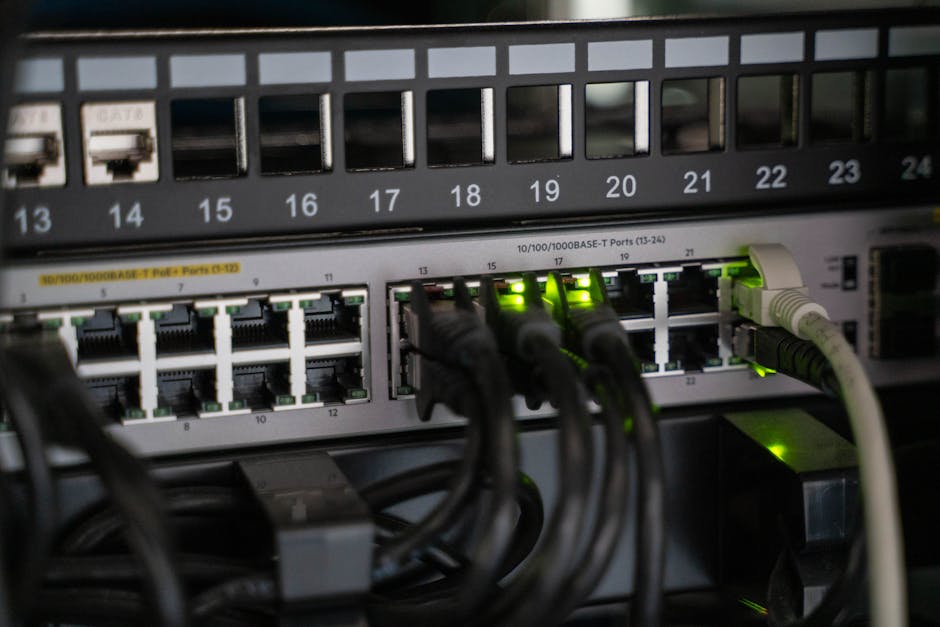
At this point, you’re done “experimenting.” Your next decision is whether to keep systems offline while you investigate, or bring them back in a controlled way.
Bring-up rules (simple and strict)
Here are clear rules I follow when writing recovery plans:
- No affected system comes back online until you confirm it’s clean. “Clean” means no suspicious scheduled tasks, no odd startup items, and no active connections to attacker infrastructure.
- Do not trust password changes if you haven’t contained lateral movement. Change passwords only after you block the attacker and validate persistence is gone.
- Do not restore from backups until you know which backup sets are safe.
If your org is large, you may keep some non-affected systems up. But keep strict network segmentation. The safest way is to move recovery into a “rebuild zone” (isolated networks used for restoration and testing).
Minute 45–60: Start the Ransomware Recovery Playbook restore plan (safely)
The last 15 minutes should be about planning the next phase, not rushing to restore. A safe restore is a process: validate backups, verify file integrity, rebuild clean systems, then reconnect users.
Validate backups before you restore anything
For each backup source, confirm:
- Backup time: pick a point before encryption started.
- Backup consistency: check whether the snapshot includes system state and app data.
- Signs of tampering: look for missing files, changed hashes (hash is a unique “fingerprint” of a file), or backup logs that show abnormal errors.
If you use immutable storage, you usually have an easier time. If you use “normal backups,” you must treat them like they may already be poisoned.
Pick your recovery path: quick restoration vs. full rebuild
Here’s a clear comparison:
| Recovery Path | When it fits | Pros | Cons |
|---|---|---|---|
| File-level restore | Small number of affected systems | Faster for a limited scope | Harder to guarantee full cleanup if the malware had persistence |
| System rebuild from clean images | Most common after ransomware | Cleaner outcome, fewer “mystery issues” | Takes longer and needs more planning |
| Hybrid (rebuild critical servers first) | When downtime hits the business hard | Balances speed and safety | Requires good triage and careful sequencing |
My opinion: for ransomware, a full rebuild of impacted servers is almost always the safer choice. File restore alone can leave the attacker’s “backdoor” behind even if the files look normal again.
Sequence for rebuilding (what “good” looks like)
Use this order to reduce re-infection risk:
- Rebuild domain controllers and core identity first if they’re affected. Identity is where attackers often come back from.
- Rebuild file servers and shared storage. Reconnect shares only after malware checks pass.
- Rebuild email and collaboration systems if they were reachable. Ransomware sometimes grabs credentials from multiple sources.
- Re-image endpoints (or re-enroll them cleanly in your EDR). Don’t “repair” infected desktops.
- Bring apps back in waves. Start with the systems that support the most critical work.
- Monitor for reoccurrence for at least several days. Watch for suspicious authentication attempts and new persistence.
If you’re using managed EDR, check your console for “persistence” indicators like unknown services and scheduled tasks.
People Also Ask: How long does ransomware recovery take?
Direct answer: Most orgs need days to weeks. If you have immutable backups and clean rebuild images ready, you can often recover faster. If backups were hit or you need to rebuild the identity layer, expect longer timelines.
In practical terms for 2026, smaller businesses with good offline or immutable backups can sometimes restore core systems in 24–72 hours. Larger environments with multiple file servers, apps, and identity dependencies often take 1–4 weeks.
People Also Ask: Should I pay the ransom?
Direct answer: I don’t recommend paying. Even when payment leads to a decryption tool, you still face key problems: you can’t trust the tool, attackers may demand more, and you often have ongoing access to your systems.
Payment also creates a bigger risk for your business later because it signals you’re willing to pay. If you’re considering payment, do it only after you’ve engaged legal counsel and a proper incident response firm. And even then, assume there’s no guarantee.
People Also Ask: What should I tell employees in the first hour?
Direct answer: Tell them what to stop doing and what to report. The first hour is not the time for long tech explanations.
- “Unplug from the network if your screen shows a ransomware note.”
- “Do not open attachments or unknown links.”
- “Do not try to fix it yourselves or run ‘cleanup’ tools.”
- “Report the time you noticed it and which devices show the ransom message.”
Also, kill the “chat about it.” I’ve seen teams accidentally share details with the attacker using common vendor support channels. Keep comms inside your incident team.
Real-world mini case: Why the first 60 minutes changed the outcome
Here’s the part that stuck with me. A mid-sized company saw a ransom note at 9:12 AM. Their IT lead immediately isolated the workstation, but the attack was already in their file server. The first attempt brought the file server back online too early, and the encryption kept rolling.
On the second run, they did it properly: they blocked SMB traffic, isolated backup storage, and captured logs before rebuilding. They ended up restoring from a backup set that predated the encryption, and the whole recovery shrank from “unknown weeks” to a clear 10-day plan.
The takeaway is blunt: the first hour decides whether you’re restoring clean copies or restoring a crime scene.
Tools and checks that help during ransomware recovery
You don’t need a perfect stack to recover, but you need basics. Here are concrete tools and checks that fit common tech environments in 2026.
Endpoint protection and EDR
Use your EDR console to:
- Find what process started the encryption behavior.
- Check for persistence like scheduled tasks and new services.
- Verify isolation actions actually happened (network cut, process containment).
If your org only has basic antivirus and not EDR, recovery becomes more “manual.” That’s not a moral failure. It just means your documentation and rebuild plans matter even more.
Logging and monitoring
During recovery, logs are your map. Common sources include Windows Event Logs, Active Directory sign-in logs, firewall logs, and proxy logs. If you use a SIEM (security information and event management), pull a focused timeline: the first suspicious login to the point where encryption starts.
Backup validation
Test restores on a safe machine whenever possible. If you can spin up a VM and mount a backup snapshot, do that before you need it. For file backups, verify at least 10–20 random files from critical folders and compare them to expected versions.
Common mistakes in ransomware recovery (and how to avoid them)
Most ransomware recovery failures aren’t about the malware being too strong. They’re about human choices under stress.
Mistake 1: Restoring from a backup without checking timestamps
If you restore after encryption started, you bring encrypted data back. Recovery then looks like it “didn’t work,” but it really means your restore point wasn’t clean.
Mistake 2: Leaving network shares online
Shared drives are magnets. If one endpoint stays infected, it can re-encrypt what others restore. Isolate shares and reconnect them only when servers are rebuilt and scanned.
Mistake 3: Changing passwords too early
Attackers often keep access using stolen sessions. If you change passwords while the malware is active, the attacker can still use existing session tokens. Block the attacker first, then rotate credentials as a later step.
Where this fits in your broader cybersecurity and tech setup
If your blog reading list includes cybersecurity basics, you’ll recognize the theme: ransomware recovery is a piece of the bigger puzzle. It connects directly to incident response planning, endpoint security, and backup strategy. If you want related guidance on how attackers break in and how to reduce the odds, check out our other posts like Incident Response Basics: A Practical Checklist for Teams and Backups (3-2-1) and Why Immutability Matters in 2026.
For people who manage devices like laptops, phones, and smart office tech, you may also like our gadget-oriented security tips in Zero Trust for Small Business: What to Turn On First. The goal is the same: reduce the “blast radius” when something goes wrong.
My practical 60-minute ransomware recovery checklist (print this)
Use this as a quick script for your team. Keep it near your helpdesk or incident binder.
- 0–5 min: Confirm the ransomware signs, then isolate affected systems by unplugging or disabling network access.
- 5–15 min: Capture evidence (timeline, logs, ransom note copies) and assign incident roles.
- 15–30 min: Protect backups: disconnect backup targets, stop backup jobs, freeze snapshots, and stop sync folders.
- 30–45 min: Decide which systems stay offline. Do not trust cleanup or partial reboots.
- 45–60 min: Plan restoration: validate backup points, choose restore vs rebuild, and start sequencing clean system rebuilds.
Conclusion: If you do only one thing, protect backups and stop spread in the first hour
The real win in ransomware recovery is not finding the “perfect tool.” It’s acting in the right order. Isolate infected devices fast, preserve evidence, and protect backups from being encrypted. Then plan a safe restore or rebuild based on clean backup points.
If you take one action today, make sure your team can follow this ransomware recovery playbook without asking permission when the clock starts. Print the checklist, test your backup restore process once, and keep the incident roles written down. When something hits, you’ll be ready instead of guessing.
Featured image alt text (for your CMS): “Ransomware Recovery Playbook: technician isolating network cables during the first 60 minutes after an attack”