
Best Budget Laptops for Tech Enthusiasts (2026): What to Look For Beyond the Benchmark Numbers
I’ve watched this happen more times than I can count: someone buys a “fast” budget laptop because the benchmark score looks great, then they’re stuck waiting forever when they compile code, run a local LLM, or stream games on a hot afternoon. The funny part is that the numbers were fine. The laptop just wasn’t built for real tech work.
The best budget laptops for tech enthusiasts (2026) aren’t just about peak FPS or a single synthetic score. They’re about the stuff that shows up during real use: cooling that doesn’t choke, RAM you can actually upgrade, storage that stays fast, good ports for dev gear, and battery life that doesn’t collapse after 90 minutes.
This guide is my practical checklist for picking a budget machine that feels quick in daily work—whether you’re coding, doing cybersecurity labs, building a home server, or tinkering with hardware.
What “best” means for budget tech enthusiasts in 2026
For tech enthusiasts, “best” means the laptop stays useful after the first week, not just on day one.
In 2026, the budget sweet spot is usually in two ranges: sub-$700 for “do the basics well” and $700–$1000 for “feels like a real dev box.” If you’re lucky, you’ll find something with 16GB RAM, an SSD you can upgrade, and cooling that lets the CPU run at steady speed.
Benchmarks are still useful, but they can hide problems. Many laptops use aggressive cooling for a short burst, so the score looks great. Then the fan ramps up, the power limit drops, and performance falls hard during long sessions like video export or a security scan.
Quick definition: Thermal throttling is when the CPU or GPU slows down to avoid overheating. It’s not a “maybe.” If the laptop is poorly cooled, it will throttle.
Look beyond benchmarks: the 8 specs that matter more
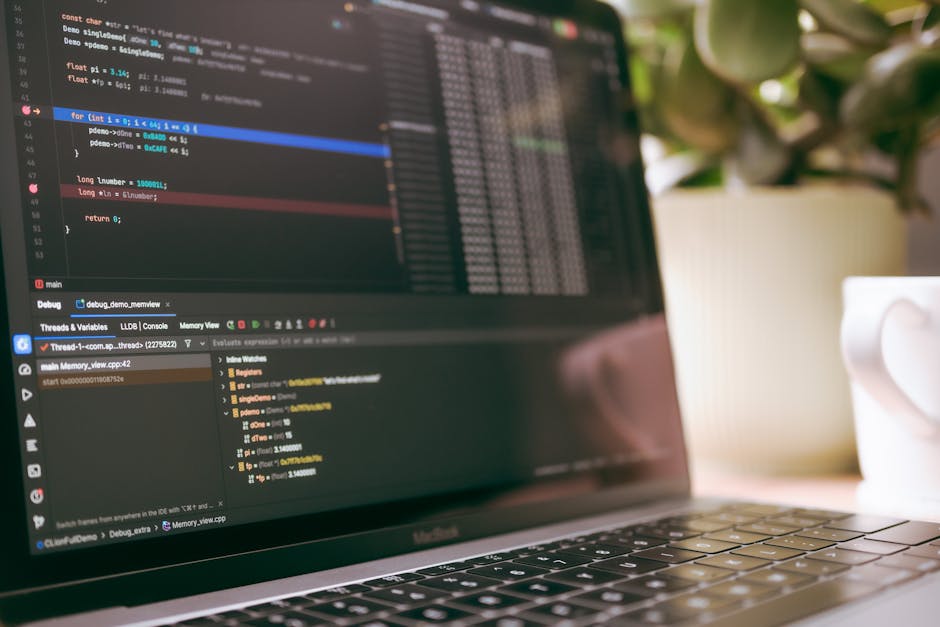
These are the eight things I check first because they affect how the laptop feels when you actually work.
1) CPU power limits and cooling, not just the chip name
The same CPU model can behave very differently between laptops. Two devices with the same “i5” or “Ryzen 5” can run at different sustained power levels.
What to do: find reviews that mention sustained performance after 15–30 minutes. If a review only shows a 3-minute benchmark run, treat it like a marketing screenshot.
Real-world example: when I run nmap scans and a couple of Docker containers for a cyber lab, I care more about steady CPU speed than a peak score.
2) RAM: 16GB is the floor, upgrade path is the win
RAM (random access memory) is where your active apps and project data live while you work. Too little RAM causes stutters and slow switching between tasks.
For 2026 budget laptops, I recommend:
- 16GB minimum for serious multitasking (browser tabs, IDE, terminals, VMs).
- 32GB if you run VMs often or keep large datasets open.
What most people get wrong: they buy a laptop with 8GB “because it’s cheap,” then they spend time fighting slowdowns instead of building projects.
Even better than having 16GB is being able to upgrade it. Some laptops solder RAM to the board. If that RAM is too small for your future plans, you can’t fix it later.
3) Storage speed and endurance (SSD matters more than people think)
An SSD is not just for “loading.” It affects how fast your tools respond while compiling, indexing code, and extracting archives.
Look for:
- NVMe SSD (not slow eMMC).
- Enough free space (SSDs slow down when they’re close to full).
- Upgradeable drive if you’ll store VM images or large toolchains.
If you plan to build cybersecurity labs, VM images can get big fast. I’ve seen a Kali-style setup plus a couple of guest images eat 100GB before you notice.
4) Port selection: dev work lives and dies by ports
Here’s the truth: you’ll end up buying adapters if your laptop doesn’t have the ports you need. Adapters aren’t expensive until you count the clutter and the time you waste.
For tech enthusiasts, I want:
- At least one USB-A (for older devices, external drives, USB dongles).
- USB-C with charging and data.
- HDMI or a good video-out option for a second monitor.
- SD card reader if you work with photos, cameras, or some creative workflows.
If you’re pairing it with a USB audio interface, a USB camera, and a network adapter, port layout matters even more.
5) Wi‑Fi and Bluetooth you can trust for labs and testing
For cybersecurity and tinkering, you care about stable wireless connections.
In many 2026 budget laptops, you’ll see Wi‑Fi 6. That’s usually good for home testing. If you need faster file transfers, Wi‑Fi 6E is better, but it won’t always show up at the low end.
I also check for Bluetooth reliability when using:
- wireless headsets
- keyboard/mouse combos
- BLE (Bluetooth Low Energy) sensors for lab tests
6) Display quality: refresh rate is nice, but color and brightness are practical
A lot of budget laptops list a high refresh rate. Cool. But if the screen is too dim, everything looks washed out in daylight.
My practical display checklist:
- Brightness: aim for at least “comfortable outdoors” levels. If the review gives nits, pay attention.
- Color: IPS panels are usually easier on the eyes and better for photo work.
- Resolution: 1080p is fine on a 13–15 inch laptop. 1440p can be great if it doesn’t hurt battery life.
If you’re doing any graphic work, I also care about consistent color across the screen. Cheap TN panels can look terrible fast.
7) Keyboard, trackpad, and fan noise: comfort counts when you code
This is the part reviewers often skip because it’s not a spec sheet.
For tech enthusiasts, a good keyboard matters because you’ll type a lot. A good trackpad matters because you’ll use it to copy, paste, and switch between terminals and windows.
Also: fan noise. When you’re running a security scan or compiling a project, a “quiet under load” laptop is a quality-of-life upgrade you feel every day.
8) Battery life under real tasks (not just video playback)
Battery claims are often based on video loops. That’s not how you code, test, or research.
Try to find test results for mixed use: web browsing plus a bit of coding, or idle time with Wi‑Fi on.
Here’s my rule: if the laptop can’t last 4–6 hours for normal web + notes work, it’s not a good “take it to a coffee shop” budget buy.
Best budget laptops for tech enthusiasts (2026): what I’d buy first
I’m going to keep this grounded in what matters, not just a list of names. Since availability changes by region, I’ll focus on types of models and the specs you should target when you’re shopping.
If you want, use this as a filter while comparing current deals.
The “best overall dev budget” checklist (target specs)
If I’m buying for general tech work—coding, cybersecurity practice, running containers, and using a second monitor—I target this baseline:
- CPU: a modern 6-core (or better) chip from the last 2–3 years
- RAM: 16GB minimum (prefer upgradeable to 32GB)
- SSD: 512GB NVMe minimum, ideally with an extra slot
- Ports: USB-A + HDMI + charging USB-C
- Wi‑Fi: Wi‑Fi 6 (Wi‑Fi 6E if the price isn’t painful)
- Cooling: review-confirmed sustained performance under load
Models in the “budget dev” category often come from mainstream lines like Lenovo’s ThinkPad E-series and IdeaPad tiers, ASUS VivoBook/ZenBook entry lines (when priced well), and Acer Aspire/Swift lines on sale. The exact device name changes, but the spec mix stays similar.
The “upgradeable storage/RAM” pick for long-term tinkering
If you like keeping laptops for years, the biggest win is repairability. Upgradable RAM and SSD turn a cheap purchase into a long-term machine.
What I check before I buy:
- Is RAM soldered or in slots?
- Is there a second M.2 slot?
- How easy is access to the bottom cover (and how many screws)?
If you like tinkering, this is where you can turn a “budget” machine into something that feels premium after you upgrade storage and RAM.
The “cybersecurity lab” pick (containers + VMs friendly)
For cybersecurity practice, I want stability more than raw graphics power. Many security tasks are CPU heavy and disk heavy.
My lab-friendly specs for 2026:
- RAM: 16GB minimum, 32GB preferred
- Storage: 1TB if you plan to store VM images (or plan to add one)
- Ethernet option: either a built-in port or reliable USB-to-Ethernet support
- Good cooling: sustained performance during longer scans
If you run tools like Burp Suite, nmap, and container stacks side by side, the laptop’s “under load” behavior matters more than the benchmark high score.
What to check in reviews (so you don’t get tricked by benchmark-only scores)
If you only read benchmark charts, you’re buying blind. This section is how I read reviews like a tech enthusiast.
The “15-minute test” and why it matters
A solid review should show sustained performance after the system heats up. If you only see a cold-start run, you’ll overestimate real speed.
When I’m choosing a budget laptop, I try to answer one question: “Does this laptop slow down fast under real work?” If yes, I pass.
Look for power limits and fan behavior under sustained load
Power limits are how much energy the laptop is allowed to use. Cooling affects whether the CPU can keep drawing that power.
Practical sign: if the laptop gets extremely loud after 10–15 minutes, it may be unstable for quiet work or shared spaces.
Check upgrade guides, not just specs
Some laptops have the right specs on paper but make upgrades a pain. You want to avoid a situation where you can upgrade storage but the SSD sits under a weird bracket you can’t remove easily.
Before buying, I search for:
- “model name RAM upgrade”
- “model name SSD replacement”
- “bottom cover removal screws”
It’s a small step that saves a lot of frustration later.
A comparison table: budget laptop priorities by use case
Use this as a quick filter while shopping. It won’t replace a review, but it keeps you from falling for the wrong trade-offs.
| Use case | Top priority | Specs to aim for | Avoid |
|---|---|---|---|
| Programming + everyday multitasking | RAM + sustained CPU | 16GB (upgradeable), good cooling | 8GB soldered RAM, only peak benchmarks |
| Cybersecurity labs (VMs/containers) | RAM + storage capacity | 32GB if possible, 1TB NVMe if budget allows | 128–256GB drives, no upgrade path |
| Web + note-taking + light tools | Battery + screen comfort | 1080p IPS, 4–6 hours real use | dim screens, weak Wi‑Fi, low RAM |
| Streaming + casual gaming | Cooling + display quality | 1080p good brightness, stable thermals | thermal throttling, poor color/brightness |
People Also Ask: quick answers before you buy
Are budget laptops good enough for tech enthusiasts in 2026?
Yes—if you choose for upgradeability and real sustained performance. A budget laptop with 16GB RAM, an NVMe SSD, and good cooling can handle coding, cybersecurity practice, and daily multitasking without constant pain.
If you buy only based on benchmark numbers, you’ll learn the hard way. I’ve seen laptops score well in quick tests and then lag during long compiles or VM workloads.
What should I prioritize: CPU or GPU for a budget dev laptop?
For most tech enthusiast work, prioritize CPU first, then RAM. Most coding and lab tasks are CPU and memory heavy, not GPU heavy.
GPU matters if you do:
- 3D work or serious photo/video editing
- local AI experiments that need a stronger GPU
In many budgets, a low-to-mid GPU is fine for casual creative use, but it won’t replace having enough RAM and a fast SSD.
Is 8GB RAM enough for a budget laptop in 2026?
No, not for tech enthusiasts who plan to run multiple tools. 8GB can feel okay for basic browsing, but the moment you add a code editor, terminals, and extra tabs, it becomes a constant swap party.
If you can only find a laptop with 8GB, buy only if it’s upgradeable to 16GB or higher.
How much storage do I need for coding and cybersecurity labs?
For coding, 512GB can work, but for cybersecurity labs with VM images, 1TB is a lot safer. VM images, tool downloads, and datasets grow faster than you think.
If you start with 512GB, plan a storage upgrade within the first year.
Do I need a laptop with Wi‑Fi 6 for security testing?
Wi‑Fi 6 helps for stable home testing and faster transfers, but it’s not required for every security task. For real radio testing, you’d usually use specific tools and hardware anyway.
For many people, the bigger priority is stable performance and enough RAM to run tools side by side.
My “don’t waste money” buying mistakes (and how to avoid them)
I’ve made some of these mistakes myself. The good news is you can avoid them with a simple checklist.
Mistake 1: buying the highest benchmark score at the lowest price
Benchmarks are snapshots. Your real tasks are hours long. If the laptop throttles fast, the score won’t help you.
Fix: search for sustained test results, fan noise notes, and thermal behavior descriptions.
Mistake 2: ignoring upgrade limits (soldered RAM surprises)
There are laptops that advertise “16GB” but lock it to the board. If you outgrow it, you’re stuck.
Fix: confirm upgrade status before you buy. If RAM is not upgradeable, make sure 16GB (or 32GB) is enough for your next 2–3 years.
Mistake 3: skimping on ports and then living with adapters
Adapting isn’t fun when you’re moving between work and home. You end up with extra cables, extra chargers, and more failure points.
Fix: prioritize HDMI (or strong video out), USB-A, and a reliable charging USB-C port.
Mistake 4: buying a dim screen and regretting it later
If you work near a window, brightness matters. Even if the display “looks okay” indoors, it can feel painful outdoors.
Fix: check review brightness numbers or real-life photos in the review.
Actionable buying checklist for your next budget laptop
Print this in your notes app. It’s the fastest way to avoid a bad deal.
- Set your RAM target: 16GB minimum. Prefer upgrade to 32GB.
- Confirm storage type: NVMe SSD, not eMMC. Prefer 512GB+ and upgradeable.
- Check sustained performance: look for tests beyond a short run.
- Verify ports: USB-A + HDMI + charging USB-C.
- Read cooling notes: fan noise and throttling under load.
- Check keyboard/trackpad in reviews from real users.
- Plan for your workflow: if you run VMs, add RAM and storage to your budget.
If you do this, you’ll avoid the most common “it looked fast, now it’s slow” situation.
Where this fits with the rest of your tech learning
If your laptop is going to be a tool for learning, you’ll probably also care about security basics and safe browsing habits. For related reading on our site, check out Cybersecurity and the How-To Guides section for step-by-step lab ideas.
And if you’re the type who likes to learn by breaking things (responsibly), our Gadget Reviews often include practical advice about ports, thermals, and upgrade options—stuff that doesn’t fit on a spec sheet.
This laptop guide pairs well with our other posts because it focuses on what your machine can handle when you’re actually building, testing, and learning.
Conclusion: the best budget laptop is the one that stays fast for your real work
The best budget laptops for tech enthusiasts (2026) are not the ones with the biggest benchmark spike. They’re the ones that keep their speed under load, give you enough RAM, let you upgrade storage, and don’t trap you with the wrong ports.
If you follow the checklist above—especially sustained performance, RAM upgrade path, SSD type, and port selection—you’ll buy a laptop that feels good today and still holds up after you add your next project.
My actionable takeaway: before you hit “buy,” confirm upgrade limits and look for evidence of how the laptop behaves after 15–30 minutes of real work. That one step turns a gamble into a solid choice.
Featured image alt text: Best budget laptops for tech enthusiasts (2026) with upgradeable RAM, NVMe SSD, and ports for dev work