Best Budget Gadgets for Tech Enthusiasts: 12 Devices That Deliver Premium Features Without the Premium Price
If you love tech, you’ve probably had the same thought: “Why does everything I want cost as much as rent?” Here’s the good news. In 2026, you can still buy gadgets that feel “premium” for a lot less money—especially if you focus on specs that actually matter in real life.
Best budget gadgets for tech enthusiasts aren’t just cheap toys. They’re smart buys: solid batteries, good app support, useful software features, and enough power to handle daily tasks without frustration. Below are 12 devices I’d buy again, plus what most people get wrong when shopping on a budget.
How I Picked the Best Budget Gadgets for Tech Enthusiasts (So You Don’t Waste Money)
My rule is simple: I only recommend budget gadgets that solve a real problem you’ll feel after day one. If a device looks cool but its software is slow or its Wi‑Fi range is weak, it’s out.
For each gadget, I look at four things: (1) performance you notice (speed, brightness, audio quality), (2) reliability (firmware updates, stable connections), (3) safety (privacy settings, encryption where it matters), and (4) value (rough price ranges in 2026).
Budget doesn’t mean “low quality” — it means “pick the right trade-offs”
Most budget products cut corners in ways that don’t help you. The trick is choosing trade-offs that don’t hurt the job. For example, you can often save money on packaging or extra accessories, but you shouldn’t compromise on sensor quality, Wi‑Fi standards, or storage reliability.
What most people get wrong when buying budget tech
- They chase the highest number. “12,000 mAh” sounds great, but the real question is what you can charge with it in practice.
- They ignore reviews about software. A fast device with buggy apps turns into a headache.
- They buy “Wi‑Fi compatible” without checking the standard. A cheap device may only work well on 2.4 GHz even when you have a modern router.
- They assume all “gaming” labels mean low input lag. If input lag is high, gaming won’t feel good.
12 Best Budget Gadgets for Tech Enthusiasts in 2026 (With Real Use Cases)
These picks are designed for people who want smart features, not just blinking lights. Each one includes what it’s good at, who it’s for, and the main limitation.
| Gadget | Typical Price Range (2026) | Why It Feels Premium | Main Limitation |
|---|---|---|---|
| 1) Anker 313 USB-C Power Bank (10,000–20,000 mAh class) | $25–$60 | Reliable charging, solid wattage, stable output | Heavier than small packs |
| 2) Dual-band Wi‑Fi 6 range extender / mesh puck (budget tier) | $40–$90 | Less buffering in dead zones | Placement matters a lot |
| 3) USB-C hub with HDMI + USB ports | $20–$45 | One-cable setup for work + media | Not all hubs support full 4K reliably |
| 4) 4K USB capture card (UVC-friendly budget models) | $35–$80 | Streaming, recording, and screen sharing | Some require good lighting/audio setup |
| 5) Smart plug with energy monitoring | $10–$30 | Track power use and schedule safely | Choose one with decent app reviews |
| 6) Budget mechanical keyboard (hot-swap 60–75%) | $60–$120 | Tunable feel without spending big | Requires a little setup |
| 7) Compact desk microphone (USB, cardioid style) | $25–$70 | Cleaner calls and voice notes | Room noise still matters |
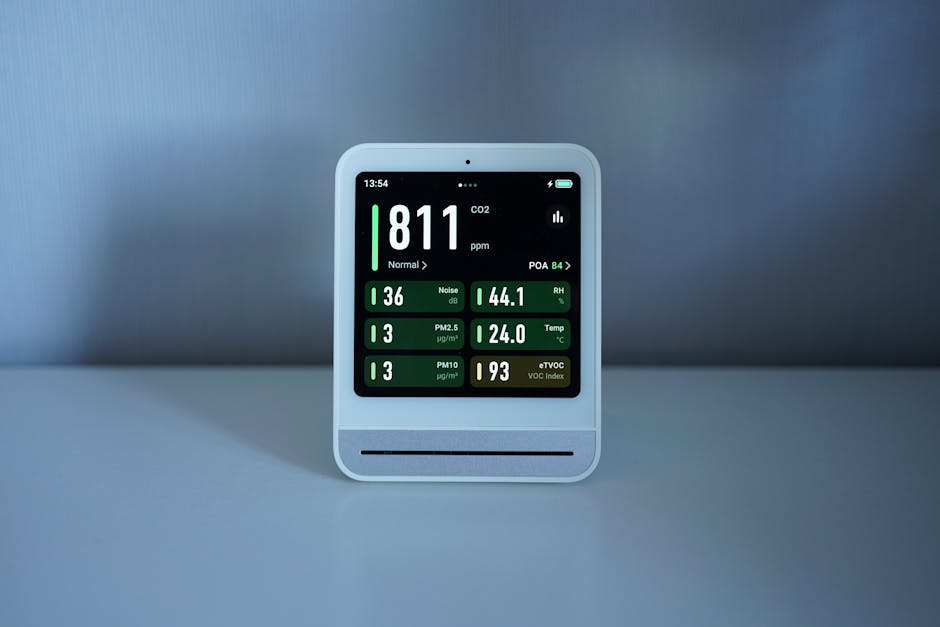
| 8) Smart air sensor (PM2.5/CO2 class) | $35–$90 | Know what air feels like indoors | Calibration takes a day or two |
| 9) NAS-lite USB backup + encrypted drive option | $60–$120 | Backups without a full server | Not instant cloud sync |
| 10) Bluetooth tracker (Tile-style class) | $15–$40 | Find keys/bags fast | Works best in network areas |
| 11) Budget smart CCTV/NVR starter kit | $70–$150 | Local recording beats “unknown” cameras | Setup needs careful Wi‑Fi choices |
| 12) 1080p/1440p monitor arm + affordable 24–27" display | $80–$160 (varies) | Ergonomics feels premium | Check refresh rate before buying |
1) Power Banks That Keep Your Gear Alive (Without Buying Another Charger)
A good power bank is one of the best budget gadgets for tech enthusiasts because it stops little daily annoyances. I’ve used Anker’s USB‑C power bank line on trips where outlets are rare, and it always comes back to the same thing: stable charging.
Look for a USB‑C power bank in the 10,000–20,000 mAh class with at least 20W output. That’s usually enough for phones and many handheld devices, and it’s great for charging a small tablet.
Quick buying checklist
- Wattage: Aim for 20W+ on USB‑C.
- Ports: One USB‑C is fine; two ports is even better for sharing.
- Battery honesty: Compare reviews that talk about real-world charge counts.
My opinion: Don’t buy a huge battery just because it has a big number. Weight matters if you’ll carry it daily. A lighter 10,000–15,000 mAh pack often wins.
2) Wi‑Fi 6 Range Extenders and Mesh Units for Dead Zones
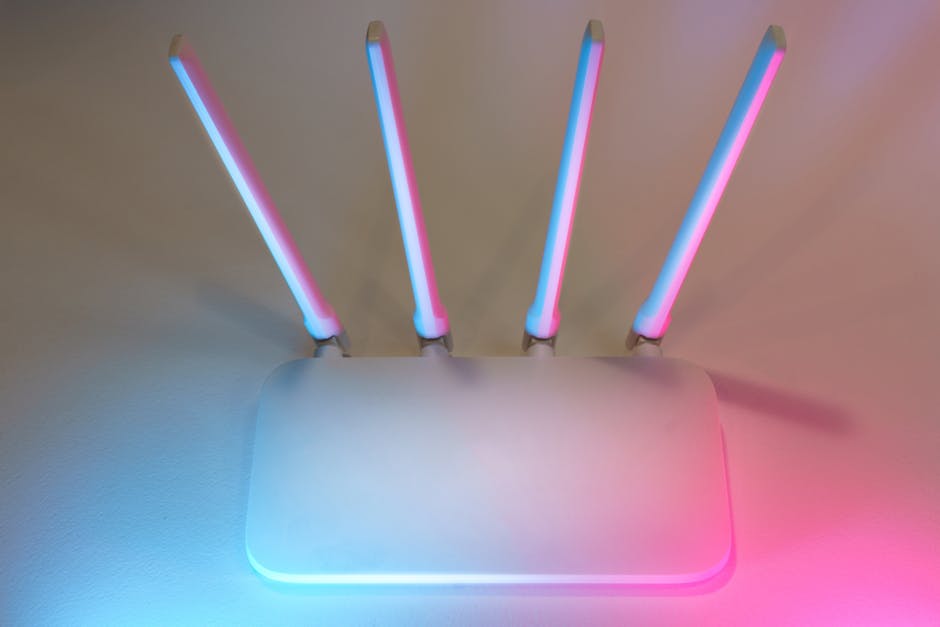
Dead Wi‑Fi zones are like dead phone batteries—everyone hates them, and they ruin your plans. A budget Wi‑Fi 6 extender or a small mesh kit can fix “one room problem” fast.
When choosing a budget range extender, check if it’s actually Wi‑Fi 6 and dual-band. If it only boosts 2.4 GHz, it can help for basic browsing but still feel slow for streaming.
Real-world setup that works
- Place the extender halfway between your router and the dead zone.
- Test with a phone standing 1–2 meters away from the extender.
- If you can, use an Ethernet backhaul option (even one cable) for better speeds.
If you want a deeper safety angle, read our home network cybersecurity best practices—because stronger Wi‑Fi is also stronger exposure if you don’t lock things down.
3) USB‑C Hubs That Turn One Port Into a Full Desk Setup
A USB‑C hub feels premium because it changes how you work. One cable into a laptop that gives you HDMI, USB ports, and charging is a quality-of-life win.
The big gotcha is display support. Some budget hubs can “do 4K” on paper but struggle with refresh rates or blank screens on certain laptops.
What to check before you buy
- HDMI spec: Look for refresh rate support like 4K at 30Hz or 4K at 60Hz.
- Charging pass-through: Make sure the hub supports charging while using HDMI.
- Driver notes: Prefer hubs that work plug-and-play on common systems (Windows/macOS).
My test habit: I plug the hub into a laptop, connect HDMI to a monitor, and then immediately wiggle cables and change resolution. If it drops video often, I return it.
4) Budget 4K USB Capture Cards for Streaming, Clips, and Screens
If you want to record game clips or make tutorials, a capture card is the move. A good budget 4K USB capture card can give clean output without messing with complicated setup.
In 2026, many budget models are UVC-friendly (UVC means the device works with standard video tools without special drivers). That matters if you want quick recording in software you already use.
How to avoid common capture-card headaches
- Check supported HDMI formats (especially for consoles).
- Use short, quality HDMI cables to reduce dropouts.
- Plan audio: choose either HDMI audio or a separate mic, not a random mix.
Limitation: Some budget cards compress video more than you expect. If you’re editing a lot, spend a little time testing before a big project.
5) Smart Plugs With Energy Monitoring (This Saves Money on Purpose)
Smart plugs are one of the best budget gadgets because they pay you back. Energy monitoring turns “I think it uses a lot” into actual numbers.
For 2026, I recommend smart plugs that support schedules and power reporting in the app. If the app is hard to read, you’ll stop checking it.
Use cases I see all the time
- Turning off monitors and lights after a schedule.
- Checking how much a PC setup uses overnight.
- Keeping a dehumidifier or fan on a timed routine.
What most people get wrong: They buy a smart plug but don’t change habits. The tech can’t fix your routine—just shows you where money leaks.
6) Hot-Swap Mechanical Keyboards Under the Premium Level
A mechanical keyboard is one of those purchases that feels expensive even when it isn’t. Hot-swap keyboards let you change switches without soldering, which keeps the “upgrades” cheap.
Look for a 60–75% layout with hot-swap sockets. That gives you a compact desk feel and makes future tweaks easy.
My take on what matters most
- Switch quality: Don’t just pick based on sound. Pick based on how you type.
- Stabilizers: If space bar feels scratchy, it kills the experience.
- Software: You want simple key remapping and profiles.
If you like custom tech, you’ll probably enjoy our budget gaming setup guide too—keyboard and audio often go together.
7) USB Desk Microphones for Clear Calls (Even in Noisy Rooms)
For meetings, voice notes, and streaming, the microphone can make you sound “premium” in a way you can’t buy with a better camera. A compact USB desk mic helps because it’s made to pick up your voice and ignore some background noise.
In practice, the best budget microphones are cardioid style (they focus in front of the mic). That’s the difference between sounding clear and sounding like you’re in a tunnel.
How to set it up so it actually works
- Place the mic 4–8 inches from your mouth.
- Use a simple pop filter or a foam cover if you have one.
- Lower your room noise by closing a window or turning off a loud fan.
Limitation: If your room has constant noise like HVAC or a loud keyboard, you’ll still need noise control software. That’s normal.
8) Air Quality Sensors That Show What Your Lungs Are “Feeling”
Air sensors are underrated tech gadgets because they help you act. A budget sensor that tracks PM2.5 and CO2 gives you real data on indoor air quality.
I like these for desk setups, bedrooms, and classrooms. CO2 is a “freshness” hint—higher CO2 usually means more stale air and more people breath in the same space.
Calibration tips that improve accuracy
- Most sensors need a reset or warm-up. Check the manual for the first 24–48 hours.
- Place the sensor away from vents and direct sun.
- Compare readings for a day before you change habits.
If you care about privacy and security, remember: air sensors are still smart devices. Use strong passwords and turn on updates (we cover device safety in cybersecurity basics for smart home devices).
9) NAS-Lite Backup With Encrypted Drives (Because “Cloud Only” Is Not a Strategy)
Backups are one of the least exciting gadgets to buy—until the day you lose photos. A NAS-lite setup with an external drive is a strong budget move because you get local storage plus better control.
In 2026, I recommend encrypted drives and scheduled backups. Encryption means your files are scrambled on disk, so a lost drive is less risky.
A simple backup routine you can keep
- Use an encrypted external drive.
- Set automatic backups once per day or once per week (your choice based on how fast files change).
- Keep one “offline” backup drive if possible.
My opinion: The best backup is the one you’ll actually do. If you hate tech setup, start smaller: backup photos first, then expand.
10) Bluetooth Trackers That Save Time (Not Just Stuff)
Bluetooth trackers sound simple, but they save hours when you constantly lose keys, chargers, or a bag. The premium experience is in the app: fast last-known location and good alerts.
In my experience, trackers work best when you’re in areas with lots of phones (stores, campuses, public transit). In remote cabins, range is more limited.
What to buy if you track a lot
- Get a tracker with a loud ringer for keys.
- Consider a model that supports “found near” notifications.
- Use naming like “Backpack Charger” so you don’t guess.
Limitation: Battery life depends on how often it reports. Replace batteries when the app warns you, not when it’s already too late.
11) Budget Starter Security Cameras (Choose Local Recording for Peace of Mind)
Security cameras can be useful tech, but only if you set them up carefully. A budget camera kit with local recording (to an SD card or NVR) beats cloud-only setups when you want control.
Look for cameras with decent night vision and stable app access. Also check for update history—vendors that update firmware more often tend to be safer.
Setup steps that reduce risk
- Change default passwords right away.
- Turn on two-factor login if the app offers it.
- Put cameras on a separate Wi‑Fi network (a guest or IoT network works).
If you’re curious why this matters, see our guide on how to secure IP cameras and DVRs. Cameras are a common target.
12) Budget Monitor Upgrades and Desk Arms (The “Premium Feeling” Hack)
This sounds boring, but monitor ergonomics is what makes a setup feel expensive. Even a budget 24–27 inch monitor plus a decent monitor arm can reduce neck strain and improve focus.
Pick a screen with the resolution and refresh rate you need. For office work, 1080p is often fine. For gaming or smoother motion, look for higher refresh like 75Hz or 100Hz if your budget allows.
Monitor arm tips
- Make sure it supports your monitor weight and size.
- Check VESA compatibility on the back of the monitor.
- Adjust it once and lock it in—constant movement gets annoying.
My practical note: I’ve seen people buy a great monitor and then use a wobbly arm. It ruins everything. Spend a little on stability.
People Also Ask: Quick Answers for Budget Tech Shoppers
What are the best budget gadgets for tech enthusiasts under $50?
Under $50, focus on power, convenience, and safe basics: a USB‑C power bank around $25–$45, a quality USB‑C hub for desk work, and a smart plug with energy monitoring. Add a Bluetooth tracker if you constantly lose small items. These choices create daily value, not “weekend novelty.”
How do I avoid buying a bad Wi‑Fi range extender?
Don’t buy one based on the largest number in the listing. Instead, check if it’s dual-band (or Wi‑Fi 6), then place it halfway between router and dead zone. If your extender connects wirelessly, try to set it up so it keeps a strong signal back to your router.
Are budget smart home devices safe?
They can be safe, but only if you treat them like computers. Use unique passwords, enable two-factor login when available, and keep firmware updated. Also consider putting IoT devices on an IoT/guest network so they can’t reach your main devices.
Do I need a 4K capture card for streaming?
No. If your audience watches on phones or standard screens, 1080p is often enough. But if you record high-detail gameplay, do tutorials for editing, or want future-proof footage, a budget 4K capture card can be worth it. Either way, test audio sync and frame rate before going live.
Is encrypted storage worth it for backups?
Yes. Encrypted storage is a safety layer. If someone steals your drive or you lose it, encryption makes the data much harder to read. It’s not magic, but it’s a smart step that costs less than you’d expect.
Action Plan: Build a Budget Tech “Premium Feel” Setup in a Weekend
If you want the premium experience without the premium price, pick one upgrade per day. Don’t try to buy everything at once—this is how you avoid returns and regret.
Day 1: Power + desk comfort
- Buy a reliable USB‑C power bank.
- Add a USB‑C hub for your monitor and peripherals.
- If your setup hurts your neck, add a monitor arm before anything flashy.
Day 2: Capture + communication
- Set up a budget microphone for calls and voice notes.
- Test a capture card by recording a 2-minute clip first.
- Check audio sync and video quality before editing.
Day 3: Safety + backups
- Install smart plugs or sensors if you want data and automation.
- Set up encrypted local backups to an external drive.
- Secure any cameras with strong passwords and an IoT Wi‑Fi network.
Final Takeaway: Spend Smart, Not Just Small
The best budget gadgets for tech enthusiasts aren’t defined by low prices. They’re defined by smart trade-offs: stable Wi‑Fi, real charging wattage, reliable apps, and safety you can see.
If you only buy one thing, choose power or a desk hub first. If you want the biggest “premium feel” jump, upgrade ergonomics and audio. And if you want the most peace of mind, set up encrypted backups and lock down your smart devices—because that’s what protects the tech you already own.
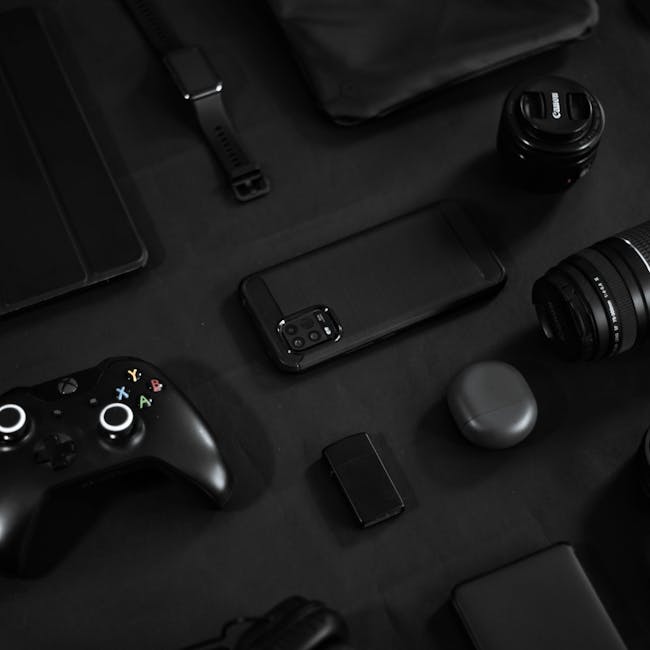
Featured image alt text suggestion: Best budget gadgets for tech enthusiasts list showing power bank, USB‑C hub, smart plug, and Wi‑Fi gear on a desk