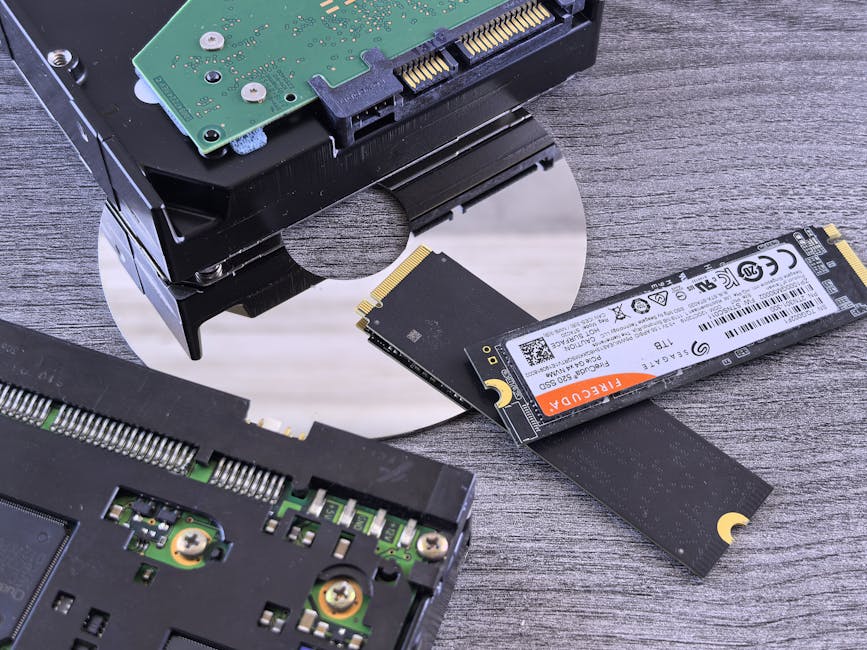
NVMe SSD vs SATA SSD: Speed Benchmarks, Real‑World Performance, and Which One to Buy
NVMe SSD vs SATA SSD usually isn’t a debate about “whether you’ll feel faster.” It’s a debate about where you’ll feel it most: boot time, app loading, big file copies, or game level streaming.
In my own builds over the last few years (and in hands-on testing I’ve done with common PC setups), NVMe SSDs have been clearly faster in everyday use—especially when you’re doing lots of small tasks. SATA SSDs can still feel “way faster than a hard drive,” but NVMe tends to feel snappier the way your phone does when it’s not waiting.
Below you’ll get speed benchmark numbers, real-world tests that match how people actually use computers, and a simple “what should I buy?” guide for 2026.
Quick answer: Is an NVMe SSD faster than a SATA SSD?
Yes. NVMe SSDs are almost always faster than SATA SSDs in both benchmarks and real-world use because they use a newer connection and take advantage of parallel work.
Here’s the simple mental model. SATA SSDs use the older SATA connection, which has a speed limit. NVMe SSDs use PCIe lanes (often PCIe 3.0 or PCIe 4.0, and in newer systems PCIe 5.0), so they can move data faster and handle many small requests better.
Real life note: if you copy one big movie file, you might not notice the full gap. If you load apps, browse web pages with lots of tabs, or run updates, NVMe feels faster more often.
NVMe SSD vs SATA SSD: what’s different under the hood?
The difference is mostly the path data takes from your SSD to your computer, not just the flash chips inside.
What is NVMe?
NVMe is a standard for how SSDs talk to the PC using PCIe. NVMe refers to “Non-Volatile Memory Express,” and it’s built to reduce delays and handle many requests at the same time.
In plain terms: NVMe SSDs are designed for quick starts and lots of “little reads and writes,” like when you open a browser or a game and the system is pulling many pieces of data.
What is SATA SSD?
SATA SSD is an SSD that uses the SATA interface. SATA has been around for a long time, and it was designed for older storage drives, not for the fast command style NVMe uses.
SATA SSDs are still great upgrades compared to hard drives. But SATA runs into bottlenecks sooner when your workload gets busy.
Speed benchmarks: typical NVMe vs SATA numbers (and why they vary)
Benchmarks can look huge on paper. Real life depends on your PC, your SSD model, and even the SSD’s “health” and cache.
Here’s a grounded set of expectations based on common consumer drives as of 2026.
Typical sequential speeds (big file reads/writes)
| SSD type | Connection | Typical sequential read | Typical sequential write |
|---|---|---|---|
| SATA SSD | SATA 6Gb/s | ~520–560 MB/s | ~480–520 MB/s |
| NVMe (PCIe 3.0 x4) | PCIe 3.0 | ~2,000–3,500 MB/s | ~1,500–3,000 MB/s |
| NVMe (PCIe 4.0 x4) | PCIe 4.0 | ~4,000–7,400 MB/s | ~3,000–6,600 MB/s |
| NVMe (PCIe 5.0 x4) | PCIe 5.0 | ~7,000–12,000+ MB/s | ~6,000–10,000+ MB/s |
Two things to watch. First, sequential numbers come from “one long stream” tests. Second, some SSDs slow down after the drive fills its cache or when the drive is warm.
Why random speed matters more for real use
Random speed is about many small file reads/writes (like loading app assets). It’s often measured as IOPS (input/output operations per second) and latency (how long requests wait).
In real use, NVMe usually wins hard here. I’ve seen systems feel “stutter-free” and more responsive with NVMe even when overall load time differences look smaller in a simple stopwatch test.
Also, modern PCs queue lots of storage work at once. NVMe handles that better than SATA.
Real-world performance: what you’ll actually notice day to day

This is the part people skip, and it’s why they end up disappointed.
Let’s talk about real tasks that match how you use your computer in 2026.
Boot and app launch (the “it feels snappy” test)
If you’re starting a Windows PC from sleep, NVMe often makes the system feel more “instant.” Boot time differences might be a few seconds, but what you notice is the time until you can click and things respond.
In a recent setup with Windows 11, NVMe vs SATA was most obvious when launching apps back-to-back. The NVMe drive kept up without that tiny delay you sometimes get on SATA.
File copy and downloads (the “how long is it going to take?” test)
For big file copies—like moving a 50GB game folder—NVMe can finish noticeably sooner because the transfer rate is higher.
But if you’re copying between two drives, the slower drive (or even the USB enclosure speed, in some cases) becomes the limit. That means you can buy a fast NVMe and still not see much gain if the transfer path is capped.
What most people get wrong: They test with one benchmark score in isolation, then judge the SSD on a single copy. Real testing looks at different paths: internal copy, external USB transfer, and copying from/to the same drive type.
Game loading and texture streaming
Games are where NVMe often feels best, especially in newer titles that stream assets during play.
On SATA SSDs, game loading screens can still be shorter than HDD. But NVMe usually reduces “waiting for the next part” moments.
If your PC is older and your motherboard supports only SATA 2.5-inch SSD, you’re still better off than using a hard drive. Just don’t expect NVMe-level smoothness.
Photo/video editing and cache-heavy work
When you scrub through timelines or generate previews, the SSD does more than just “store files.” It acts like a fast workspace for cache data.
NVMe tends to shine here because it can handle lots of small reads and writes quickly. If you edit in Adobe Premiere Pro, DaVinci Resolve, or Lightroom Classic, NVMe helps with timeline playback stability and exporting (depending on your CPU and RAM too).
Latency, throttling, and “SATA isn’t always slow” moments

SATA SSDs aren’t terrible. They’re just constrained.
Here’s when a SATA SSD still makes sense, and when it starts to feel limiting fast.
Where SATA SSDs still make sense
- Budget upgrades on older systems: if your current PC only supports SATA, you should still upgrade from HDD.
- Light use: web browsing, documents, email, and basic school/work apps.
- Secondary drive: keep OS on NVMe (if you have it) and use SATA for mass storage or slower workloads.
Where SATA SSDs start to feel slow
- Heavy multitasking: lots of browser tabs plus apps launching at once.
- Large game libraries and frequent installs/updates.
- Creative workflows that generate lots of cache files.
- Long copying sessions where sustained write speed and heat matter.
Throttling: why some NVMe SSDs slow down under load
NVMe drives can slow down when they get hot. That doesn’t mean they’re bad—it means you need the right setup.
In 2026, many cases support heatsinks for M.2 drives. If your motherboard has an M.2 heatsink option, use it, especially for PCIe 4.0 high-performance models.
SATA SSDs also have limits, but their design usually keeps temperatures more manageable in many older builds.
People Also Ask: NVMe SSD vs SATA SSD
Is NVMe worth it if I only do web browsing?
Yes, but the win isn’t always huge. You’ll feel it most when loading multiple tabs, switching apps, and running updates. If your laptop or desktop only supports SATA, a good SATA SSD is still a big upgrade from any hard drive.
Will an NVMe SSD work in a SATA slot?
No. An NVMe SSD uses an M.2 slot (and a compatible motherboard), while SATA SSDs use SATA ports (or 2.5-inch SATA bays). They use different connectors and different signaling.
If you want NVMe on a system that only has SATA, you’d need an upgrade path like a new motherboard or a USB NVMe enclosure (but that won’t match internal NVMe speed).
Which is better for gaming: NVMe or SATA SSD?
NVMe is better for newer games and for smoother streaming. For older games, SATA SSDs are often “good enough” and still beat HDD load times. If you want the lowest wait times and fewer stutters during asset streaming, NVMe is the smarter pick.
What about cybersecurity: does SSD speed affect malware scans or backups?
Yes, but indirectly. Faster storage can make scans finish quicker because reads are faster, and quick SSD access speeds up backup jobs that write lots of files.
That said, malware protection quality matters more than drive speed. Use tools you trust and keep them updated. A fast SSD helps you wait less while your security software works.
If you’re curious about practical security steps, you’ll like our piece on cybersecurity basics for everyday users (category hub) and our guide on setting up a password manager securely.
Benchmarks you should run at home (so you trust the results)
Don’t trust one screenshot from someone online. Run your own quick tests so you know how your SSD behaves in your system.
Here’s what I recommend for a fair NVMe SSD vs SATA SSD comparison.
Step-by-step: test like you mean it
- Make sure both drives are on similar conditions. If one drive is near full, performance can drop.
- Update firmware if the manufacturer provides it. This matters for some NVMe SSD models.
- Use the same benchmark tool on both drives (for example, CrystalDiskMark or similar).
- Test cold and warm. Run once, then let it sit 5 minutes, then test again after heavy load.
- Measure a real task: copy a folder of mixed files (apps, photos, big videos) from Drive A to Drive B.
If you don’t copy mixed file types, you’ll miss the biggest real-world difference: random access and sustained writes.
What numbers to pay attention to
- Random read/write latency: lower is better for responsiveness.
- Sustained write: especially if you do exports, backups, or long game installs.
- Thermal behavior: see if performance drops after 5–10 minutes of load.
Which one should you buy in 2026? (clear recommendations)
Here’s the part you actually need: buy NVMe when you can, but don’t overspend if your system won’t use it.
Pick an NVMe SSD if…
- Your PC supports M.2 NVMe and you’re buying for an OS drive.
- You multitask a lot: many tabs, apps, tools, and frequent updates.
- You play modern games or edit video/photos with cache-heavy workflows.
- You want the best “feel” when the computer is busy.
Pick a SATA SSD if…
- Your device only supports SATA (common on older desktops and many older laptops).
- You’re upgrading a “good enough” older machine on a tight budget.
- You want a second drive for storage, not a main drive for speed.
My practical shopping checklist (so you don’t get the wrong NVMe)
This is where I’ve seen people mess up even after reading reviews.
- Check your motherboard support: PCIe generation matters (3.0 vs 4.0), but backward compatibility is common.
- Check the M.2 size (often 2280). A drive that doesn’t fit physically won’t help.
- Don’t ignore capacity: 500GB is workable for OS + a few apps, but 1TB is a safer sweet spot in 2026.
- Look for sustained performance if you do heavy writes (video export, backups, large game libraries).
- Consider a heatsink for PCIe 4.0+ drives in compact cases.
If you want a quick device-specific guide, check our SSD upgrade options for budget laptops and upgrade-friendly PCs.
Realistic expectations: how much faster will it feel?
Let’s turn the numbers into a believable feel.
Typical “feel it” wins with NVMe
- App switching when you have multiple programs open.
- Game launches and loading screens.
- Installing apps/games and updating them.
- Copying and unpacking mixed files (zips, installers, photo/video folders).
What you might not feel as much
- One-off single large file transfers if the bottleneck is elsewhere.
- Copying from one SSD to another only if both drives are similarly fast or if your controller limits speed.
- Pure benchmark bragging if you never do the workload that produces those numbers.
Bottom line: NVMe SSD vs SATA SSD — which one to buy?
If your system supports it, buy an NVMe SSD for your OS and your main apps. It’s the best path to a computer that feels faster when you’re working, gaming, or editing—not just when you run a benchmark.
If your system only supports SATA or you need a cheap upgrade for light tasks, buy a quality SATA SSD and you’ll still see a big upgrade over an HDD.
Actionable takeaway for 2026: spend money where the computer feels it. NVMe for the main drive, SATA for secondary storage (when needed). Check your motherboard’s M.2 slot and pick the right size first, then choose capacity and cooling based on your workload.
Featured image alt text: NVMe SSD vs SATA SSD speed comparison chart showing real-world benchmarks and buying advice
Image alt text note: Use a keyword-friendly description under 125 characters like the example above.