Mechanical Keyboards vs Membrane vs Optical Switches: Which One Should You Buy?
If you’ve ever missed a jump in a game because your keyboard “felt laggy,” you already know why switch type matters. The surprising part? The same person can love one keyboard for typing but hate it for gaming. That’s because mechanical keyboards vs membrane vs optical switches aren’t just marketing terms—they change how a key registers, how it feels, and how long it lasts.
Quick answer: get a mechanical keyboard if you want the best mix of feel, reliability, and upgrade options. Choose a membrane keyboard if you care most about low cost and quiet basics. Pick an optical switch keyboard if you want the fastest response for competitive play and you’re okay paying more for newer tech.
Mechanical Keyboards vs Membrane vs Optical Switches: the core difference (what you actually feel)
Switch type decides how the key press becomes a signal. A keyboard is basically a sensor plus a circuit that tells your computer “yes, that key was pressed.” The sensor method is the whole story.
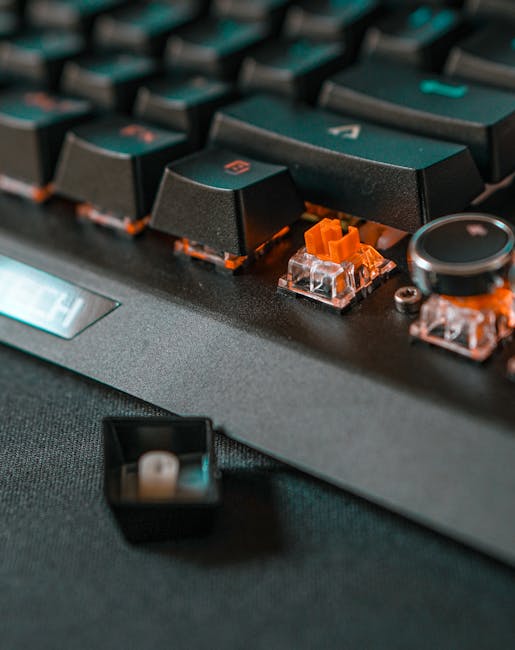
Mechanical switches use a physical switch with a metal contact (and often a spring). Membrane keyboards press down layers of rubber and a conductive trace. Optical switches use light (an optical sensor) so the signal is based on beams, not metal contacts.
Mechanical keyboards vs membrane keyboards: why they feel so different
Mechanical keys usually give you clear feedback. That “bump” or crisp feel comes from the switch design and spring. Membrane keys feel mushier because the rubber sheet flexes instead of moving a hard switch.
When I switched from an office membrane keyboard to a budget mechanical board, I noticed I typed faster in a week. Not because I suddenly became a genius—because the key feedback told my fingers when the press happened.
Optical switches vs mechanical switches: what changes under the hood
With optical switches, the system can register presses very fast because the light sensor can react quickly. In plain terms: less time waiting for a metal contact to close.
Most optical keyboards I’ve used still sound and feel like a mechanical board, because they usually have a mechanical key stem too. The difference is the “trigger and registration” path.
Mechanical keyboards: best for typing feel, customization, and long-term ownership
Mechanical keyboards are the safest “buy once, stick with it” option for most people. You’ll get a real typing feel, lots of switch choices, and a bigger ecosystem for keycaps and layouts.
What you get usually comes down to these parts:
- Switch types: linear (smooth), tactile (bump), clicky (bump + click sound).
- Keycap choices: keycap material and profile change sound and feel a lot.
- Upgrade paths: some boards let you swap switches or keycaps easily.
Pros of mechanical keyboards
- Clear feedback: fewer “did I press it?” mistakes.
- Repair/upgrade options: you can change keycaps, and many models allow switch swapping.
- Longevity: many switches are rated in tens of millions of actuations.
- Better consistency: quality mechanical switches stay predictable over time.
Cons (and what most people get wrong)
- They’re not all quiet: even “tactile” boards can be loud with certain keycaps.
- “Gaming” doesn’t mean “good typing”: many gaming-focused boards use stiffer springs or loud profiles.
- Cost adds up: if you end up buying foam mods, better keycaps, and a desk mat, it can go from $80 to $200 quickly.
My take: if you type a lot for work, mechanical beats membrane almost every time. Even a basic mechanical board feels more “real” under your fingers.
Mechanical keyboard buying checklist (use this in 2026)
- Pick your switch feel: linear for smooth, tactile if you want a bump, clicky if you like the sound.
- Check keycap height: Cherry profile vs OEM profile changes finger comfort.
- Look for adjustable actuation: on gaming boards, adjust feel by software only if the board supports it.
- Don’t ignore layout: full-size (104 keys), TKL (87 keys), or 75% changes desk space and habits.
- Test your noise: if you share a room, avoid clicky switches unless you know your partner likes it.
Membrane keyboards: cheap, simple, and still good for everyday tasks
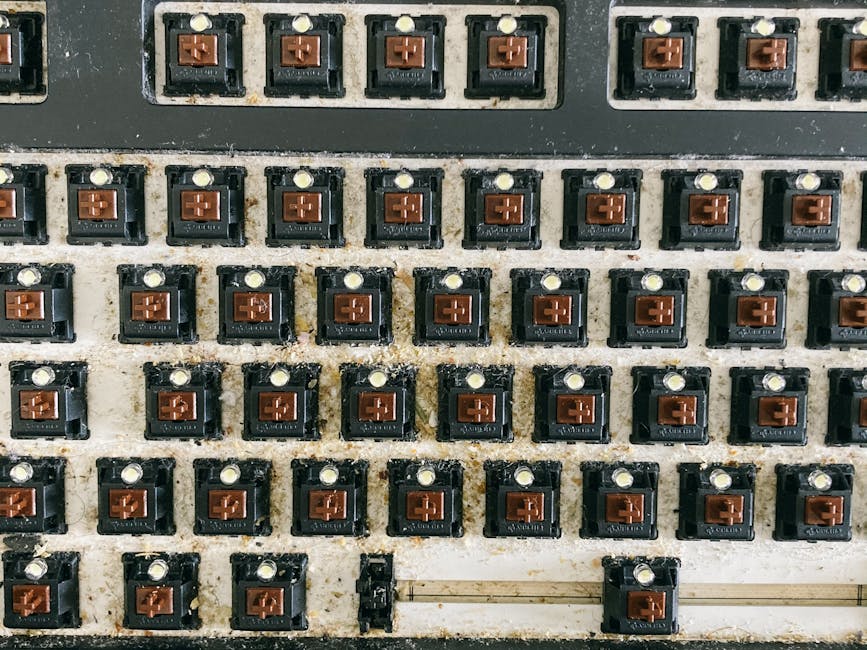
Membrane keyboards are best when you want a basic keyboard that works without thinking too much. They’re common on office desks and in budget setups because they’re easy to make and easy to replace.
How they work: membrane keyboards have rubber domes. When you press, the dome collapses and two conductive layers meet.
Pros of membrane keyboards
- Low cost: you can often buy one for under $20.
- Simple setup: no need to worry about switch compatibility.
- Usually quieter than clicky mechanical: not always silent, but less “clack.”
Cons of membrane keyboards (the honest ones)
- Less feedback: you feel less clear actuation.
- Wear pattern: rubber domes can feel mushier over time.
- Less personalization: you can’t swap switches like on a mechanical board.
- Gaming limits: you usually can’t match the fast feel of better switch boards.
I keep a cheap membrane keyboard around for travel. It’s not “fun,” but it’s reliable and I don’t feel bad throwing it in a bag. If you’re doing school assignments, emails, and casual browsing, it’s totally fine.
When a membrane keyboard is the right choice
- You mostly type for short sessions: homework, emails, quick chats.
- You share space: and you need something less loud than clicky switches.
- You don’t want extra spending: membrane plus a good mouse is a solid low-cost upgrade path.
Optical switches: the fast option for competitive gaming (and why you should still be picky)
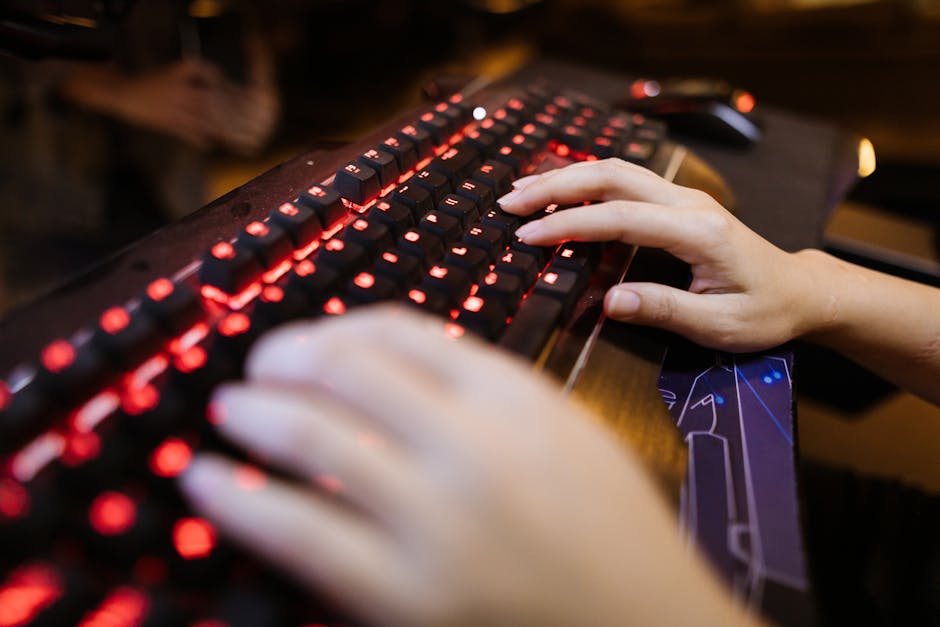
Optical switch keyboards focus on speed and quick signal registration. If you play competitive games a lot, this type can feel snappier than older designs.
What makes optical different: instead of a metal contact closing when you press, an optical system detects your key press using light and a sensor. Because there’s no direct contact to close, some designs can reduce electrical bounce effects.
Pros of optical keyboards
- Fast response: good for twitch games like FPS and fast rhythm games.
- Consistency: optical designs often stay consistent across many presses.
- Good for “speed modes”: some boards let you tune actuation point in software.
Cons of optical keyboards (real-world limits)
- Higher price: optical boards often cost more than comparable mechanical boards.
- Less variety in feel: not every optical board has the exact tactile or clicky options you want.
- Not magic for everyone: if you’re not sensitive to small timing differences, you won’t get as much value.
Original angle from my desk: I’ve seen people buy optical boards thinking they’ll “instantly” get better at aim. The truth is, aim improvement usually comes from mouse control, practice, and settings—not just keyboard speed. Optical helps, but it won’t fix bad crosshair habits.
Optical keyboard buying checklist
- Verify polling rate support: some boards advertise high polling like 1000 Hz, but you should confirm it.
- Check actuation adjustment: if you can set the actuation distance, make sure it works the way you expect.
- Look for key rollover: especially if you play games with lots of simultaneous keys.
- Confirm keycap feel: optical still uses keycaps; cheap caps can feel rough.
Side-by-side comparison: mechanical vs membrane vs optical
Here’s the quick truth in one table. Use this when you’re deciding fast between mechanical keyboards vs membrane vs optical switches.
| Feature | Mechanical Keyboards | Membrane Keyboards | Optical Switches |
|---|---|---|---|
| Typing feel | High variety; crisp feedback | Mushy/less feedback | Often similar to mechanical feel |
| Gaming feel | Great, especially with tuned actuation | Okay for casual gaming | Very fast response for competitive play |
| Noise | Depends on switch + keycaps; can be loud | Usually quieter | Depends on keycaps; often not silent |
| Upgrades | Keycap swaps and often switch swaps | No upgrades | Usually fewer upgrade options |
| Cost | Wide range ($50–$300+) | Lowest ($15–$40) | Higher ($100–$300+) |
| Best for | Work + gaming + personalization | Budget, travel, basic typing | Competitive gaming and speed lovers |
People Also Ask: Mechanical keyboards vs membrane vs optical switches
Which switch type is best for typing—mechanical keyboards vs membrane keyboards vs optical?
Mechanical wins for typing comfort in most cases. Membrane is fine for short sessions, but the lack of feedback makes long typing days feel harder. Optical typing can feel great too, especially if the actuation is tuned well, but you’ll pay more for the same “typing joy.”
Are optical switches actually better for gaming?
They’re better for speed and registration consistency. In competitive games, small differences matter for some players, especially at higher skill levels. But the biggest gains still come from good settings, practice, and a stable setup.
What’s more durable: membrane or mechanical keyboards?
In general, mechanical is more durable. Membrane rubber domes wear down and often turn mushier over time. I’ve replaced membrane keyboards after a few years of heavy use, while mechanical boards can last longer if you keep them clean.
Do optical keyboards support key remapping and macros?
Many optical gaming keyboards do. Expect software to handle remaps, macros, and sometimes actuation changes. The part to watch is how well the software saves profiles—some budget boards are fine, while others are annoying if you switch computers often.
How to choose in real life: a decision guide by your use case
Instead of picking based on the tech buzzwords, match the switch type to how you live with the keyboard. Here are clear paths I’d recommend in 2026.
If you work from home and type 6+ hours a day
Go mechanical. Choose a switch that won’t make your desk sound like a typewriter factory. Tactile switches can help reduce “fat finger” errors, but pick lighter springs if you want comfort.
If you’re also dealing with accounts and passwords at work, pair a great keyboard with good security habits. A helpful resource is our guide on how to pick a password manager so you don’t end up retyping the same login info on a cheap setup.
If you mostly do gaming and competitive FPS
Consider optical if you want maximum speed. Then make sure your mouse and monitor settings match the experience. If you’re using a high-refresh monitor, optical is a better match than casual membrane boards.
If you’re on a budget or buying for a kid/student
Membrane can be the right call. Spend money on a comfy chair and a decent desk light instead. If they start caring about feel and sound, that’s your cue to move to mechanical later.
Also, if your kid uses the computer for school accounts, security matters. Our phishing scams explained guide is worth reading because a “free download” keyboard tutorial turns into a malware trap fast.
If you want the best value today
Pick mechanical in the $70–$120 range and avoid overpaying for premium materials. In that range, you get real switches, solid build quality, and usually good software.
Practical tips: get the most from any keyboard (even if you buy wrong)
Buying the wrong switch doesn’t ruin your life. You can fix a lot with small changes. Here are moves that actually help.
Reduce noise without changing your keyboard
If your mechanical board is too loud, start with keycap swaps and a simple dampening mat. Thin foam under the board helps some builds, but don’t assume every board benefits—some designs already have good mounting.
For membrane, noise is usually already controlled. The better upgrade is a higher-quality keyboard mat or a softer desk surface.
Improve typing accuracy in 3 days
When you switch boards, give your brain time to recalibrate. I recommend a short practice loop:
- Day 1: 15 minutes of typing practice on a simple document.
- Day 2: 20 minutes with your normal tasks (emails, schoolwork, notes).
- Day 3: add speed by doing short bursts of typing, then rest.
Expect a few mistakes at first. If you force speed immediately, you’ll blame the keyboard for finger habits.
Clean it the right way (so switches last longer)
Dirt changes how a key feels. I clean my boards about every 4–6 weeks if I use them daily. Use a keycap puller for safe removals, and a soft brush for dust.
For cybersecurity-minded folks, one more note: don’t plug in random “USB keyboard testers” you find online. Some devices can behave like keyboards but be trying to collect data. If you want to learn why, read our USB Rubber Ducky and bad USB risks explainer.
Cost reality (2026): what you should expect to spend
The big reason people buy the wrong keyboard is because they forget the total cost. Here’s a realistic range based on common buying patterns in 2026.
- Membrane: $15–$40 for a decent replacement. No extra upgrades needed.
- Mechanical: $60–$150 for a good starter board, plus maybe $20–$60 for better keycaps if you want a nicer sound.
- Optical: $100–$250+ for a serious model, with fewer deals unless you catch sales.
My rule: if you can’t try a board in person, don’t spend more than you’re comfortable keeping for a year. You’ll still learn what you like, and that’s where the real upgrade comes from.
Conclusion: which one should you buy?
Buy a mechanical keyboard if you want the best overall experience for typing and gaming in one package. Choose a membrane keyboard if you need cheap, simple, and reliable basics with less worry about feel. Pick optical switches if you’re serious about competitive gaming and want the fastest key registration, and you don’t mind paying more.
If you want a one-step action: pick your top priority first (typing comfort, low cost, or gaming speed). Then use the checklist above to match switch type to your life. That’s the difference between buying a keyboard you like and buying one you keep trying to “tolerate.”
Featured image alt text suggestion: “Mechanical keyboards vs membrane vs optical switches comparison on a desk in 2026.”