USB-C vs Thunderbolt vs DisplayPort Alt Mode: What’s the Difference and Why It Matters
Last time I bought a “universal” USB-C dock, I ended up with a second monitor that stayed stubbornly black. The cable wasn’t broken—my laptop just didn’t support the right video mode. That’s the annoying truth: with USB-C ports, the plug is the same, but the signals inside can be very different.
Here’s the quick answer: USB-C is a connector. Thunderbolt is a faster standard that carries high-speed data (and often video). DisplayPort Alt Mode is a way for some USB-C ports to send video. Pick the wrong type and you’ll get power but no display, or only a low refresh rate.
USB-C is the plug, not the promise (and that’s why people get burned)
USB-C is the physical shape of the port and cable. It doesn’t automatically mean video will work, or that you’re getting high-speed data.
In 2026, most laptops and phones use USB-C for charging and accessories, but the feature set depends on the device. Some USB-C ports support only charging and basic USB data. Others can also carry video using DisplayPort Alt Mode (more on that next) or even Thunderbolt.
Here’s what I check before I buy a dock or adapter: the laptop spec sheet for “USB-C video,” “DisplayPort Alt Mode,” “Thunderbolt 3/4/5,” or “USB4.” If the manufacturer doesn’t say it, assume video might not work.
If you want internal background on how ports and devices can affect security, this pairs well with our post on USB device security risks, because docks can add extra components to your attack surface.
DisplayPort Alt Mode on USB-C: what it is and how it behaves
DisplayPort Alt Mode is when a USB-C port sends video using the DisplayPort signal style, without needing a separate DisplayPort connector.
Alt Mode is a “mode switch” that depends on the laptop’s USB-C hardware. Definition-wise: Alt Mode refers to a non-USB function that runs over the same USB-C connector. For video, the common one is DisplayPort Alt Mode.
How to spot whether your USB-C port supports DisplayPort Alt Mode
This is where I see people lose time. They buy an adapter that only works with video Alt Mode, then they blame the cable.
Look for any of these signs on your laptop or port area:
- A DisplayPort icon near the USB-C port
- Documentation that says “supports DisplayPort over USB-C” or “video output”
- Brand terms like “DP Alt Mode” in the spec list
On some Windows laptops, you can also check in Device Manager and display settings, but the spec sheet is still the fastest way.
What DisplayPort Alt Mode can do (and what it often can’t)
DisplayPort Alt Mode can drive external monitors, including many 4K setups. But it won’t automatically match the performance of Thunderbolt or USB4 docks.
In real life, it often means:
- Video works reliably when the adapter is correct
- You may get 4K at 30Hz or 60Hz depending on the laptop and cable
- High-speed features like very fast storage docks may not run at the same speed you expect
My practical rule: for a simple “plug in and watch,” DisplayPort Alt Mode is fine. For heavy docking (fast drives + multiple displays + lots of peripherals), it’s riskier unless the device clearly supports more than just DP Alt Mode.
Thunderbolt: the most consistent choice when you need speed and video

Thunderbolt is a hardware standard built for high-speed connections. It can carry fast data, power, and often video over the same USB-C-shaped plug.
Definition-wise: Thunderbolt refers to Intel’s (and the wider industry’s) higher-performance connection standard that layers extra capabilities on top of the USB-C form factor. Thunderbolt ports are usually labeled with a lightning bolt icon.
Thunderbolt 3 vs Thunderbolt 4 vs Thunderbolt 5 (2026 reality check)
You’ll see different names, and the details matter. As of 2026, Thunderbolt 4 is still very common, and Thunderbolt 5 is showing up on newer gear.
Without turning this into a tech textbook:
- Thunderbolt 3 typically supports up to 40Gbps
- Thunderbolt 4 also targets up to 40Gbps and adds stricter minimum requirements across devices
- Thunderbolt 5 increases speeds further, but you need both the port and the dock/cable to match
The big “why it matters” part is consistency. Thunderbolt gear tends to behave the way you expect: docks run, displays wake up properly, and you don’t spend evenings troubleshooting display handshake issues.
Thunderbolt pros and cons compared to DP Alt Mode
Here’s the honest tradeoff I’ve seen in my own testing and shopping.
| Feature | DisplayPort Alt Mode (USB-C) | Thunderbolt |
|---|---|---|
| Video over USB-C | Yes (if supported) | Yes (usually) |
| High-speed data for docks | Not guaranteed | Strong and consistent |
| Multi-monitor reliability | Depends on laptop and dock | More predictable |
| Cost of gear | Often cheaper | Often more expensive |
| Best for | Simple display output | Serious docking and performance |
So where does “USB-C” fit in this? It’s about USB-C capability tiers
USB-C is like a universal power plug shape. But the “power level” and features depend on what’s behind the wall.
When people say “my laptop has USB-C,” they’re usually skipping the next questions:
- Does the port support video output?
- Does it support DisplayPort Alt Mode?
- Is it a Thunderbolt port (lightning icon)?
- Does it mention USB4 support?
USB4 can overlap with Thunderbolt-like behavior depending on the device. Since you asked about USB-C vs Thunderbolt vs DP Alt Mode, I won’t bury you in the USB4 details, but I will say this: if your port says USB4 and lists high-speed features, you’re closer to Thunderbolt consistency than basic DP Alt Mode.
USB-C vs Thunderbolt vs DisplayPort Alt Mode: a straight comparison that helps you buy
If you only remember one thing, make it this: the port’s support matters more than the cable’s label. A “USB-C to HDMI” adapter can work perfectly on one laptop and do nothing on another.
Here’s a practical comparison based on how people use docks, projectors, and monitors.
Common use cases and what to choose
-
Travel with one monitor (or a TV in a hotel): choose USB-C with DisplayPort Alt Mode support.
You get simple video output with fewer moving parts. I usually recommend this for people who want to pack light.
-
Workstation docking (dual monitors + charging + fast drive): choose Thunderbolt.
Thunderbolt is more likely to handle all the handshakes without flaking out at 2 a.m. before a deadline.
-
Creative tools (audio interfaces, fast storage, high refresh): choose the most capable port your laptop has.
As a rule, if the device supports Thunderbolt, I plan around it instead of hoping DP Alt Mode will meet the speed needs.
-
Classroom or office projector setup: bring a verified DP Alt Mode adapter if you don’t control the laptop.
Projectors are often picky about timing and adapters. Having the “right type” reduces the chance of a black screen.
What most people get wrong (and how to avoid the dead-black-screen moment)

The biggest mistake is buying by connector type instead of feature support. People see “USB-C to HDMI” and assume any USB-C port can output video.
Here are the top failure reasons I’ve seen in real setups:
- Wrong port: The laptop’s USB-C port doesn’t support video at all.
- Wrong adapter: The adapter expects Thunderbolt/USB4 behavior but the port only supports DP Alt Mode.
- Weak power delivery expectations: Some docks need more watts than your charger provides.
- Resolution/refresh mismatch: You may get image but not the refresh rate you paid for (like 4K 60Hz).
- Cheap cables: Long or low-quality HDMI/DP cables can fail at 4K. It’s not always the adapter’s fault.
My fix checklist when something shows no video:
- Try a different USB-C port on the same laptop (some ports support video, others don’t).
- Check the laptop’s display settings and confirm the output is selected.
- Use a different adapter type (USB-C to DisplayPort vs USB-C to HDMI) if possible.
- Lower resolution temporarily to test (for example, 1080p) and then raise it back.
This is also why it’s smart to follow our USB-C dock buying guide before you order random “one size fits all” gear.
People also ask: quick answers to the questions that show up every week
Is DisplayPort Alt Mode the same as Thunderbolt?
No. DisplayPort Alt Mode is specifically about video being sent over the USB-C connector. Thunderbolt is a full connection standard built for speed and consistent docking. In my experience, Thunderbolt tends to feel “set it and forget it,” while DP Alt Mode can be more limited to what the laptop supports.
Can USB-C do video without Thunderbolt?
Yes, if the USB-C port supports DisplayPort Alt Mode or another video method. The key is that USB-C is only the plug. You still need the device to carry the right video signals over that plug.
Do I need a special cable for Thunderbolt?
Usually, yes. Thunderbolt devices often work best with Thunderbolt-certified cables, especially for long distances or high resolutions. If you use a basic cable, you may still get power, but you can lose data speed or video quality.
Will a “USB-C to HDMI” adapter work for every laptop?
No. It works only if your specific USB-C port supports video out. Also, your adapter might support only certain max resolutions, and HDMI handshakes can fail depending on the laptop’s video mode.
Security angle: docks aren’t just “dumb accessories”
This part surprises a lot of people. When you plug in a dock, you’re adding more than cables—you’re adding new controllers that talk to your laptop.
In cybersecurity terms, a dock can act like a “data bridge” between the laptop and external devices. If a malicious USB device is connected to that dock (a fake keyboard, a rogue thumb drive, or something in a public setup), you may be exposed.
Good habits I recommend in 2026:
- Don’t use unknown docks in public spaces.
- Use a cable-only setup when you just need video (no extra ports) if you’re in a risky environment.
- Keep your OS updated so USB attack fixes land faster.
- Use USB device security settings on your laptop (especially on corporate machines).
If you want a deeper look at how attackers take advantage of USB behavior, our USB attacks and prevention post is worth reading alongside this guide.
How to choose the right option for your setup (a simple decision flow)
Here’s a no-drama way to pick without guessing.
-
Check your laptop port label.
If it has a lightning icon, you’re dealing with Thunderbolt. If you see a DisplayPort icon, you’re in DP Alt Mode territory.
-
Decide what you’re connecting.
One monitor at 1080p? DP Alt Mode usually works. Two 4K monitors plus fast peripherals? Thunderbolt is the safer pick.
-
Match refresh rate goals.
If you need 4K 60Hz, confirm the adapter and the laptop’s max supported mode. Otherwise, you might end up at 30Hz.
-
Buy based on the device spec, then verify with return policy.
I always keep the receipt window in mind. If the port doesn’t support video, you’ll need to switch adapters or even use a different dock.
This approach saves money because it reduces the “try and return” cycle. It’s not fun, and it’s definitely not good for the environment.
Real-world examples: what I’d do in 3 different scenarios
I’ve done this enough times that I can tell you what I’d recommend based on what’s on the desk.
Example 1: A Windows laptop + one 4K monitor at home
If your USB-C port is labeled for DisplayPort Alt Mode, I’d get a simple USB-C to DisplayPort or USB-C to HDMI adapter. I would avoid fancy Thunderbolt docks unless you need extra ports or a fast drive connection.
Example 2: A creator laptop for editing + audio interface + external SSD
If you have Thunderbolt, I’d use it. You’ll get better chances of stable performance when you’re moving big files, capturing audio, and driving multiple displays.
Example 3: A work laptop where IT controls what’s allowed
Follow your company’s policy. Some orgs disable certain USB behaviors or block unapproved docks. In this situation, the “fastest” cable isn’t the best—approved setup is.
Bottom line: choose by capability, not by the connector shape
USB-C, Thunderbolt, and DisplayPort Alt Mode sound similar because they all show up on the same ports and cables. But they don’t mean the same thing.
If you want the simplest rule: USB-C is the connector, DisplayPort Alt Mode is a video feature on some USB-C ports, and Thunderbolt is a high-speed standard that’s usually the most reliable for docking.
Your actionable takeaway for today: check your laptop’s port icons or documentation first. Then pick an adapter or dock that matches that exact support. It takes a minute up front—and it saves hours of troubleshooting later.
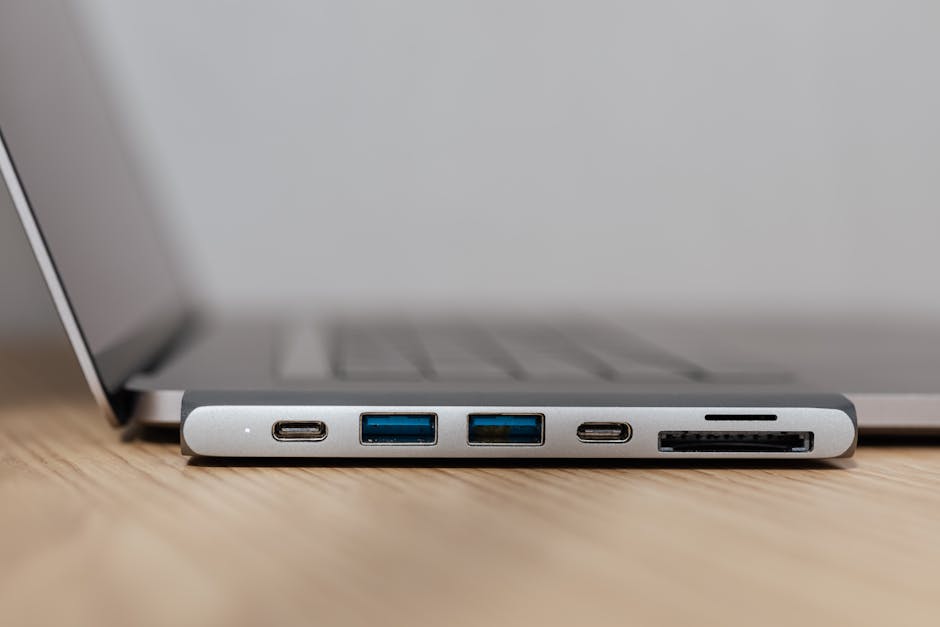
Featured image alt text: “USB-C vs Thunderbolt vs DisplayPort Alt Mode explained with labeled ports and monitor connection.”