How to Set Up a Secure IoT Wi‑Fi Network for Your Home Ventilation and Cooling Devices
One thing I learned the hard way: the “smart” part of home ventilation and cooling is exactly what gives attackers an easy door. A cheap bug in an old Wi‑Fi setup can turn your home AC controller into a target. The good news is you can fix this with a few solid network moves—and you don’t need to be a computer expert.
Secure IoT Wi‑Fi network setup in plain terms: put your ventilation and cooling devices on their own Wi‑Fi, limit what they can talk to, keep firmware updated, and watch for odd traffic. That’s the whole job.
I’m writing this for 2026 because device makers keep adding features, and hackers keep finding new ways in. If you’ve got smart thermostats, smart vents, or Wi‑Fi AC controllers, this guide will help you lock things down without breaking day-to-day use.
Start with the main rule: isolate your ventilation and cooling IoT devices
The #1 thing that stops most home IoT attacks is isolation. “Isolation” means your devices can reach the services they need, but they can’t roam freely on your whole home network.
When people skip this step, it usually goes like this: everything sits on the same Wi‑Fi name and same network. If one device gets infected (or its app account gets taken), the attacker can often scan and try other devices too.
Use a separate IoT Wi‑Fi (or VLAN) for these devices
Your home ventilation and cooling gear should not share the same network as your laptops, phones, work devices, or smart TVs.
- Create a new Wi‑Fi network in your router settings. Name it something like Home-IoT-Only.
- Turn on “Guest network” mode if your router allows it. Guest mode is often isolated by default.
- If your router supports VLAN, put IoT devices in a VLAN like VLAN 30 and block cross-VLAN traffic. VLAN (Virtual Local Area Network) just means “separate sub-net inside one router.”
- Disable device-to-device access (sometimes called “allow communication between clients” or similar).
Most home routers don’t support VLAN well, but many do now. As a rule, if you see a setting about “Guest Isolation,” use it. If you see VLAN tagging, use it. Either way, the goal is the same.
Choose the right router settings for IoT security (and avoid common traps)
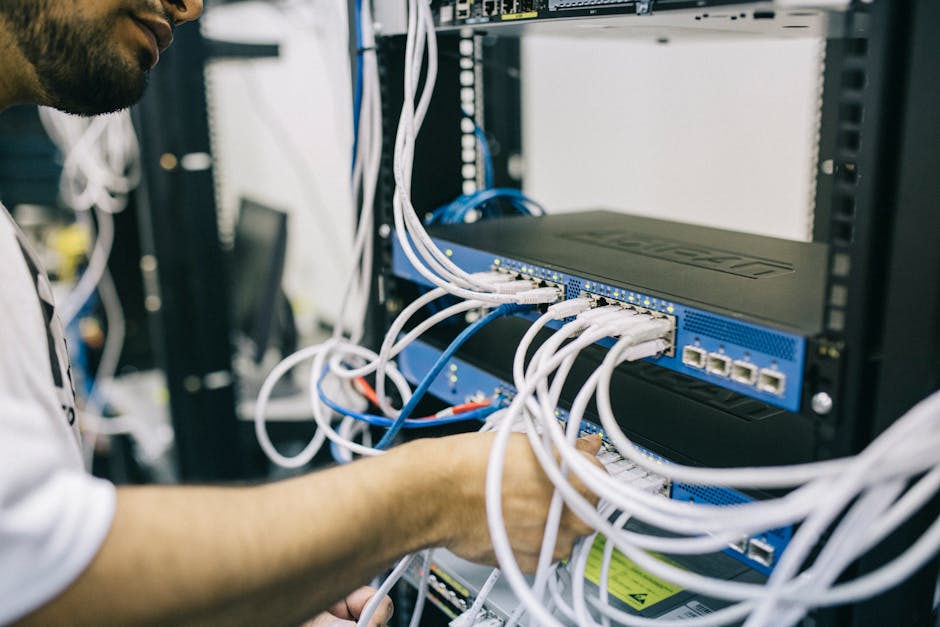
Router settings are where security lives. Two minutes of setup beats weeks of troubleshooting after something breaks or gets hacked.
Here are the settings I always check on the networks I set up for friends and family.
Turn on WPA3 (or WPA2-AES if WPA3 isn’t available)
Wi‑Fi encryption matters. WPA3 is the best option as of 2026, but WPA2 with AES is still strong for most homes. Avoid older Wi‑Fi modes when you can.
- Set Wi‑Fi security to WPA3-Personal (or WPA2-AES).
- Use a strong passphrase (15+ random characters). Don’t use your street name or a common phrase.
- Turn off WPS (Wi‑Fi Protected Setup). WPS can be a fast way for someone nearby to guess.
Block inbound connections to IoT devices
Many IoT devices don’t need to be reachable from the internet. You should block “unsolicited inbound” access.
- Turn off UPnP (Universal Plug and Play). This often opens ports automatically.
- Don’t set port forwarding for IoT devices.
- If your router has a “DMZ” feature, never put IoT devices there.
Use DNS filtering and automatic threat protection
Some routers now include built-in ad/tracker blocking and threat detection. DNS filtering blocks known bad domains before the device tries to connect.
It’s not magic, but it cuts off a lot of low-effort attacks. If you can, enable:
- Malware/phishing domain blocking
- Threat intelligence or “security” features
- Automatic firmware updates
If you want to go deeper later, you can add a tool like Pi-hole or a DNS security service—but start with router protection first so you don’t create a new headache.
Secure the IoT devices themselves: accounts, firmware, and “phone-home” traffic
Your Wi‑Fi setup helps, but device setup still matters. Most real break-ins come from weak passwords, stale firmware, or a cloud account that got guessed.
Change default passwords and turn on 2FA where it exists
Do this before you do anything else. Replace any factory admin password on routers, hubs, or ventilation/AC controllers.
- Use a unique password for each device brand (don’t reuse the same one).
- If the brand app supports 2FA, turn it on right away.
- Check app logins and remove old devices from your account.
Small story: I helped a neighbor last winter. Their ventilation system app showed an active login from a city they’d never been to. The Wi‑Fi itself wasn’t the issue—the account password was weak and reused. After we changed it and checked settings, the alerts stopped within minutes.
Update firmware on a schedule (not “only when it breaks”)
Firmware is the software inside the device. In many products, security fixes arrive as firmware updates.
My practical routine for homes in 2026:
- Check updates once a month for devices that stay online all the time.
- Do a quick review every 90 days for anything that has an app and cloud login.
- After major router changes, re-check device connectivity.
Some ventilation and cooling units update quietly in the background. Others require you to press a button in the app. Either way, set a reminder.
Lock down remote access (because most people overdo it)
Here’s what most people get wrong: they enable remote access “for convenience” and then they forget it exists.
- If remote access is optional, keep it limited to the official app.
- Avoid creating your own VPN just because you can—unless you know how to secure it properly.
- If you do use remote access, check that it isn’t exposing raw device admin pages.
When you restrict remote access, your home becomes much harder to scan from the internet.
Use firewall and traffic rules to limit what IoT devices can do
The best “extra layer” is controlling traffic. You decide what each device group is allowed to reach.
Block IoT devices from reaching your personal computers
On a typical home network, laptops and phones should not be reachable by IoT devices. If your router supports inter-client blocking between networks, use it.
In plain terms: IoT can talk to the internet and the vendor servers it needs, but it shouldn’t talk to your Windows PC or NAS box.
Allow only what’s required for the app and control
Some routers let you create “rules” based on IP ranges or device categories. You can also do it with a firewall-capable router.
Here’s a safe default set of rules for a lot of home setups:
- IoT network → internet: allow outbound web and vendor connection
- IoT network → local LAN: block by default
- Local LAN → IoT network: allow only what you need (often none)
- Inbound from internet to IoT: block all
If you run a smart home hub locally, allow only that hub to reach the IoT devices. That way, your hub becomes the “trusted bridge,” not your whole home.
Measure and monitor: know when something is wrong
Security isn’t just prevention. You also want early warning if something changes.
Check device behavior after setup
After you put IoT devices on the IoT Wi‑Fi, verify they still work like normal. Then observe for a day.
- Do your ventilation and cooling settings sync with the app?
- Do you still get temperature or airflow updates?
- Does the device reconnect after power loss?
Then do a quick look at your router’s client list. If you see a device repeatedly reconnecting or using unusually high bandwidth, investigate.
Look for weird DNS queries and sudden spikes
If your router has a “logs” or “security events” page, review it weekly. You’re looking for patterns, not perfection.
Common red flags I’ve seen:
- DNS requests to lots of random-looking domains
- Frequent “failed login” attempts in device or router logs
- Huge upload spikes at odd times (like late night every day)
If you want a deeper approach, you can pair the router logs with a tool (some people use netflow-style monitoring). For most homes, the router dashboard plus a weekly glance is enough.
Featured question: What is a secure IoT Wi‑Fi network?
A secure IoT Wi‑Fi network is a Wi‑Fi setup where your smart devices run in a separate, restricted network segment, with strong encryption and locked-down remote access. It also includes keeping device firmware and accounts up to date.
Think of it like this: your ventilation and cooling devices should live in their own “room,” with a door that only opens to the places they need. Phones and laptops are in the main house. No free roaming.
People Also Ask: answers for the questions people actually search
Can I use guest Wi‑Fi for smart ventilation and AC devices?
Yes, guest Wi‑Fi is often the easiest way to isolate IoT devices. In many routers, guest networks are isolated from the main LAN by default, which is exactly what you want for security.
One caution: some IoT apps expect local discovery (like finding a device on the same local network). If guest Wi‑Fi blocks that, you can either:
- Use a “guest network with local access” setting only for discovery (if your router supports it), or
- Use VLAN or an IoT SSID that’s still isolated but allows the needed discovery path.
Do I need a VPN for my home ventilation devices?
You don’t need a VPN for most homes if you use strong Wi‑Fi isolation and you avoid exposing device admin panels to the internet. A VPN can add complexity and sometimes becomes the new weak point if set up wrong.
Best practice for most people: keep remote access inside the official vendor app, use strong account security, and avoid port forwarding.
Will splitting Wi‑Fi into separate networks slow down my AC or ventilation controls?
In most cases, no. The control messages are small. The bigger performance difference is often between Wi‑Fi band use (2.4 GHz vs 5 GHz) and signal quality, not network isolation.
What I recommend:
- Use 2.4 GHz for devices that need long range or simple connectivity.
- Use 5 GHz for devices that support it and are close to the router.
If your device supports only 2.4 GHz, don’t force it onto 5 GHz.
How can I tell if my router is weak for IoT security?
A weak router setup usually fails one of these checks:
- You can’t create an IoT/guest network.
- You can’t enable isolation between networks.
- You can’t turn off UPnP or you don’t have security event logs.
- Firmware updates are rare or you can’t update at all.
If you see those gaps, consider switching to a router that supports guest isolation, automatic updates, and traffic monitoring. It’s one of the best “security per dollar” upgrades you can make.
Real-world setup example (what I’d do for a typical home in 2026)
Let’s make this concrete. Imagine a home with a smart ventilation system, a smart AC controller, and maybe a smart thermostat that controls cooling schedules.
Here’s the setup I’d aim for, step by step, taking about 30–60 minutes total.
- Update router firmware first. Then reboot once.
- Create Wi‑Fi networks: keep your main network for phones and laptops, and add Home-IoT-Only for the devices.
- Enable guest or IoT isolation so IoT devices can’t see your LAN devices.
- Turn off WPS and disable UPnP.
- Add DNS threat protection in router settings if it exists.
- Place ventilation + AC devices on IoT Wi‑Fi and complete app setup.
- Change device app passwords and enable 2FA if available.
- Check for firmware updates inside each device app.
- Test remote control from your phone on cellular data. Make sure it works without exposing ports.
- Review router client list and logs after 24 hours.
The “original insight” part here is the last step. Don’t just confirm it works. Confirm it behaves normally. IoT issues often show up as traffic patterns long before they show up as comfort problems.
Where ventilation and cooling hardware fits: airflow devices often need stable local discovery
Ventilation and cooling systems often have two communication styles: cloud control (app) and local control (device discovery). If you isolate networks too aggressively, you can accidentally break discovery.
That’s why I suggest starting with isolation that keeps IoT separate from the LAN, but still allows the device app setup to finish. Once the app works, you can tighten rules further.
If you’re also buying new equipment, consider that some ventilation systems come with better support for secure onboarding (like QR pairing, frequent firmware updates, and clear app permissions). In 2026, that matters as much as fan specs.
If you’re currently choosing ventilation gear, this is a solid place to start for options: rekuperatoriai. When you pick a modern unit, also look for whether it supports recent firmware updates and a clear security setup in the app.
Quick checklist you can save (do this before summer)
Here’s a short checklist you can run through in one evening. If you do nothing else, do at least these items.
- Create an IoT-only Wi‑Fi network (guest or isolated SSID).
- Use WPA3 or WPA2-AES; turn off WPS.
- Disable UPnP and avoid port forwarding.
- Change default passwords on device apps and accounts.
- Enable 2FA if the vendor app offers it.
- Update firmware on devices and router.
- Check router logs weekly for weird events.
- Test remote control from outside the home.
That list prevents the most common “I thought it was safe” mistakes.
Internal help on your blog: keep security going after setup
Once your IoT network is isolated and updated, the next step is learning how to spot real threats. If you want more guidance on device/account safety, you may like our piece on securing smart home accounts. It focuses on the stuff that trips people up: reused passwords, missing 2FA, and stale logins.
For Wi‑Fi and home setup troubleshooting, check the troubleshooting angle in how to fix Wi‑Fi dead zones without breaking security. Better signal means fewer reconnections, and fewer reconnections mean fewer chances for misconfigurations.
If you’re comparing gear or planning upgrades for 2026, our router review of secure home routers is the one I recommend most to people building an IoT-ready setup.
And yes—if you want to keep your ventilation and cooling hardware modern, start with options like rekuperatoriai and then build a network around them that you control.
Conclusion: build a “separate room” network and you’ll sleep better
A secure IoT Wi‑Fi network for ventilation and cooling devices is not complicated. It’s mostly about isolation: a dedicated IoT network, strong Wi‑Fi encryption, blocked inbound access, and updated firmware.
If you do just three things—use an IoT-only SSID (or VLAN), disable UPnP and WPS, and update both router and device firmware—you’ll stop the most common home IoT attacks. Then, add quick monitoring and strong account security, and your smart home becomes a comfort system again, not a risk.