USB-C Explained: Everything You Need to Know About Power Delivery, Data Speeds, and Safety
If you’ve ever bought a “fast charging” cable and your phone still showed a slow charging message, you’ve already met the real problem: USB-C isn’t one thing. It’s a shape. What matters is what your charger, cable, and device agree to do—especially for Power Delivery and data speed.
In this guide, I’ll explain USB-C in plain words. You’ll learn what Power Delivery actually means, how to tell what data speeds you’re getting, and how to stay safe when charging laptops, phones, tablets, and docks. I’ve also seen the same few mistakes repeat, so I’ll point those out as we go.
Quick answer: USB-C is a connector type, and “USB-C” power and speed depend on the USB standards your devices support. Look for USB Power Delivery (PD) for charging and check the USB/Thunderbolt branding for data speed.
USB-C Explained: What the connector is (and what it isn’t)
USB-C refers to the connector shape and pin layout, not the speed or charging power by itself. Two devices can both have USB-C ports and still use totally different rules for power and data.
Here’s the key idea: USB-C can carry power and data, but the “language” they speak is decided by standards. In daily life, you’ll mostly run into two standards: one for charging (USB Power Delivery) and one for data (USB 2.0, USB 3.x, and sometimes Thunderbolt).
- USB-C (connector): the physical port you plug into.
- USB Power Delivery (PD): rules for charging power levels.
- USB data standards: rules for speeds like USB 2.0 (480 Mbps) and USB 3.x (often multiple Gbps).
- Thunderbolt: a higher-speed option that uses USB-C style wiring on many devices.
That’s why “USB-C charging” isn’t a single speed or a single watt number. Your charger and device negotiate a setting.
Power Delivery (PD) on USB-C: How wattage negotiation really works

USB Power Delivery is the system that lets USB-C chargers and devices agree on a safe power level. It’s what makes a single cable work with everything from a phone to a gaming laptop—when the gear supports it.
USB PD is usually described in watts (W), and watts come from volts (V) times amps (A): W = V × A. What’s important is that PD doesn’t just run at one fixed speed. Instead, the charger and device pick a power profile.
USB-C PD profiles you’ll actually see
As of 2026, many chargers and devices still use common PD steps. You’ll often see these values on reputable chargers and USB-C power banks.
- 5V: common baseline for phones and accessories.
- 9V: sometimes used for faster phone charging.
- 12V: used by some laptop chargers and fast chargers.
- 15V: found on many mid-range chargers.
- 20V: common for laptops (this is where you get real laptop charging power).
For example, a 20W phone charger might advertise something like “5V⎓3A” or “9V⎓2.22A” (you’ll see the arrow and the current rating). A laptop charger often advertises 20V, sometimes also 65W, 100W, or more.
What most people get wrong about USB-C Power Delivery
Most people assume that buying a high-watt charger automatically means the device charges fast. That part is true. The part people miss is that your device chooses how much to draw.
So if you plug a 100W charger into a phone that only supports up to 25W, you’ll still only get up to 25W. Your phone isn’t “cheated” out of power—its battery charging chip simply won’t request it.
I learned this the hard way with a docking setup. I had a 100W USB-C charger plugged into a desk dock, but my old laptop only supported PD up to 45W. The dock was capable; the laptop wasn’t. Charging worked, just not at the speed I expected.
PD vs “just USB-C charging”: what’s the difference?
Some USB-C ports charge using simpler rules, often called default USB power. Those can be limited to around 5V at low current. If your phone or laptop doesn’t support USB PD negotiation, you’ll see slower charging.
Look for wording like “USB Power Delivery,” “PD,” or “Charging (PD)” on the product page. For laptops, also check the laptop’s spec sheet for supported wattage through USB-C.
USB-C data speeds: USB 2.0, USB 3.x, and Thunderbolt in plain numbers
USB-C can carry slow and fast data, and the port’s shape doesn’t tell you which one you have. The safest way to know your real speed is to match the USB standard to the cable and the device.
On many computers, the USB-C port name is shown in marketing or in the device manager. If it’s not obvious, you can also look at the product listing for the dock or cable.
Common data speed targets (with realistic context)
Here are the typical headline speeds you’ll see in 2026. These are maximum theoretical speeds, not guaranteed real-world transfer rates.
| Standard | Headline speed | What you’ll feel in real life |
|---|---|---|
| USB 2.0 | 480 Mbps (about 60 MB/s max) | Fine for mice, keyboards, and occasional file moves. |
| USB 3.2 Gen 1 | 5 Gbps (about 625 MB/s max) | Quicker file transfers for drives and photo backup. |
| USB 3.2 Gen 2 | 10 Gbps | Noticeably faster for big videos and large SSD backups. |
| USB 3.2 Gen 2×2 | 20 Gbps | Very fast transfers if the entire chain supports it. |
| Thunderbolt (often 3/4) | Up to 40 Gbps | Best for docks, high-speed SSDs, and multi-monitor setups. |
If you’re moving a few photos, USB 2.0 can still feel “okay.” If you’re copying a whole phone backup or working with video editing files, you’ll want USB 3.x or Thunderbolt.
How to tell if a USB-C cable supports fast data
Here’s the part most people skip: not all USB-C cables support fast data speeds. Some only support charging and basic data.
When a cable supports higher speeds, the packaging often says things like “USB 3.x,” “10Gbps,” or shows a label for high-speed signaling. If the listing only says “USB-C,” treat it as a red flag.
In my experience reviewing gadgets, I’ve seen “charging cables” bundled with accessories that were great for power but disappointing for file transfers. The laptop still recognized the phone, but it transferred at a pace closer to USB 2.0.
USB-C cables: charging cables vs data cables (and why it matters)
USB-C cables can differ a lot. A cable that’s fine for charging might not carry the high-speed signals needed for USB 3.x or Thunderbolt.
Think of it like a set of pipes. If the pipe is narrow, the water (data) can’t move fast no matter how powerful the pump (your device) is.
What to look for when buying a cable in 2026
Use these checks before you buy:
- Length: longer cables can lose signal quality. For 10Gbps and above, shorter is usually better.
- Data rating: look for “10Gbps,” “20Gbps,” or explicit USB 3.x support.
- Power rating: look for PD watt support like “100W” for laptop charging.
- Certification or branding: reputable brands include clear specs. Cheap generic listings often don’t.
Real-world use case: phone-to-laptop photo backups
If you back up photos from your phone to a laptop—especially if you’re doing it often—fast data matters. A 20-minute backup on USB 2.0 can become a 5–8 minute backup on USB 3.x, depending on the drive and phone.
When you’re editing video, the speed gap gets even bigger because you’re not moving tiny files. You’re moving lots of data continuously.
Safety with USB-C: heat, sparks, and when to stop using a cable
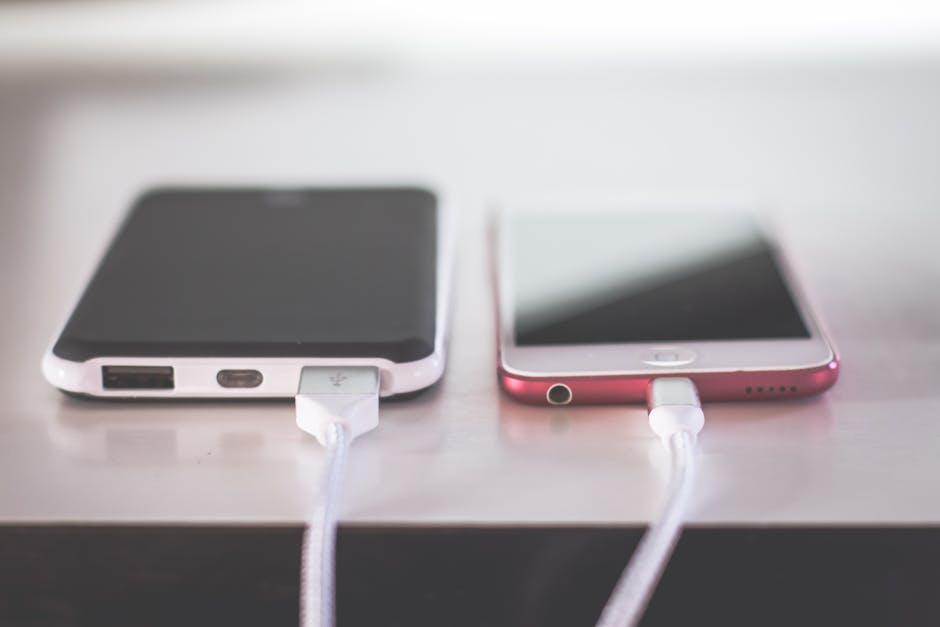
USB-C is safe when you use compatible chargers and quality cables, but heat is the biggest warning sign. Power Delivery systems are designed to be protective, yet bad cables and damaged connectors still cause problems.
Safety is not just about “will it explode.” It’s also about avoiding battery wear, degraded wiring, and overheating that can shorten device life.
What “good” charging feels like
In normal use, your device and charger should get warm, not hot. After 10–20 minutes of fast charging, a phone might feel warm to the touch, but not painful to hold.
If your laptop charger bricks are scorching or your phone case is too hot to comfortably touch, that’s a stop-and-check moment.
Common safety mistakes I see (and what to do instead)
- Using a no-name cable for laptop charging: switch to a cable rated for your wattage and speed.
- Charging in a cramped spot: blankets and soft fabric trap heat. Use a hard surface.
- Ignoring connector damage: if the USB-C plug wiggles loosely, don’t force it. Replace it.
- Using a cheap hub for big power: docks without solid PD specs can run hotter than expected.
What to do if a cable gets hot fast
Here’s my quick checklist. It takes 30 seconds and saves a lot of stress.
- Unplug it immediately. Don’t “wait and see.”
- Check for discoloration. Look for dark spots near the connector.
- Smell for a burning odor. If you notice it, stop using the cable forever.
- Try a known-good cable. If the problem disappears, the cable was the issue.
- Try a different charger. If it still overheats, the port or device charger circuitry may be the problem.
Tip: if you’re charging a laptop at high wattage and the charger brick runs unusually hot in normal room temperature, swap out the charger. I’ve seen cheap “100W” chargers that run way hotter than branded ones.
USB-C and cybersecurity: why charging cables can be a risk
USB-C itself isn’t the danger, but data-capable ports and cables can create real security problems. The risk is when an attacker uses the connection for data, not power.
On public Wi-Fi days, people plug in a “free charging” station and walk away. That’s how juice becomes a trap. It’s not always dramatic like a movie. It can be slow, subtle data access or device profile changes.
How USB-C data connections can be abused
If a cable supports data, it can expose your device to things like:
- device fingerprinting
- malicious USB devices that try to trigger prompts
- payload delivery through “connected device” features
You can reduce this risk by using the right charging cable or safe adapters. A power-only cable blocks data lines, so the station can’t talk to your laptop.
My go-to safety move for travel
I always pack a short power-only USB-C cable for travel. When I need to charge, I use that cable so I don’t hand over a data channel.
If you want deeper basics, see our post on USB port security checklist for laptops. It covers practical habits like what to do when a device asks permission to connect.
People also ask: USB-C Power Delivery, speeds, and safety
Does USB-C always support fast charging?
No. USB-C only supports fast charging when both the charger and the device support USB Power Delivery (PD) or another fast-charging standard. If either side only supports basic 5V charging rules, your charge speed will be limited.
Why is my USB-C charging slow even with a 100W charger?
Three common reasons: the laptop (or phone) limits the maximum PD wattage it will request, the cable can’t handle the required power, or the port on the device isn’t wired for PD.
First check the device specs for maximum USB-C charging wattage. Next, try a certified cable rated for 100W. If it’s still slow, try a different USB-C port on the device (some ports are “data only” or “charging only”).
Can a USB-C cable damage my device?
Yes, if the cable is low quality or damaged, it can cause overheating, intermittent connection, or voltage problems. Power Delivery includes safety checks, but it can’t fix broken wiring or a connector that’s already worn out.
Stop using cables that get hot quickly, have bent plugs, or show discoloration.
How fast is USB-C data transfer in practice?
It depends on the full chain: the port, the cable, the device, and the storage drive. USB 2.0 is usually “slow but workable,” while USB 3.x or Thunderbolt can be dramatically faster for SSDs and large folders.
If you’re unsure, run a quick file transfer test using a large folder and compare it across cables. The difference is often obvious.
How do I check what USB speed my device is using?
On Windows, you can check USB controller details in Device Manager. On macOS, system reports can show the USB link details. For quick practical checks, do the transfer benchmark method: move a large folder (like 5–20GB) and time it.
If your speed stays stubbornly low across multiple cables, the limitation might be the device port or the storage target, not the cable.
USB-C Power Delivery + data: docks and hubs (where confusion is common)
Docks are where USB-C rules collide: they must support charging power and carry video or data all at once. That’s why some docks charge fine but feel “weird” for file transfer or display output.
A dock might support 100W charging, but your laptop might negotiate only a lower wattage. Or the dock might advertise high-speed data while only one port actually has that speed.
Checklist before you buy a dock for a laptop
- Confirm charging wattage: does it match your laptop’s max USB-C charge?
- Confirm data type: is it USB 3.x, 20Gbps, or Thunderbolt?
- Confirm video support: does it support the monitor resolution/refresh rate you need?
- Confirm cable included: sometimes docks include only a basic cable.
If you want related tips, you may like our gadget review style guide for choosing the right dock setup in the best USB-C docks buying guide. It focuses on real ports, not just marketing claims.
Step-by-step: set up your USB-C gear for maximum speed and minimum risk
You don’t need to be an expert to get good results. Use this step-by-step setup and you’ll fix 90% of the annoying USB-C problems people run into.
1) Match your cable to your goal
- Charging a phone: a good PD cable rated for the charger wattage is enough.
- Charging a laptop: get a cable rated for 100W and intended for PD.
- Fast photo/video transfers: get a cable rated for USB 3.x speeds (and ideally 10Gbps+ if you want noticeable speed).
- Thunderbolt docks/SSDs: use a cable that explicitly supports Thunderbolt if your device requires it.
2) Don’t assume all USB-C ports are equal
Some devices route one USB-C port for charging only, while another supports full data. If you have two ports, test both.
Also, some laptop dock setups use a “main” port for best performance. If your display looks glitchy or your SSD is slow, try a different connection order.
3) Confirm power draw and temperature
After connecting, check if the charger or device gets unusually hot. If it does, switch cables and outlets. For laptops, avoid charging in direct sunlight or on soft bedding.
4) Use power-only cables in risky places
At airports, hotels, and shared public stations, prefer power-only cables or USB data blockers. It’s one of the simplest security steps you can take with very little downside.
If you want a deeper dive into USB-borne risks and how to reduce them, check our USB device cybersecurity risks guide in the Cybersecurity category.
My take for 2026: the “best” USB-C setup is boring—and that’s good
Here’s my honest opinion: the best USB-C setups aren’t flashy. They’re consistent. One good PD charger, one good high-speed cable for transfers, and one power-only cable for travel.
That boring combo saves you from the two biggest frustrations: slow charging and slow copying. It also reduces the security risk of connecting to unknown data sources.
The goal isn’t to buy the most expensive cable. The goal is to buy cables and chargers that match your devices’ real capabilities.
Conclusion: Use USB-C correctly by checking PD and data ratings, not just the plug shape
USB-C Explained in one line: the connector shape doesn’t guarantee fast charging or fast data. USB Power Delivery (PD) handles charging by negotiation, while USB 2.0/3.x and Thunderbolt decide data speed.
If you want a practical takeaway you can act on today, do this: check your charger and cable ratings for PD wattage and data speed, then avoid sketchy public charging setups with power-only cables. When you match the standards to the job, USB-C stops being confusing and starts working like it should.
Featured image alt text: USB-C Explained power delivery and data speed safety with PD charger and high-speed cable