USB-C Explained: Charging Standards (PD), Cable Quality, Data Speeds, and Common Myths
I used to think all USB‑C cables were basically the same. Then I bought a “fast charge” pack, plugged in my phone, and… the battery crawled up like it was sipping from a straw. That was my wake-up call: USB‑C is the connector shape, but charging speed and data speed depend on what’s inside the cable and what standards the devices support.
USB‑C explained is simple on the outside and tricky on the inside. USB‑C refers to the plug and port, while USB Power Delivery (PD) refers to the charging rules that decide how much power gets sent. In 2026, the good news is that most modern phones, laptops, and docks support USB‑C PD. The bad news is that cheap cables still fail you—either for charging, data, or both.
Below is a practical guide I wish I had years ago: what PD actually means, how to spot cable quality, what data speeds you should expect, and the myths that keep people from buying the right gear.
USB-C Explained: What USB-C and USB PD Really Are (and Aren’t)
USB‑C is the connector, and USB Power Delivery (PD) is the power “agreement” between devices. Many people mix these up, and that’s where most charging problems start.
USB‑C is a reversible plug type. It fits into ports on phones, tablets, laptops, handheld devices, and lots of accessories. But USB‑C can carry different kinds of signals. It can move data, send video, and power devices—depending on support.
USB Power Delivery (PD) is the charging standard that negotiates power. In plain terms, your charger and your device talk to each other and agree on things like voltage and wattage. PD is why a 30W charger can charge a phone faster than a 10W charger (if the phone supports PD fast charging).
USB-C PD and the “Wattage number” you should look for
The key charging number is watts (W). PD chargers commonly support multiple output modes like 5V, 9V, 15V, or 20V at different currents. When the agreement happens, your device chooses what it can safely use.
Here’s a real-world way to think about it:
- 5W is slow charging (often what you get from basic USB chargers).
- 18W to 30W is common for fast phone charging.
- 45W to 100W is typical for laptops and larger devices.
In 2026, most flagship phones support fast charging using USB‑C PD (sometimes with extra vendor rules layered on top). Laptops typically look for higher-watt PD profiles.
What about “Quick Charge,” “PPS,” and other names?
Some chargers use extra features besides PD. For example, PPS (Programmable Power Supply) is a PD add-on that lets the charger fine-tune power step-by-step. That can mean less heat and steadier charging on compatible phones.
You don’t need to memorize all names. Just remember this rule: if the charger and device list “USB‑C PD” and show the wattage and profiles, you’re on the right track.
Charging Standards You’ll See in 2026: PD Profiles, PPS, and Output Modes
Charging standards decide speed because they control the voltage/current your device gets. A USB‑C port alone doesn’t guarantee fast charging.
When you’re comparing chargers and docks, don’t just look at the cable. Look at the charger’s output specs and whether it supports PD. Many power bricks show output like this:
- USB‑C: 5V⎓3A (15W)
- USB‑C: 9V⎓3A (27W)
- USB‑C: 15V⎓3A (45W)
- USB‑C: 20V⎓5A (100W)
Those numbers tell you what the charger can do. Your device will only take what it asks for.
How PD negotiation works in real life
Here’s the simplified version I’ve seen work the same across brands: when you plug in, the charger advertises supported PD profiles. The device sends back what it wants (within safe limits). Then the charger ramps power to that agreed target.
If your cable is weak or poorly built, the device may refuse fast negotiation. You’ll see slower charging or the device will throttle.
How many watts do you actually need?
Don’t overspend just to chase a giant number. Use the device’s charging requirements as your guide:
- Phones: typically 20W–30W for fast charging (some do 45W).
- Tablets: often 30W–45W.
- Laptops: usually 45W–100W depending on the model.
If your laptop is rated for 65W and you buy a 100W charger, that’s fine. The laptop will only draw the power it needs. The problem is when the charger (or cable) can’t deliver the agreed power.
Cable Quality: Why “USB-C” Doesn’t Mean “Fast” (and What to Check)
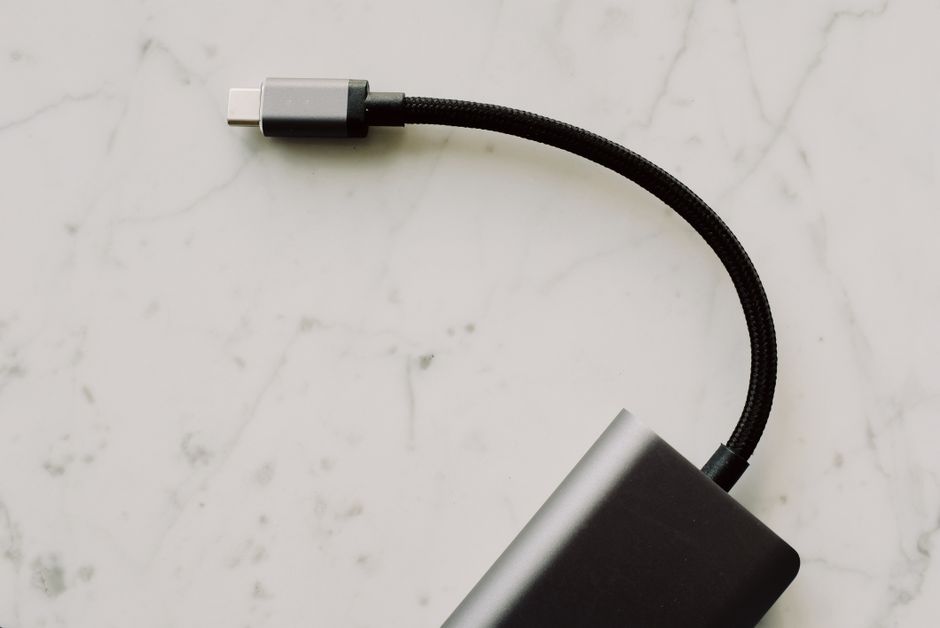
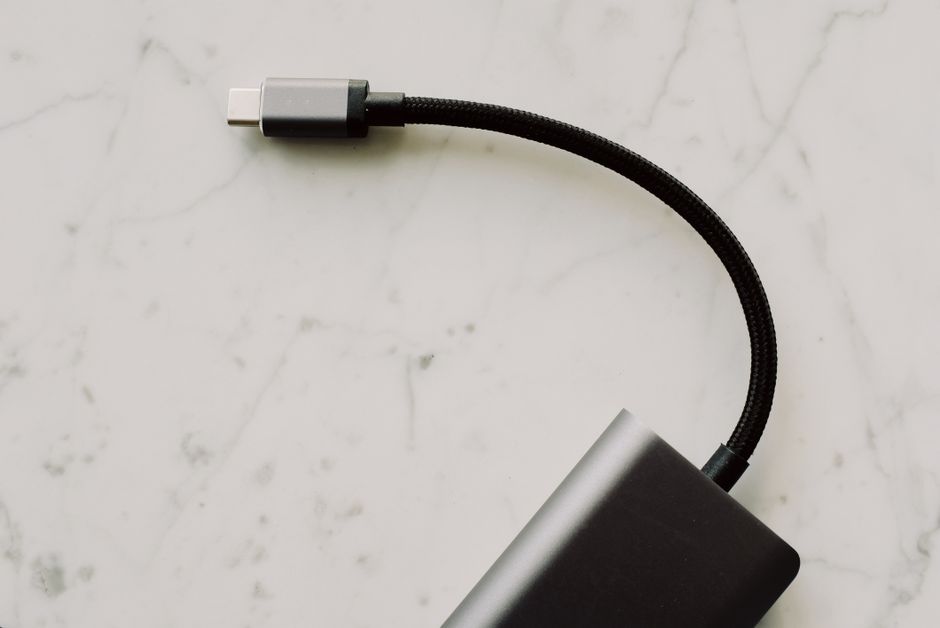
Good cables matter because they affect charging and data. A cable can fit the port and still be missing key wiring for higher speeds or higher power.
I’ve tested cables where charging worked but data didn’t. That usually points to missing or under-spec internal wiring for data lanes. I’ve also seen the reverse: data worked fine, but charging capped out because the cable couldn’t handle the current.
Look for USB-IF and clear power/data ratings
When a cable lists standards clearly, you’re less likely to get stuck with surprises. For charging, look for wording like:
- “USB Power Delivery (PD)”
- “Supports up to 100W” (or a specific max wattage)
- “Supports 5A” (often used for higher-power USB‑C charging)
For data, you’ll see terms like USB 3.2 Gen 1 / Gen 2, or USB 4. For video, you might see “DisplayPort Alt Mode,” but video is a bigger topic (and not all devices/cables support it).
At minimum, you want a cable that states it supports the features you need. If the listing is vague (“supports charging and data”), assume it’s basic.
A quick checklist before you buy a USB-C cable
Use this checklist. It takes about a minute and saves money:
- Length: longer cables cost more for a reason. A 2m cable may not match the same performance as a 0.5m cable at the same price.
- Maximum power: find the max wattage and whether it claims USB‑C PD. If it doesn’t say, skip it.
- Brand/model consistency: cables from reputable brands with consistent labeling are usually safer.
- Return policy: I keep this in mind because my time is worth something. If a cable claims 100W, verify within the return window.
My “real-world” cable test I do in 10 minutes
I don’t use fancy lab gear. I do this instead:
- Use a known PD charger (one that clearly states wattage).
- Plug into the phone or laptop and watch charging behavior.
- On laptops, check if the system shows fast-charge or AC power draw.
- On phones, check if it actually enables fast charging mode (some show a “fast charging” icon or speed indicator).
If it falls back to slow charging, the cable is the first suspect.
Data Speeds on USB-C: USB 2.0 vs USB 3.x vs USB 4 (What You Should Expect)
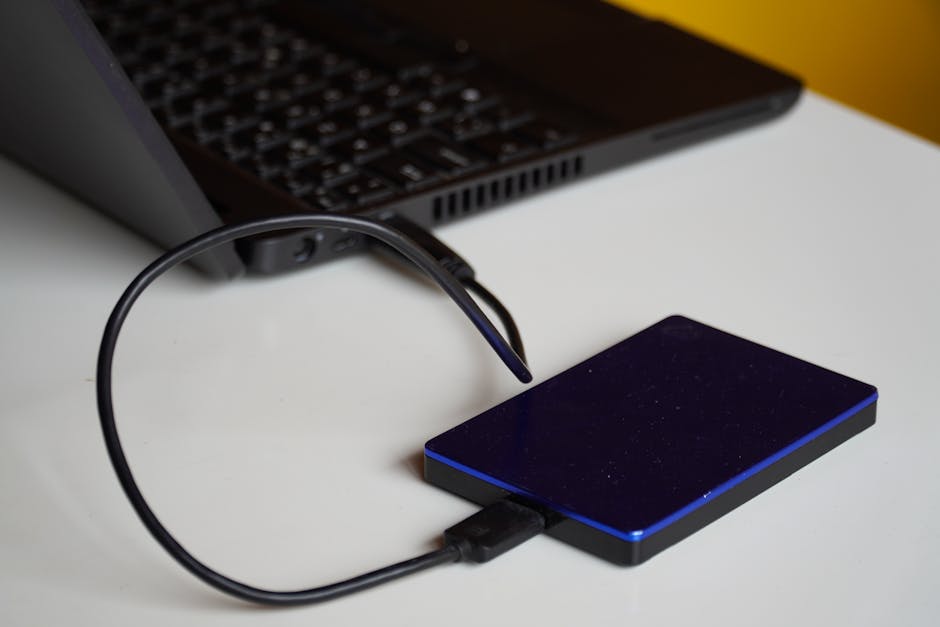
Data speed depends on the USB generation and the cable’s wiring. USB‑C is just the plug, so you have to look at the speed standard.
Here’s the common confusion: a cable can support USB‑C PD charging while still being a slow data cable. That’s why some people get fast charging but transfers take forever.
Typical data speed expectations (with real numbers)
These are practical, not theoretical. Actual speed can be lower due to storage type and the device’s controller, but this gets you in the right ballpark.
| USB level (common names) | Marketing speed | Practical expectation |
|---|---|---|
| USB 2.0 | 480 Mbps | Often tens of MB/s max; fine for phone backups, not great for large files |
| USB 3.2 Gen 1 | 5 Gbps | Usually around 400–800 MB/s? Not usually. More like 300–500 MB/s depending on device; still feels “fast” |
| USB 3.2 Gen 2 | 10 Gbps | Higher throughput, especially for SSDs and fast card readers |
| USB 4 | up to 40 Gbps | Great for docks and SSDs; real-world depends on the devices and the dock chipset |
One honest note: many docks and adapters share bandwidth across ports. If you’re moving a bunch of data while also using a display, speeds can drop.
How to tell if your USB-C cable supports fast data
The quickest method is the listing. If it doesn’t mention a USB 3.x/USB 4 standard, assume it’s USB 2.0. Then verify with a quick transfer test.
If you use a computer, try moving a 1GB file to a drive over that cable and time it. For USB 2.0, it often feels like it’s taking forever compared to a USB 3.x link.
Also check your device settings. Some laptops let you choose USB mode or have power-saving USB settings that can slow transfers.
Why phone charging cables often “lose” data speed
Many phone cable bundles are designed for charging first. They may support USB‑C PD (fast power) but only carry basic data lanes. It’s not always a bad thing—just don’t expect your transfer speed to match a data-only cable.
If you regularly move photos or use a card reader, spend more on a cable that explicitly states USB 3.x or USB 4 data support.
Common USB-C Myths That Keep Coming Back
USB‑C myths are persistent because people judge cables only by whether they fit. Here are the big ones I see again and again.
Myth #1: “If it fits, it charges fast.”
Not true. The plug fits, but fast charging needs USB‑C PD (and often PPS) support from both the charger and the device. It also needs a cable that can carry the agreed power.
If your phone shows slow charging, don’t blame the phone first. Swap the cable before you buy a new charger.
Myth #2: “All USB-C cables are the same.”
They’re not. I’ve seen cables that are great for power but cap out on data. I’ve also seen cables where charging works at low wattage, then stops negotiating at higher wattage targets.
Think of it like headphones. Two cables can both “connect to the same thing,” but one might have better wiring for noise and clarity.
Myth #3: “Higher watts on the charger means it will always charge faster.”
Your device decides the speed. A 100W charger can still charge a phone at 20W if that’s what the phone asks for. The real risk is if the cable can’t handle the higher power path, not if the charger is “too strong.”
Myth #4: “A USB-C port is always USB 3.x.”
Some ports are USB 2.0 under the hood. Older laptops, budget adapters, and certain docks often vary. If the device spec doesn’t say “USB 3.x” or “USB 4,” you should assume slower data.
Myth #5: “You can’t hurt anything by using a random cable.”
You can’t always “damage” a device in a dramatic way, but you can cause charging failures, overheating, or repeated negotiation errors. A bad cable can also lead to unstable connections and partial data transfers.
If you notice heat around the connector, stop using that cable. Replace it.
People Also Ask: USB-C Charging and Data Questions
Here are the most common questions I see when people troubleshoot USB‑C issues. These answers are meant to be direct enough for quick fixes.
Is USB-C PD the same as fast charging?
USB‑C PD is the charging standard that supports fast charging. Fast charging is the result; PD is the rule-set that makes it possible. If a charger says “USB‑C PD” and the device supports it, fast charging usually works—assuming the cable is also capable.
Why does my phone show slow charging with a USB-C cable?
Most of the time, it’s one of these:
- The cable supports only basic power (or can’t handle the higher wattage negotiation).
- The charger lacks the needed PD profile or wattage.
- The port on the device isn’t configured for that charging mode (rare, but happens on some adapters).
Fix: test with a known-good PD charger and a cable labeled for the right wattage. If that still fails, the phone’s charging port may need inspection.
Can a USB-C cable charge and transmit data at the same time?
Yes, if the cable and devices support it. Many USB‑C cables do both. But some “charge-only” or “power-focused” cables carry limited data wiring, so charging works while data speed is poor or data doesn’t work at all.
What’s the best cable type for a laptop dock?
For most laptop docks, you want a cable that supports at least the dock’s claimed data spec (often USB 4 or USB 3.2 Gen 2, depending on the setup) and enough wattage for charging.
As a quick rule: if your dock supports 100W charging, choose a USB‑C cable labeled for 100W (or 5A) and the correct data generation. Otherwise, the dock might charge slowly or drop video/data when the bandwidth is stressed.
Do I need USB-IF certified cables?
You don’t always need certification to get good results, but it’s a good sign. Certification helps reduce the risk of cables that claim features they can’t reliably deliver. If you’re shopping on a budget, prioritize cables with clear PD wattage and USB generation info.
Security Angle: USB-C Isn’t Just About Speed (It’s Also About Risk)
USB-C can be a security problem, not because USB‑C itself is “dangerous,” but because many devices treat USB connections as trusted and start exposing data.
When you plug in a USB cable to a laptop, you’re not only sharing power—you’re often enabling data access modes. That can let someone attempt attacks like:
- Turning a “charging port” into a data link (if the cable supports data)
- Auto-running behaviors (less common on modern systems, but still worth watching)
- Using special hardware that mimics devices (often called USB attack devices)
This is why I recommend reading your device’s USB security settings. Also, you can use data blocker cables when you only want charging in public places.
If you’re into that side, you’ll probably like our guide on USB security risks and how to stay safe. It’s written for real-life situations, like hotel USB ports and “free charging stations.”
How to Choose the Right USB-C Gear for Your Use Case
Stop shopping by connector shape. Shop by the job you’re asking the cable to do: charging, data, video, or all three.
If you only need phone charging
Pick a charger that clearly supports USB‑C PD (and PPS if your phone supports it). Then pick a cable labeled for fast charging wattage. You don’t need USB 4 for simple phone charging.
My preference: a short, well-labeled cable plus a charger with a clear output profile. It reduces weird issues where charging slows when the battery gets warm.
If you move lots of files (photos, game captures, work docs)
Choose a cable that explicitly supports USB 3.x or USB 4 data speeds. If you’re using an SSD or a fast card reader, the cable is part of the performance chain.
Also, test once you get it. Transfer time is the truth. Specs are a promise; testing proves reality.
If you use a laptop dock and want one-cable life
This is where people get frustrated because they assume one cable will always do everything at peak speed. Docks can share power and data lanes, and some setups are sensitive to cable quality.
In 2026, I tell people to buy:
- A PD cable rated for the dock’s charging wattage (often 100W / 5A)
- A cable rated for the dock’s data/video needs (USB 4 or the relevant USB 3.2 generation)
- At least one spare cable if your work setup depends on it
If you’re using a docking setup daily, cables wear out. I’ve replaced one after months of plugging/unplugging and the “random disconnect” problems vanished.
Conclusion: Your Actionable Takeaway for USB-C (Charging + Data Without Regrets)
Here’s the simple takeaway: USB‑C is the connector, USB PD is the charging standard, and cable quality decides whether your device can actually use the speed it supports.
Before you buy (or blame your phone), check three things:
- Charging: charger supports USB‑C PD, and the cable lists the max wattage (like 30W or 100W).
- Data: the cable explicitly supports USB 3.x or USB 4 if you care about fast transfers.
- Risk: in public places, use data blocker cables if you only need power.
If you do those steps, you’ll avoid the most common frustration—slow charging with a “fast” cable, or slow transfers because the cable only carries basic data. And if you want to go deeper into device reliability and safer setup habits, check out our best laptop dock setup tips and our how to spot scam tech advice. Those pairs well with this one, because the real world is where the standards meet the mistakes.
Featured image alt text suggestion: “USB-C Explained diagram showing PD charging negotiation, cable power rating, and data speed lanes.”