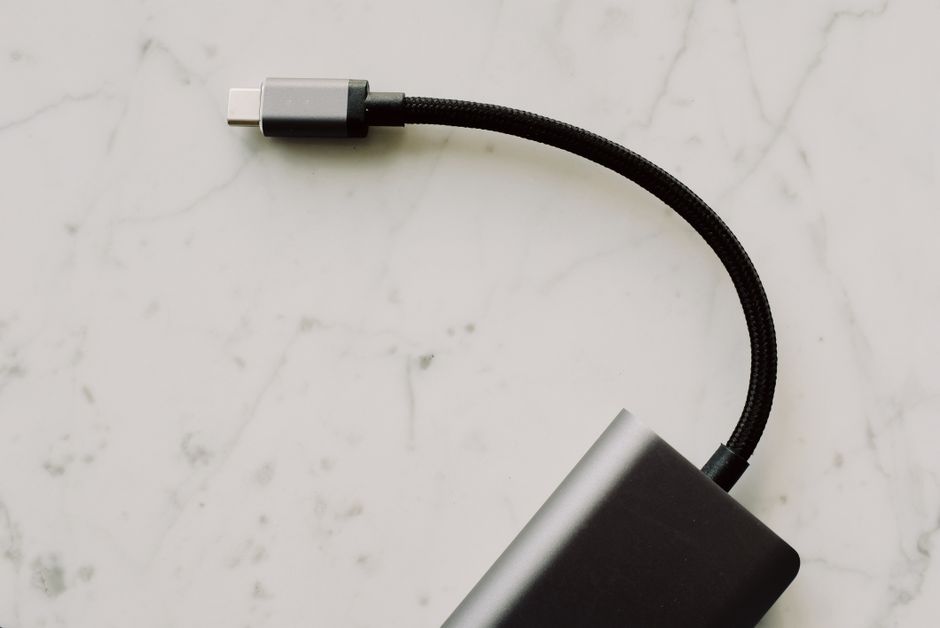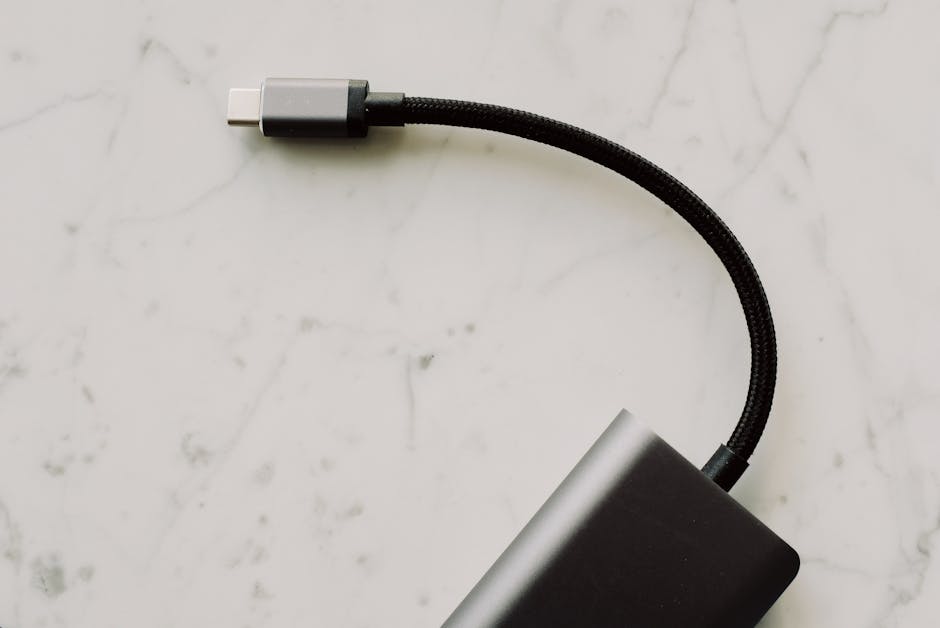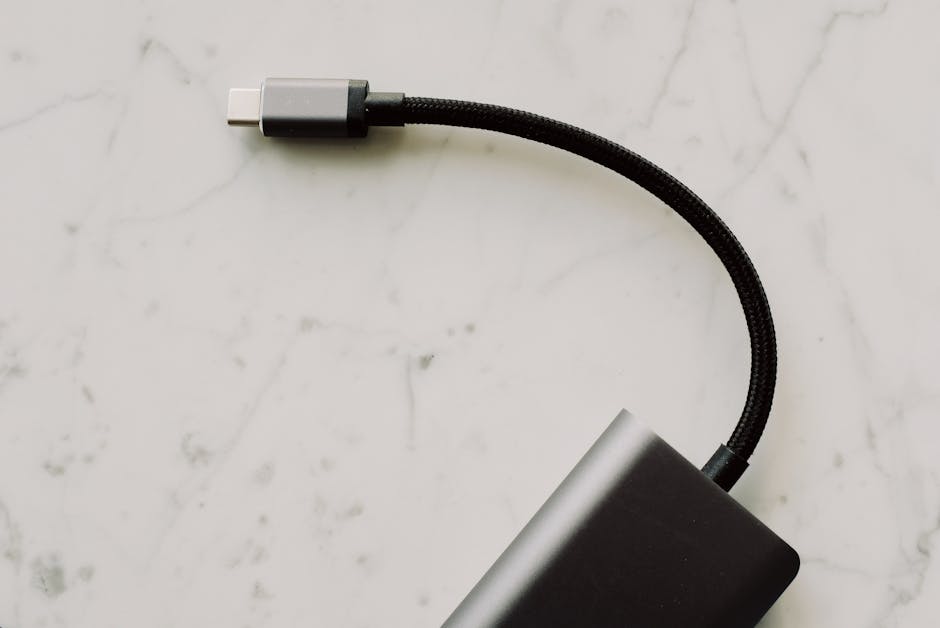
USB-C Explained: Data Speeds, Charging Limits, and How to Avoid Expensive Compatibility Mistakes
If you’ve ever plugged a USB-C cable into your laptop and thought, “Why is this so slow?” you’ve probably run into the biggest USB-C problem: the connector is the same, but the cable and power rules aren’t.
Here’s the direct answer up front: USB‑C is just the plug shape. Real performance depends on the cable’s specs and what the two devices agree to over USB Power Delivery (USB‑PD) and the USB data mode. Knowing those limits saves you from buying the wrong cable, the wrong charger, or (worst case) a “fast” setup that isn’t actually fast.
USB-C Explained: what the port actually controls (and what it doesn’t)
USB‑C is a connector standard, not a guarantee of speed or charging power. USB‑C tells you the shape of the port and how many pins can exist. It does not automatically tell you whether you’re getting USB 2.0, USB 3.x, Thunderbolt, or charging at 15W, 60W, or 100W.
When two devices talk to each other, they negotiate what they can do. For charging, they use USB Power Delivery (USB‑PD), which is the power “language” that lets devices agree on watt levels. For data, they negotiate a data mode based on what the cable supports.
In 2026, most new phones and laptops use USB‑C for charging, but the “fast charging” label still depends on PD wattage and cable rating. For real-world results, always check the charger watt number and the cable’s capability line, not just the fact that it’s “USB‑C.”
USB-C data speeds: how to tell USB 2.0, USB 3.x, and Thunderbolt apart
Data speed is decided by the cable and the mode each device supports. Many people assume that any USB‑C cable is “fast.” That’s the mistake. Some cables are built for charging and basic data only, which can mean USB 2.0 speeds even though the connector looks the same.
Quick speed cheat sheet you can use today
Here are common real-world ranges for common USB standards. They aren’t the only possibilities, but they match what you’ll see in current gear.
| USB mode (what you’re effectively using) | Typical marketing terms you’ll see | Practical impact |
|---|---|---|
| USB 2.0 | “USB” / sometimes “Hi-Speed” | Slow file moves. Fine for keyboards and simple devices. |
| USB 3.2 Gen 1 (5 Gbps) | “SuperSpeed” | Big jump over USB 2.0. Great for most external drives. |
| USB 3.2 Gen 2 (10 Gbps) | “10Gbps” | Faster for large backups and video transfers. |
| USB 3.2 Gen 2×2 (20 Gbps) | “20Gbps” | Only with the right cable + device support. Not all USB‑C ports do this. |
| Thunderbolt 3 / 4 | Thunderbolt | Often the fastest. Also supports display and high-performance docks (depending on the setup). |
How to spot “charge-only” cables in the real world
Some USB‑C cables are built to move power only (and maybe very low-speed data). If you buy a mystery cable from a drawer or a cheap multi-pack, there’s a decent chance it won’t hit SuperSpeed.
My rule: if a cable listing doesn’t say data speed (like USB 3.2/10Gbps) or doesn’t mention “data” beyond charging, treat it as a charging cable. In my own lab setup, I’ve had two USB‑C cables that looked identical, but only one hit full SSD transfer speed through my USB‑C enclosure.
To test without fancy tools:
- Plug the cable into a USB‑C external SSD enclosure or dock.
- Move a large folder (like 5–10 GB) and time it.
- If it feels like USB 2.0 speeds, try a known-good cable that says USB 3.2 or Thunderbolt support.
Charging limits: USB-C wattage, USB-PD, and why “100W charger” still matters

The charger watt number and the device’s USB‑PD profile determine how fast your battery charges. USB‑C ports can provide different maximum power levels. Your device will only draw what it can handle, but it needs the charger and cable to support the agreed watt range.
USB‑PD in plain English
USB Power Delivery (USB‑PD) is the system that lets a device ask for a certain power level. Think of it like a thermostat: your device asks, “Can I get 60 watts?” and the charger answers, “Yes, I can do that.” If the cable or charger can’t do it, you get slower charging.
As of 2026, the most common fast-charging ranges you’ll see for USB‑C are roughly:
- 5V / up to 15W: common for basic charging.
- 9V / 12V / 15V: helps reach mid-range fast charging.
- 20V: often used for laptop-like charging.
Why cable quality affects charging speed (even if the plug fits)
Here’s a detail people miss: USB‑C cables have different internal wiring and ratings. Some thinner cables can safely handle only lower power. With those cables, the charger may fall back to a lower watt mode.
I learned this the hard way when I used a “nice looking” USB‑C cable with a 65W laptop charger. The laptop still charged, but it refused to sustain fast charging under load. That meant slower charging and, during heavy use, a steady battery drain. Swapping to a cable that explicitly supported higher wattage fixed it immediately.
Charging watt expectations for phones vs laptops
Phones often top out in the 20W–65W range depending on the brand and model. Laptops commonly use 45W, 60W, 65W, 90W, or 100W chargers.
One more thing: battery size and power draw matter. If your laptop is gaming or compiling code, it may use more power than it charges. That’s not a “USB‑C failure” — it’s a normal energy balance.
How to avoid expensive compatibility mistakes (the checklist I actually use)
The easiest way to avoid money waste is to match the job: speed for data, wattage for charging, and a supported standard for video/docks. The port shape alone doesn’t guarantee anything.
Step-by-step: buy the right USB-C cable or charger in 3 minutes
- Decide your goal. Charging only? Fast data to an SSD? A docking station with display output?
- Check the device label or manual. Look for “USB Power Delivery,” “PD,” “PD PPS,” “Thunderbolt,” or a listed watt range.
- Match charger wattage. If your laptop charger is 65W, aim for a 65W or higher USB‑PD charger from a reputable brand.
- Match cable capability. For high power or fast data, choose a cable that explicitly says it supports those speeds or watt levels.
- Verify the ports on the laptop. Some USB‑C ports only do charging and USB 2.0. Others do full speed and video.
The most common mistakes (with examples)
- Mistake 1: assuming all USB‑C cables are fast. Fix: buy cables rated for USB 3.2 (or higher) when you move large files.
- Mistake 2: using the “wrong” watt charger. Fix: check the original charger rating and match or exceed it for laptops.
- Mistake 3: using a thin cable with a high-watt charger. Fix: use a cable rated for the wattage you want (especially for laptops).
- Mistake 4: buying a dock that expects Thunderbolt but your port is only USB 3.x. Fix: confirm whether your USB‑C port supports Thunderbolt or DisplayPort Alt Mode (more below).
My real-world “before you buy” test
When I’m picking gear for work setups (like a USB‑C SSD enclosure + a monitor), I look at three specs on the product page: the supported data mode (USB 3.2 vs Thunderbolt), supported video tech (Alt Mode vs Thunderbolt), and the charger watt profiles.
If a listing doesn’t provide those details, I pass. That saves me from the classic scenario where the dock powers up but the display stays blank or the Ethernet drops to slow speeds.
Video output and docks: DisplayPort Alt Mode vs Thunderbolt (this is where people get burned)
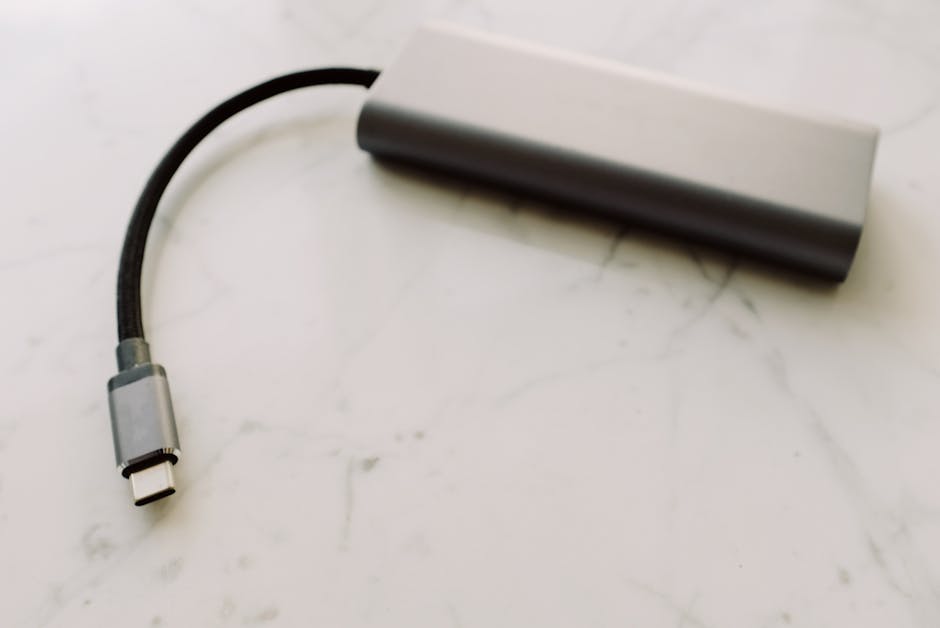
Not every USB‑C port can send video, and not every dock works with every port type. If you connect a monitor and nothing shows, it’s usually not your monitor. It’s the video mode your port supports.
DisplayPort Alt Mode (common on many USB‑C ports)
DisplayPort Alt Mode lets a USB‑C port carry display video signals using the same physical connector. It’s common on many laptops and phones that don’t have Thunderbolt.
What to check: the laptop spec should say “DisplayPort Alt Mode” or “DP Alt Mode.” Some docks list “USB‑C video” but only work with DP Alt Mode ports.
Thunderbolt (different rules)
Thunderbolt ports can handle very high-speed data and video, often through docks with extra features like charging, fast SSD support, and multiple monitor outputs.
If your laptop only has USB‑C with USB 3.x, a Thunderbolt-only dock may power but still not provide full display or high-speed behavior. Sometimes it will work partially, but you’ll still lose performance or features.
People also ask: common USB-C questions answered clearly
Is USB-C always fast charging?
No. USB‑C can mean anything from 5W trickle charging to 100W fast charging. Your device must support USB Power Delivery, and your charger + cable must support the watt profile. If you see slow charging, it’s usually a mismatch: cable rated for low power, a charger with lower wattage, or a port that doesn’t support PD on that device.
Can I use a 100W USB-C charger on a phone or tablet?
Yes, safely in most cases. The device will request the power level it supports. A 100W charger can deliver more than needed, but the phone typically draws only what it can handle.
One exception: if the charger is poorly made or doesn’t follow USB‑PD properly, you can get weird behavior. In 2026, stick to reputable brands and look for USB‑PD compliance rather than random “100W” claims.
Why is my USB-C data transfer slow even with USB 3.0 devices?
Because the cable might not support the data mode you think it does. A USB‑C connector is the same shape across many cable types. If the cable is charge-only, or rated for USB 2.0, your computer will negotiate the lower speed. Try a cable that explicitly says USB 3.2 or a known-good Thunderbolt/USB4-rated cable.
Does USB-C support video output on every device?
No. Video output depends on the port. Some USB‑C ports support DisplayPort Alt Mode, others support Thunderbolt, and some are charge/data-only. Check your device’s spec page for “video,” “Alt Mode,” “DisplayPort,” or “Thunderbolt.”
What’s the difference between USB4, Thunderbolt 4, and USB 3.2?
They’re not the same. USB 3.2 mostly refers to data speed categories (like 5Gbps, 10Gbps, 20Gbps). USB4 and Thunderbolt focus on higher-speed data tunneling and often support docks and display features more reliably. If you want a simple rule: Thunderbolt 4 is a strict standard; USB4 is also specific, but your device and cable still have to match what the device supports.
Security angle: why USB-C compatibility matters for cybersecurity too
USB connections can be an attack path, not just a charging path. That’s the part people forget when they chase faster docks and more ports.
Bad actors love USB ports because they can deliver power and data at the same time. If you plug into an unknown USB-C hub at a café, you’re not just sharing files — you’re giving a device a chance to communicate with your laptop.
At a minimum, keep your laptop set to require approval for USB devices (when your OS offers it), and avoid unknown charging stations. For more on safe habits, you might like our guide on public USB charging security tips in the Cybersecurity category.
Best practices for everyday users in 2026
Fast and safe USB‑C setups come down to three habits. Buy fewer “mystery” cables, label your chargers, and test your setup once so you know what’s actually happening.
Label your gear so you don’t mix cables
It sounds silly, but I’ve done this for years: I put a small label on cables that are “fast data” and another on “charging only.” After a few months, you’ll stop guessing. It also helps when friends borrow chargers and accidentally return the wrong one.
Test after updates and new docks
Sometimes a new dock firmware or OS update changes how the port negotiates features. If your monitor suddenly goes black or SSD transfers slow down, check whether the dock switched to a lower mode.
When you should not chase maximum speed
If you only move small files (photos from your camera once a week), you don’t need a Thunderbolt setup. A solid USB 3.2 cable and a reputable charger are enough. Going “too high” can waste money without improving your actual workflow.
Recommended shopping spec targets (so you can compare products quickly)
Use these targets like a scorecard. They make comparisons easier and prevent the “this says USB‑C, so it should work” trap.
- For fast external SSD + reliable transfers: look for USB 3.2 Gen 2 (10Gbps) or higher and a cable that explicitly supports those speeds.
- For laptop charging (45W–100W): look for a USB‑PD charger that matches or exceeds your laptop charger watt and a cable rated for the same power range.
- For docks + monitors: confirm whether you need DisplayPort Alt Mode or Thunderbolt for your exact laptop port.
- For travel: carry one good multi-purpose USB‑PD charger and one verified fast-data cable. Don’t bring five random cables.
Conclusion: USB-C success is about negotiation, not shape
USB‑C Explained in one line: the connector is the same, but the speed and power depend on what the cable and devices agree to. If you match USB‑PD wattage for charging, match USB mode for data, and verify video support for docks, you’ll avoid the costly compatibility mistakes that waste time and money.
My actionable takeaway: before you buy, check the charger watt rating, the supported USB mode (USB 3.2 vs Thunderbolt/USB4), and whether your port supports video (DisplayPort Alt Mode or Thunderbolt). Do that once, and your USB‑C setup stays fast, stable, and predictable.
Internal links you may find useful: how to choose a USB-C charger (wattage + PD profiles), USB4 vs Thunderbolt 4 for docks (practical guide), and secure USB device handling best practices.