USB‑C Explained: Charging Standards, Data Speeds, and How to Avoid Slow Cables
One of the most annoying “tech problems” I’ve handled in 2026 isn’t a broken phone or a bad Wi‑Fi network—it’s a USB‑C cable that’s quietly doing the minimum. You plug in expecting fast charging and laptop docking speeds, and instead you get warm devices, slow transfers, and the kind of frustration that makes you want to blame the charger.
Here’s the direct answer: USB‑C is a connector shape, not a guarantee of charging power or data speed. The cable and ports have to support specific standards (like USB Power Delivery and the right USB/Thunderbolt data modes), and most “slow cables” are missing at least one key capability.
Let’s break down USB‑C explained in a way you can use immediately—so you can tell which cable to buy, which settings to check, and why your current one is throttling your device.
USB‑C Explained: the connector shape vs. the real standards
Key takeaway: USB‑C refers to the plug design, while charging/data behavior comes from negotiated standards between the devices and the cable.
USB Type‑C is a symmetric connector (reversible), but it doesn’t automatically mean “fast charging” or “USB 3.x speeds.” Instead, the source device (like a phone, laptop, or dock), the sink device (like a tablet or SSD), and the cable negotiate capabilities.
Think of it like HDMI vs. the cable bandwidth. HDMI is the port type. The cable and version determine whether you get 4K at 60 Hz or only 1080p. USB‑C is similar: the “C” is the port, and the standards inside decide performance.
Charging Standards on USB‑C: USB Power Delivery (PD) made practical
Key takeaway: If you want fast charging over USB‑C in 2026, you’re looking for USB Power Delivery (USB PD) support and the right wattage.
USB Power Delivery (USB PD) is the mainstream standard that enables higher charging power than legacy USB. USB PD refers to protocols for negotiating voltage and current levels so devices can charge safely at higher wattage.
In real-world 2026 device ecosystems, you’ll commonly see USB PD profiles such as:
- 5V (baseline for most USB charging)
- 9V, 12V (very common for mid-tier charging)
- 15V, 20V (where laptops and high-watt phone chargers show up)
Wattage is the whole game. A charger rated for 30W, 45W, 65W, or 100W doesn’t just “charge faster”—it enables the device to request a higher power profile.
USB‑C fast charging: what to look for on the charger and the cable
Key takeaway: Verify “USB PD” and wattage first, then ensure the cable is rated for the load—especially for 60W+ charging.
Most people shop for the wall adapter and assume the included USB‑C cable is fine. That assumption breaks down when you use a bargain cable or an older “charging-only” lead.
When I troubleshoot a customer’s setup, I look for two things in 60 seconds:
- Charger output: Does the adapter list USB PD and a wattage match (for example, 45W USB PD, 65W USB PD)?
- Cable rating: Does the cable claim support for charging at higher wattage and data signaling (if needed)?
If you plug a high-watt USB PD charger into a marginal cable, the system may fall back to 5V/9V profiles. That’s where “why is my phone still at 12% after an hour?” stories come from.
Real-world example: why my laptop hit slow charge mode
Key takeaway: Cable quality can trigger power negotiation fallback even when the charger is excellent.
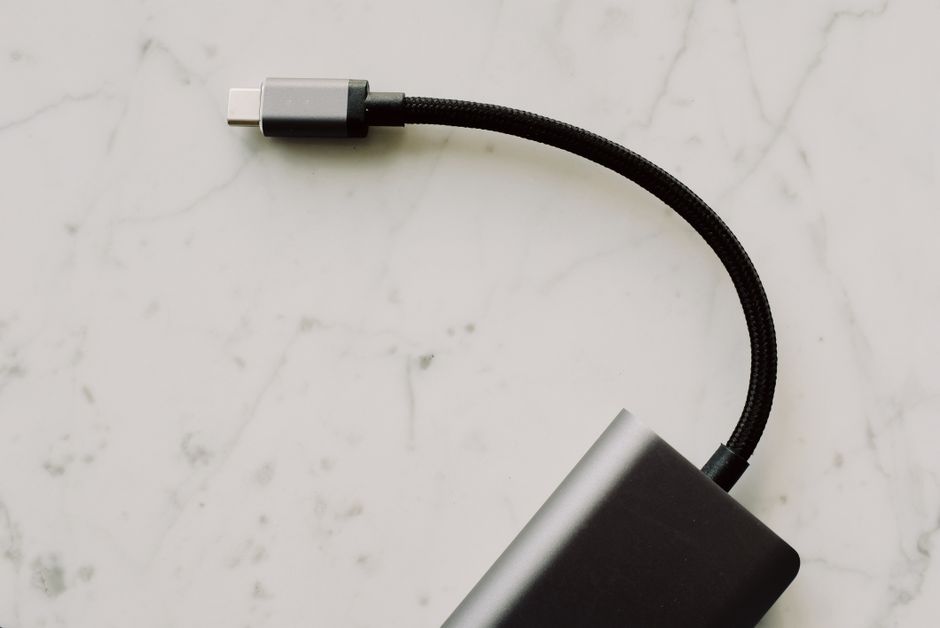
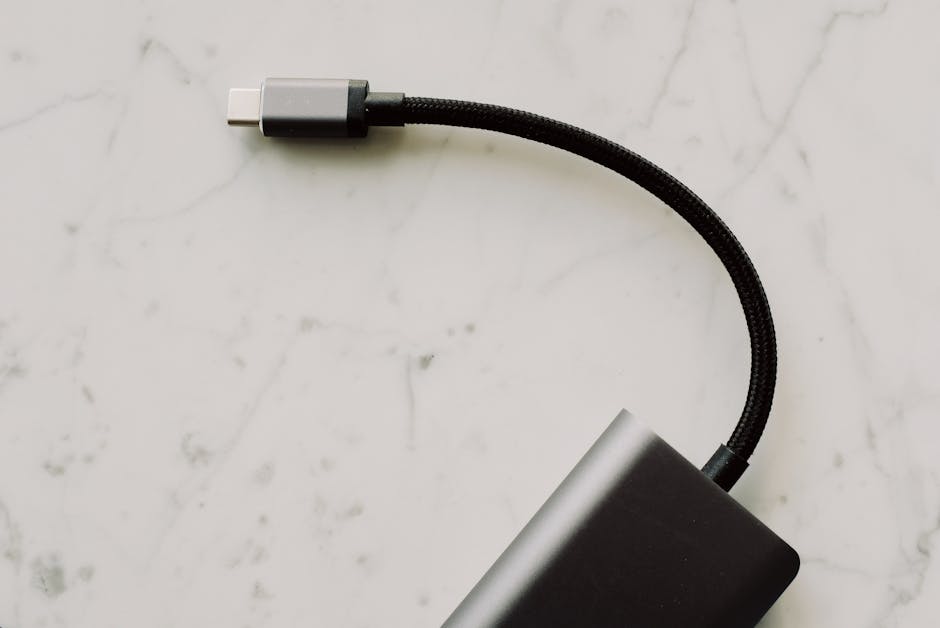
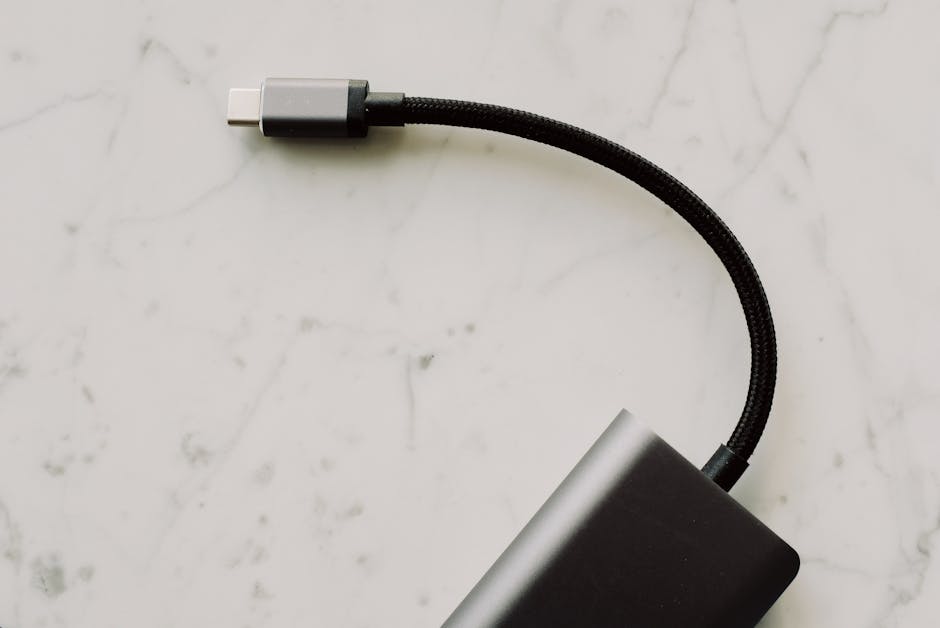
I ran into this with a compact USB‑C laptop charger (65W class) and an old braided USB‑C cable that “worked fine” for years. On battery, my laptop pulled only a low charging rate. The battery indicator looked like it was charging, but slowly.
After swapping to a known USB‑C cable rated for high-power charging, the laptop immediately increased charge rate and stayed cooler under load. The charger didn’t change—only the cable. That’s the practical proof that USB‑C Explained is really about negotiation + cable capability, not just the connector.
When this doesn’t matter: If you’re charging at 5V/9V with a low-watt phone charger, many cables behave similarly. But if you’re trying to charge a laptop or run a dock, cable quality becomes unavoidable.
Data Speeds on USB‑C: USB 2.0 vs USB 3.x vs Thunderbolt
Key takeaway: USB‑C data speed depends on the protocol—USB 2.0, USB 3.2, USB4/Thunderbolt—and whether your cable carries the right signaling.
USB Type‑C supports multiple data standards because the connector can route different types of signals. The problem is that many “cheap USB‑C” cables are built for charging only or only for older USB data modes.
Here are the speed expectations in plain numbers:
- USB 2.0: up to 480 Mbps (about 60 MB/s theoretical; real often far lower)
- USB 3.1 Gen 1 / USB 3.2 Gen 1: up to 5 Gbps (about 625 MB/s theoretical)
- USB 3.2 Gen 2: up to 10 Gbps (about 1.25 GB/s theoretical)
- USB 3.2 Gen 2×2: up to 20 Gbps (about 2.5 GB/s theoretical)
And then there’s the “big leap” world:
- USB4 / Thunderbolt 3/4: can deliver far higher throughput depending on implementation, with tunneling of protocols and strict hardware requirements.
In practice, a lot of users see “USB 3” on the box, plug in, and get 25–40 MB/s instead of hundreds. That’s usually not the drive—it’s the cable (or the port mode).
How to identify your actual USB‑C data mode in seconds
Key takeaway: Don’t guess—check the negotiated mode in your operating system.
On Windows, you can inspect device properties for connection speed. On macOS, you can check System Information for USB bus details. If you’re using a docking station, the dock’s internal cable and upstream port negotiation matter just as much as the external cable.
My recommended workflow when something feels slow:
- Swap the cable first (use a known-good one you trust).
- Try a direct connection (bypass the hub or dock).
- Confirm the port is the correct one (some laptops have mixed Thunderbolt/USB-C ports).
- Re-test a large copy file (e.g., a 10–20 GB folder) to smooth out caching and benchmark noise.
How to Avoid Slow USB‑C Cables: a checklist that actually works

Key takeaway: Avoid slow cables by verifying both charging power support and the data protocol—then match them to your device’s port capabilities.
Here’s the checklist I use when I’m buying cables for my own kit (and for friends who always “borrow” the good ones).
Step-by-step cable buying checklist (2026)
- Decide what you need: charging only, phone-to-PC syncing, SSD/NVMe enclosure transfers, or laptop docking (video + USB data + charging).
- Match the charging requirement: if you need 45W/65W/100W, buy cables explicitly rated for that power class.
- Match the data requirement: for SSDs, look for USB 3.2 Gen 2 (10 Gbps) or better; for high-end docks, look for Thunderbolt/USB4 support where applicable.
- Check cable labeling: reputable sellers state the supported speeds (e.g., “10Gbps” or “USB 3.2 Gen 2”) and charging capability.
- Respect length: longer cables can degrade signal integrity. A 2–3 meter cable is fine for charging, but for 10–20 Gbps data, shorter is safer.
- Beware “Type‑C” as a marketing-only claim: if the listing doesn’t mention USB data generation or charging wattage support, assume it’s limited.
- For Thunderbolt/USB4: only use cables that explicitly support the standard, not generic USB‑C cables.
Quick comparison: common cable types and what they really do
Key takeaway: Most “slow cable” failures are predictable: either limited charging profiles, or limited data signaling (often USB 2.0).
| Cable capability you might get | What you’ll experience | Typical real-world outcome |
|---|---|---|
| Charging-only USB‑C | No high-speed data lanes | Phone charges but PC sees it slowly (or not at all for data) |
| USB 2.0 (480 Mbps) data | Slow file transfers | 20–30 GB copy takes many minutes to an hour |
| USB 3.2 Gen 1 (5 Gbps) | Decent speeds, not top-end | SSD transfers feel “okay” but won’t hit 1 GB/s class |
| USB 3.2 Gen 2 (10 Gbps) | Fast enough for most external SSD use | Large copies feel snappy; sustained speeds often hundreds of MB/s |
| USB 3.2 Gen 2×2 / high bandwidth | Highest legacy USB speeds | Only worth it if your enclosure and host truly support it end-to-end |
| USB4 / Thunderbolt | High performance with strict compatibility | Docking, monitors, and fast SSD transfers actually behave like “pro” gear |
What most people get wrong
Key takeaway: The biggest mistake is assuming “USB‑C means fast” or assuming “one good charger + any cable works.”
Here are the patterns I’ve seen repeatedly:
- Using a charger cable for SSD transfers: Many “charging cables” don’t route the high-speed lanes needed for Gen 2/Gen 2×2.
- Buying a 100W charger but pairing it with a 2-dollar cable: The system negotiates down to protect the connection.
- Expecting Thunderbolt video to work on every USB‑C port: Video over USB‑C depends on whether the port supports DisplayPort Alt Mode (or Thunderbolt tunneling).
- Long cable lengths with high data expectations: If you’re chasing 10–20 Gbps, a shorter cable is a hidden requirement.
People Also Ask: USB‑C charging and speed questions
Why is my USB‑C charging slow even with a fast charger?
Key takeaway: Slow charging usually means the negotiated USB PD profile dropped (often due to cable limits) or you’re using a port that doesn’t support higher wattage.
If you’re using a high-watt charger but the battery charges slowly, check these causes in order:
- Cable wattage support: Swap the cable with one rated for 45W/65W/100W as needed.
- Port capability: Some laptops/chargers have multiple USB‑C ports with different max wattage.
- Device state: Gaming, heavy CPU usage, or laptop sleep/wake cycles can consume power faster than charging supplies.
My rule: if the charger is correct and the cable is known-good, the next suspect is the port or device power mode.
Does USB‑C cable speed matter for charging?
Key takeaway: Yes—charging speed depends on whether the cable supports the negotiated power levels safely.
USB PD negotiation can fall back when signal/power quality isn’t adequate. A cable that’s fine for 5V/9V may not safely support higher voltage/current combinations for 30W+ or 60W+ charging.
If you’re charging a phone at 20–30W, you’ll often be okay with decent cables. If you’re charging laptops at 65W or driving docks, use cables rated for high-power charging.
How can I tell if my USB‑C cable supports fast data transfer?
Key takeaway: Look for explicit speed ratings (like “10Gbps”) and verify negotiated speed in your OS.
The fastest way is the combination of labeling and a real test:
- Check the product listing for USB generation (e.g., “USB 3.2 Gen 2 10Gbps”).
- Copy a large file (10–20 GB) and compare time with a known-good cable.
- Use system tools to confirm the actual connection speed.
If your cable only says “USB‑C” and nothing about data speed, assume it’s limited to USB 2.0 or charging-only.
Will a Thunderbolt USB‑C cable work for normal USB‑C devices?
Key takeaway: Usually yes—the cable can always fall back to lower standards—but you still need compatible ports for features like video docking.
A Thunderbolt-capable cable is built to meet stricter signal requirements. When used with a normal USB‑C port that only supports USB 3.x, you’ll typically get the best USB mode the port allows.
Video and docking features depend on the port’s supported transport (DisplayPort Alt Mode vs Thunderbolt). In other words: the cable helps, but the port decides what it can do.
USB‑C for docking and video: power + data + display in one cable
Key takeaway: USB‑C docks are demanding because the cable must support charging, high-speed USB data, and sometimes display tunneling.
If you use a dock with your laptop, you’re stacking multiple requirements. The dock relies on high-bandwidth signaling for USB peripherals, plus video transport (depending on the laptop).
In daily use in 2026, I recommend treating docking cables like “system-critical.” If a cheaper cable works, it often works in a degraded mode—one you only notice when you plug in an external SSD, run a camera, or use a second monitor.
Practical dock troubleshooting sequence
- Test with a known-good cable: swap the dock’s upstream USB‑C cable.
- Confirm dock power delivery: the dock should support the laptop’s required charging wattage.
- Remove variables: disconnect external USB storage and reboot before testing display.
- Check port selection on the laptop: some laptops have multiple USB‑C ports with different capabilities.
Bonus: USB‑C security and “juice-jacking” you can reduce
Key takeaway: USB‑C isn’t only a speed problem—it’s also a physical access and data-exposure risk.
When you plug into unknown docks or charging stations, you’re relying on the device negotiation behavior. Some attackers exploit charging ports that behave like they can also provide data.
I’ve covered prevention steps in depth in our cybersecurity category—especially around “USB device trust” and safe charging habits. If you want the broader playbook, read how to prevent juice-jacking and USB-based attacks in our Cybersecurity section.
As a practical measure: use a known-good cable and avoid “mystery” public charging stations unless you’re using a hardware USB data blocker. For laptop setups, keep your OS USB permissions tight and disable auto-run behaviors.
What to do right now: a fast action plan
Key takeaway: Use this 5-step plan to stop slow charging and slow transfers within 10 minutes.
- Identify what you’re optimizing for: charging speed, SSD transfer speed, or dock stability with video.
- Check your charger wattage and cable rating: match to your device’s needs (30W/45W/65W/100W and USB generation).
- Swap cables once: test with a reputable USB‑C cable that explicitly states both power and data capability.
- Verify negotiated speed in the OS: confirm whether you’re on USB 2.0, USB 3.x, or a Thunderbolt/USB4 mode.
- Lock in your setup: keep one “high-speed cable” for SSD and docking, and one “charging-only” cable for travel.
If you do only one thing, make it the cable swap plus OS speed verification. That combination ends the guessing and exposes the actual bottleneck fast.
Conclusion: buy for standards, not for the connector
USB‑C Explained in 2026 comes down to a simple rule: the USB‑C plug is just the door. The power and speed you get are decided by USB Power Delivery profiles, USB generation (USB 2.0 vs USB 3.x), and whether your setup supports USB4/Thunderbolt features.
Choose cables by verified standards—explicit wattage ratings for charging and explicit speed (like 10Gbps) for data. Then confirm the negotiated mode in your OS. Once you do that, “slow cable” stops being a mystery and becomes an easy, preventable mistake.
Related reads you may like:
- USB4 vs Thunderbolt: what changes for docks and SSDs
- Best USB‑C chargers for 2026 (with real wattage matching tips)
- External SSD enclosure buying guide: matching speed to your USB-C port
Image SEO note (for your CMS): Use an image with descriptive alt text such as: “USB‑C charging and data speed cables labeled with PD wattage and 10Gbps support”.