GPU Buyer’s Checklist for 2026: Picking the Right Card for AI, Rendering, and Gaming Workloads
I keep seeing the same painful pattern in 2026: people buy a “fast” GPU, then hit a wall in AI jobs or long render times because they skipped the boring stuff—VRAM, memory bandwidth, cooling, and power limits. The funny part is the fix is simple once you know what to check.
Here’s a practical GPU Buyer’s Checklist for 2026 so you can pick the right card for AI, rendering, and gaming workloads without wasting money. I’ll tell you what matters, what most people get wrong, and how to sanity-check your choice before you click “buy.”
GPU Buyer’s Checklist for 2026: the quick decision rule
If you remember just one thing: start with your most VRAM-hungry workload, then pick a card that can handle it comfortably. VRAM is the fast memory the GPU uses for AI models, textures, and render data. If you run out, performance falls off a cliff because the card starts swapping to slower system RAM.
Also, don’t judge GPUs by “FPS in one game” or by “benchmarks” alone. Different apps use different features. Your goal is balanced performance across your real tasks.
Start with workloads: AI, rendering, and gaming are not the same GPU job
Each workload stresses the GPU in a different way. When people treat them as the same, they end up with a great gaming card that struggles in AI, or a workstation card that’s fine for renders but boring for games.
AI workloads: VRAM, CUDA (or ROCm), and model size
AI work is usually about running neural nets fast. In plain terms, you want enough VRAM for your model and data. Many workflows also depend on software support for your GPU.
- Local LLMs: VRAM decides your max context and batch size. As of 2026, people still run 7B–34B class models locally, but the VRAM needs jump fast with larger quantizations and longer prompts.
- Image generation: Diffusion models often need more headroom than you expect once you use higher resolution and bigger batch sizes.
- Video tools: frame interpolation and upscaling eat VRAM plus bandwidth. You want both.
Original insight from my own setup: I bought a “midrange” card once for AI, then learned the hard way that my real blocker wasn’t compute. It was the extra VRAM overhead from my toolchain (think of it like hidden baggage). After I changed settings and reduced resolution, it worked better—but I still wished I had more VRAM from day one.
Rendering: time to finish matters more than peak FPS
For rendering, you care about how fast your system finishes a frame or a batch. That depends on GPU compute, memory bandwidth, and (in some apps) how well the renderer uses the GPU.
- GPU renderers (like Cycles in Blender): VRAM is again a big deal for large scenes, high-res textures, and heavy denoisers.
- Look-dev and previews: You want stable performance, not just max burst numbers.
One thing I always check now: whether the renderer supports the GPU well in 2026. Some apps improve support over time, and others lag behind.
Gaming: don’t forget your monitor and your CPU
For gaming, you want smooth FPS and good frame pacing. But gaming performance is also affected by your CPU, RAM speed, and even game settings.
In 2026, many gamers still make a simple mistake: buying a top GPU but pairing it with a weak CPU and a slow SSD. You’ll see wasted money because the CPU becomes the limit in many games.
VRAM checklist: the easiest way to avoid buyer’s regret
VRAM is the most honest spec for AI and rendering. Compute power matters, but VRAM is often the difference between “runs smoothly” and “runs, but you wait forever.”
How much VRAM do you actually need in 2026?
There’s no single perfect number, but you can pick a safe target based on typical use.
- Entry / hobby AI: 8–12GB can work for smaller models and smaller resolutions, but you’ll lower batch sizes and accept slower steps.
- Serious AI + everyday rendering: 16GB is the “start being comfortable” range for a lot of people.
- Higher-end AI and heavy renders: 24GB+ gives you room for bigger models, higher image sizes, and larger scene assets.
- Workstation style: 48GB is for large models and big projects where you refuse to babysit settings.
Reality check: if you’re shopping in the 8–12GB range and you plan to do real AI locally, make sure you understand the tradeoff. You may get results, but you’ll spend more time tuning settings.
VRAM isn’t just “capacity”—check memory type and bandwidth
Two cards can both have 16GB, but one can feel faster in AI and rendering. That’s often because of memory bandwidth (how quickly data moves). Faster memory means quicker data loads and less waiting.
When comparing GPUs, look at:
- Memory bus width (often shown in specs)
- Memory speed (often shown as Gbps or MHz)
- Memory compression features (helpful in some AI workflows)
If you want a quick rule: wider bus + higher speed usually means better real-world performance when your workloads don’t fit neatly in cache.
CUDA vs ROCm vs “it works on my machine”: understand software support
Here’s the part people skip: a GPU is only as good as the software stack that runs on it. In 2026, AI tools still have stronger support on some platforms than others.
What you need to know about CUDA for AI workflows
CUDA is NVIDIA’s software platform for running GPU code. It’s the main reason a lot of AI tutorials and tools run “out of the box” on NVIDIA cards.
If your AI workflow includes common tools, you’ll usually get the best compatibility when your GPU supports CUDA well. For example, many people use local model runners and image tools that are optimized for NVIDIA environments.
If you’re planning to use Linux, containers, or custom builds, you still need to check the latest compatibility notes for your specific tool. I always do one test run with a small model before committing to a full workflow.
ROCm and AMD: great on supported setups, but verify first
ROCm is AMD’s platform for running GPU compute. It can work very well, but not every AI tool has equal support.
My practical tip: if you rely on a specific AI app or training library, search for that exact app + ROCm support in 2026. Don’t rely on a random “worked once” post from years ago.
Rendering software support: check your renderer’s GPU list
Rendering apps often use both vendor hardware and driver features. Before buying, check:
- Your renderer’s “supported GPUs” page
- How it handles AMD vs NVIDIA acceleration
- Any known issues with recent driver versions
This saves you from the classic problem: the GPU is powerful on paper, but your renderer runs it slower or adds rendering glitches.
Power, cooling, and physical fit: the checklist most people ignore
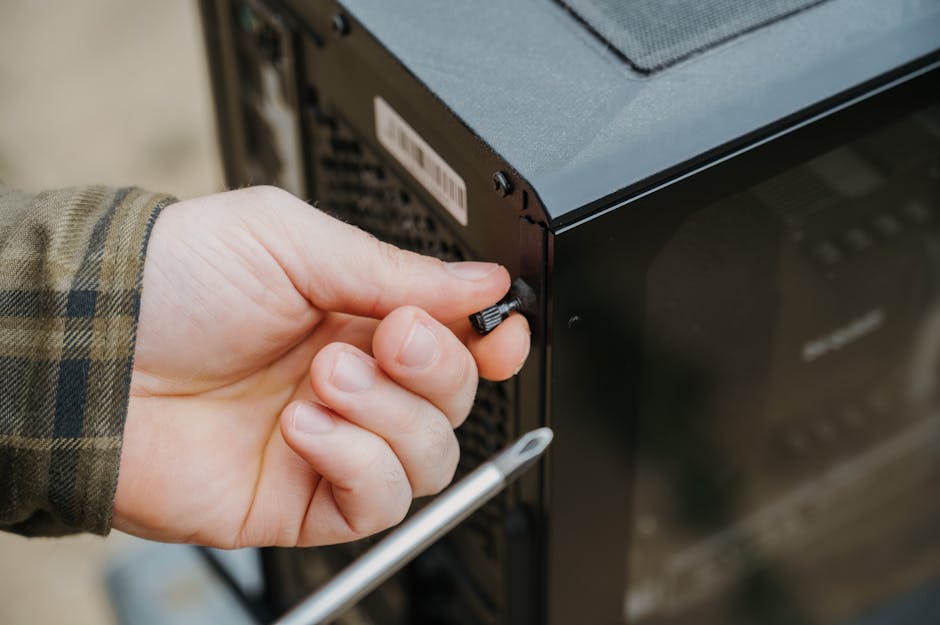
If your GPU doesn’t fit your case or your power supply can’t handle it, none of the AI performance matters. I’ve had a friend buy a card, realize the cooler hits a front fan, and spend two weeks swapping parts.
Power supply (PSU) checklist for 2026 builds
Start by checking your current system’s total power draw and your PSU quality. Many GPUs list a “recommended PSU wattage.” That’s not always perfect for your build, so also consider:
- Your CPU model (some chips draw a lot under load)
- How many drives and fans you use
- Whether you plan to overclock or push heavy sustained loads
As a rule of thumb, if a GPU lists heavy power needs, aim for a PSU that’s comfortably above that number and from a reputable brand. Efficiency matters too, but safety comes first.
Cooling and sustained performance: why “max boost” isn’t your real speed
Gaming benchmarks often look great at short bursts. AI and rendering can run for hours. That means temperature and fan curves matter a lot.
When choosing a card, check:
- What temperature it hits during sustained workloads (not just short tests)
- Whether the cooler is designed for your case airflow
- Fan noise if you work from home or stream
Practical example: I run long render jobs while working at my desk. I’d rather lose 5–10% speed than have a card that screams at 85°C the whole time.
Physical dimensions: measure first
Before buying, measure your case for GPU clearance: length, slot count, and whether it blocks lower PCIe slots. Also check your motherboard layout and cable routing.
If you’re using a compact case, look for a shorter model or a specific “dual fan” variant.
Gaming + AI balance: pick the right features, not just the highest tier
You don’t have to buy the most expensive GPU to get a great setup. For mixed workloads, the “best” card is the one that stays smooth in games while not choking in AI and renders.
Ray tracing and upscaling: which matters depends on your monitor
Gaming tech like ray tracing and upscaling can make a big difference, but only if you’re using a resolution where it matters.
- 1080p: you often need more FPS than fancy effects.
- 1440p: you can start balancing quality and speed.
- 4K: you’ll care more about upscaling and memory bandwidth.
My take: if you’re doing AI and rendering, you’re already in the “pay attention to VRAM” mindset. That same mindset usually makes 1440p and 4K gaming choices smarter too.
Frame generation and latency: don’t confuse high FPS with low lag
Some features boost displayed FPS using extra processing. That can help visuals, but competitive players still care about input lag and frame pacing.
If you play shooters or rhythm games, test with your preferred settings. Don’t assume the “biggest FPS number” is the best experience.
Comparison table: what to buy for common 2026 scenarios
Below is a practical starting point. Use it to narrow down your choices, then check the exact app support and power/fit details.
| Use case (2026) | VRAM target | What to prioritize | Main risk if you cheap out |
|---|---|---|---|
| Local image gen + light Blender | 8–12GB | Compatibility, reasonable power draw | Out-of-memory errors on high-res runs |
| Stable diffusion + 1080p/1440p rendering previews | 16GB | Memory bandwidth + driver stability | Slowdowns when you push batch size |
| Serious AI (bigger models) + heavy scenes | 24GB | VRAM headroom + consistent sustained clocks | Constant setting tweaks and long waits |
| Workstation-style rendering + larger AI tasks | 48GB | High VRAM + software support | Buying the wrong platform for your tools |
People Also Ask: GPU Buyer’s Checklist for AI, rendering, and gaming
What GPU should I buy for AI in 2026?
If your goal is local AI, buy for VRAM first, then for software compatibility. A solid default for most people is a GPU with at least 16GB, because it reduces crashes and lets you run bigger batches without constant shrinking.
If you plan to work with larger models or higher resolution, step up to 24GB+. Before you pay, confirm your main AI tool supports your GPU platform in 2026 (CUDA on NVIDIA is usually the easiest path, but ROCm can work when your workflow is supported).
Is 8GB VRAM enough for gaming and AI?
For gaming, 8GB can still be fine at 1080p with normal settings. For AI, 8GB is often the limiting factor, especially with bigger diffusion settings or longer sessions.
My advice: if you already own an 8GB card, don’t panic. You can learn a lot. But if you’re buying new in 2026 specifically for AI, 8GB is usually a “keep it small” choice.
Do I need the most expensive GPU for rendering?
No. You need the right GPU for your renderer and your scene size. A midrange GPU with enough VRAM can beat a higher tier card if the higher tier has less memory or if your renderer favors the other architecture.
Also, rendering speed depends on more than the GPU. Fast storage (NVMe SSD), enough system RAM, and good cooling all help your overall workflow stay smooth.
How do I know if my PSU is enough for a new GPU?
Check your GPU’s power specs and match them with your PSU wattage and available PCIe power connectors. Then consider your CPU power draw under load. If you’re near the limit, you should upgrade your PSU rather than rely on “it should be fine.”
I’ve seen unstable systems start with “minor” power issues under heavy AI or rendering loads. It’s not worth troubleshooting at 2 a.m.
Should I buy an NVIDIA or AMD GPU for AI in 2026?
Choose based on your specific tools, not just brand loyalty. NVIDIA often wins for out-of-the-box compatibility with many AI tools because CUDA support is mature. AMD can be a better value when your software stack works smoothly with ROCm.
For rendering, the deciding factor is your renderer’s support list and performance results. If your renderer has a clear advantage on one platform, follow that.
Step-by-step: how I test a GPU choice before committing
When I’m buying a GPU for mixed work, I treat the first week like a test drive. The goal is to find problems early: crashes, slowdowns, weird driver issues, and performance that doesn’t match reviews.
Step 1: confirm your exact workloads
Write down what you run most often. Examples: a specific AI model runner, Blender scenes, and your top 2–3 games. If you don’t know this list yet, make it now—your choice gets much easier.
Step 2: check VRAM fit using your current settings
Run a small test job and look for VRAM usage. If your tool shows VRAM in a dashboard, take note. If it doesn’t, check logs or performance panels.
- If you’re already near the limit, you need more VRAM.
- If you’re far from the limit, bandwidth and software support matter more.
Step 3: verify software and drivers for 2026
Look for driver versions that are known to work with your AI and rendering apps. In 2026, drivers update often, and some app stacks can be picky.
For reliability, I prefer stable driver versions for long work runs, not the newest beta driver right away.
Step 4: run a 30–60 minute stress test
For AI, run a short generation or a small batch training step. For rendering, do a test scene render at a quality level you actually use.
Then watch:
- GPU temperature
- Clock stability (does performance drop hard after 10 minutes?)
- Whether the system becomes unstable under load
Common mistakes (and the fixes) I’ve seen in 2026
Most “GPU regrets” come from the same handful of mistakes. If you avoid these, you’ll likely be happy with your purchase for years.
Mistake 1: buying only for gaming FPS
If you care about AI or rendering, FPS-focused cards can still be great—but you must check VRAM. Games might not hit your VRAM limit, but AI jobs absolutely can.
Fix: compare VRAM and memory bandwidth before you buy, even if you’re “mostly gaming.”
Mistake 2: ignoring CPU and RAM limits
AI workflows and rendering tasks often use system RAM too, and some parts of data prep happen on the CPU. If your CPU is too slow, you’ll wait on preprocessing or data loading.
Fix: match your CPU tier and aim for enough system RAM for your scenes and datasets.
Mistake 3: underestimating cooling
A card that runs “fine” in a benchmark might throttle under a real long job. That ruins your time-to-finish.
Fix: check real sustained workload temps and make sure your case airflow is decent.
Mistake 4: assuming one benchmark equals your workload
Some review tests focus on gaming or a single tool. Your app might behave differently.
Fix: look for benchmarks with your exact renderer or similar AI tasks. If you can’t find it, run a small test right away.
Quick internal links you might like
If you’re building or upgrading your system, the GPU is only one part. These related posts on our site cover the other pieces that change real performance:
- How to do a clean GPU driver install (and why it fixes weird crashes)
- Secure your gaming PC: basic steps that also help your workstation
- Best NVMe SSDs for 2026 builds (render and game load times)
I’m linking these because stable drivers, safe setups, and fast storage quietly affect your GPU results. If your system is unstable or slow, the GPU looks “bad” when it isn’t.
My final recommendation for most buyers in 2026
If you want one strong default: buy a GPU with enough VRAM for your biggest AI or rendering job, then prioritize sustained performance and software support.
Here’s my actionable takeaway checklist before you buy:
- Pick your most VRAM-hungry task (AI model/resolution or render scene size).
- Choose VRAM first, then compare memory bandwidth and real sustained behavior.
- Confirm software support for your AI tools and renderer in 2026.
- Check PSU wattage, power connectors, and case dimensions.
- Plan a 30–60 minute test the day it arrives so you catch issues early.
Do those steps and you won’t just buy a “good GPU.” You’ll buy a card that fits your actual work, stays stable during long runs, and still delivers the gaming experience you care about.
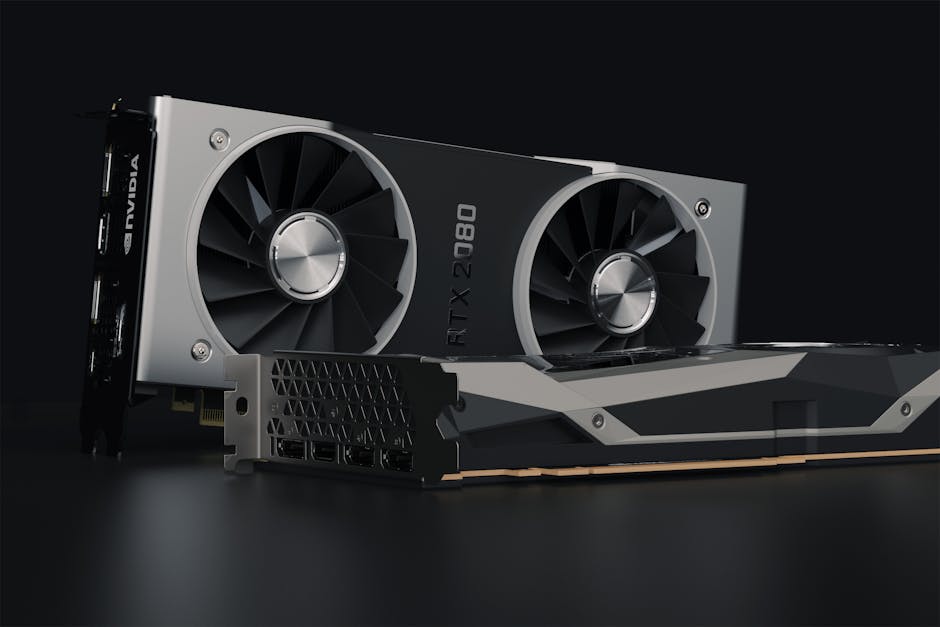
Featured image alt text suggestion (for SEO): “GPU Buyer’s Checklist for 2026 showing VRAM, power connectors, and test setup for AI and gaming workloads”