The Complete Guide to Passwordless Login: Passkeys, Biometrics, and How to Roll It Out Safely
Passwords are still the #1 way most people get hacked—yet most users have no idea why. A common scenario in the real world is this: someone reuses a password across sites, one site gets breached, and suddenly your “secure” login is broken. Passwordless login fixes that whole mess by removing passwords from the sign-in flow and using cryptography plus device signals instead.
In 2026, the best path is usually passwordless login with passkeys, backed by optional biometrics on devices that support it. This guide is practical and hands-on: what passkeys are, where biometric checks help, what can go wrong, and how to roll it out safely without locking users out.
Passwordless Login Explained (and Why It’s Different)
Passwordless login means you sign in without typing a password. Instead, you prove it’s you using a device-bound credential, like a passkey, or a biometric check that unlocks that credential.
Here’s a quick definition that keeps things clear: A passkey is a login credential made of public/private keys stored on your device (or in a synced account), not a human-readable password.
When you sign in, the server sends a challenge. Your device signs it with the private key. The server checks the signature using the public key. If it matches, you’re in. No password to steal, phish, or reuse.
That’s the big difference versus one-time codes (SMS or email). Codes can be intercepted. Passkeys are designed so the private key never leaves the device, and the server only accepts the signature for that specific login request.
Passkeys vs Biometrics: What Each One Really Does
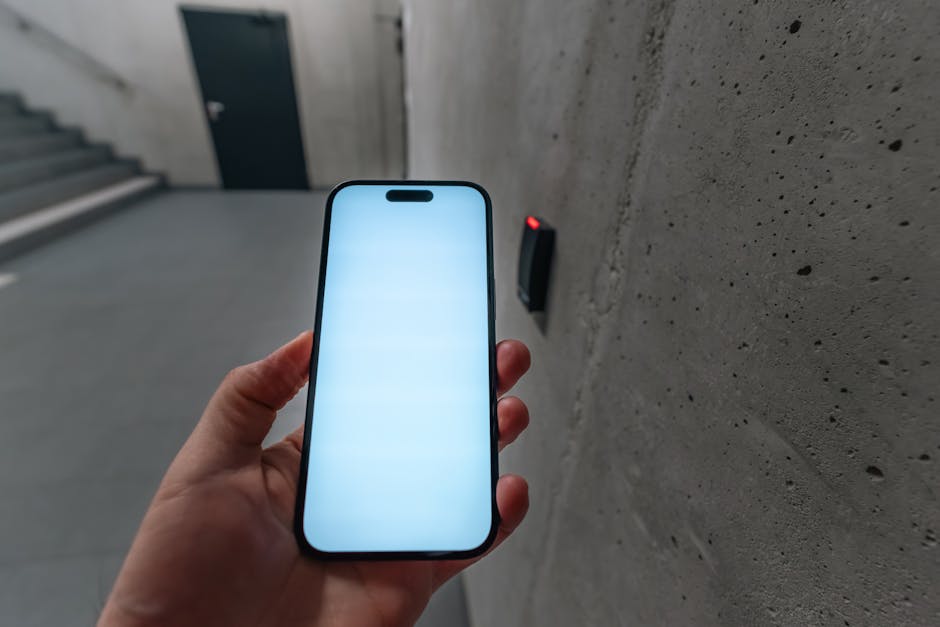
Passkeys are the security engine; biometrics are usually the “tap to confirm” button. You can use passkeys without fingerprints or face scans, too.
What passkeys cover in the login flow
Passkeys handle the real proof of identity. Most modern systems use standards like WebAuthn and FIDO2. In plain terms, your browser or app talks to an operating system security module (often called the Secure Enclave on Apple devices or a Trusted Platform Module on many PCs).
When you enroll a passkey, the device creates the key pair and stores it in a protected spot. If you switch phones, the key can be synced through a password manager or account sync system—depending on the ecosystem.
What biometrics add (and where they don’t)
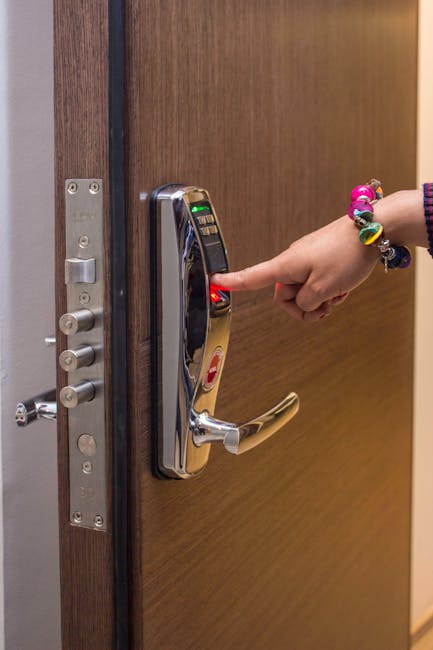
Biometrics (face, fingerprint, or device PIN) are local checks that decide whether the device should allow the passkey to be used. They don’t replace cryptography.
In practice, when you see “Use Face ID to sign in,” your phone is letting the OS unlock the stored passkey. If the biometric fails, you fall back to an allowed method (like your device PIN or a backup passkey).
What most people get wrong: they assume “biometric = safe forever.” Biometric checks can still be bypassed in some threat models (for example, when attackers already have your unlocked device). That’s why the passkey still matters. Biometrics are a convenience layer, not the full security plan.
How to Roll Out Passwordless Login Safely (A Step-by-Step Plan)

Rolling out passwordless login safely is mostly about backups and staged testing. If you remove passwords too fast, you’ll lock out real people—especially those on older devices or in shared-family setups.
Step 1: Pick your rollout target first (not your “big bang” date)
Start with a group that can be coached if something goes wrong. In 2026, I’ve seen teams do this with internal users, then a small “beta” for power users. Pick a segment that matches your real product risk.
Example: if you run an ecommerce store, start with accounts that have already done strong verification (like existing email + phone verified). That reduces surprises.
Step 2: Offer passkeys as an option before you force it
Don’t flip a switch that removes password login on day one. Instead, let users add a passkey from their account settings. Then you can slowly encourage usage.
A solid timeline for many teams is:
- Weeks 1–2: build passkey enrollment + sign-in for a small set of environments.
- Weeks 3–6: beta with guided messaging and solid fallback options.
- Weeks 7–10: begin “soft enforcement” (example: require a passkey for new sessions after a risk trigger).
- After week 10: plan full password retirement only if support metrics look good.
That’s not a law. But it prevents the worst kind of rollout panic: “We shipped it and now everyone needs support tickets.”
Step 3: Create backup options that don’t depend on the same device
This is the heart of safe rollout.
- Allow at least two passkeys per account (for example: one on phone, one on laptop).
- Enable account recovery that works without the lost device (email link, support-assisted recovery, or recovery codes).
- Keep a fallback login method during the transition (password or one-time codes) until passkeys usage is high and recovery works.
In my experience, the recovery path is the part that gets ignored until launch day. Test it like a real incident: simulate losing your main phone and trying to sign in from a new device.
Step 4: Decide your “required authentication” rules for high-risk actions
Signing in is one step. Changing an email address is another. Resetting payment methods is another. Don’t treat all actions the same.
A common approach is to require a passkey for sensitive actions sooner than for basic browsing. You can also add risk checks like impossible travel, new device signals, and repeated failed login attempts.
Step 5: Add guardrails for real-world device issues
Users will hit edge cases. Prepare for them.
- Browser differences: not every browser behaves the same with passkey flows. Test Chrome, Safari, and Firefox on both mobile and desktop.
- Time sync: cryptographic checks can fail if a device clock is wildly off. I’ve seen this during travel.
- Location and privacy settings: some OS privacy settings can change how prompts appear. Make prompts clear and avoid confusing copy.
- Shared devices: for family accounts on one tablet, consider whether you want multiple users to sign in with different passkeys.
Implementation Choices: What Stack Should You Use in 2026?
You don’t need to reinvent authentication to do passkeys. Most teams integrate with an identity provider, or they use a ready-made authentication library plus a WebAuthn server.
Here are common patterns people use in 2026:
Option A: Use an identity provider (fastest path)
This is the route I usually recommend for teams that want results without months of protocol work. Providers often handle WebAuthn ceremonies, device compatibility, and account recovery flows.
Names you’ll hear often include Auth0, Okta, and AWS Cognito, plus smaller developer-focused platforms. The exact features vary, so check whether they support passkeys, passkey sync, and recovery policies.
Option B: Build WebAuthn + credential storage yourself (most control)
If you have a strong security team and need custom behavior, you can implement WebAuthn server-side and store the public key info yourself. This can be done with libraries in popular languages, but you still need to build safe recovery and correct enrollment checks.
Original insight from my own work: the hardest part isn’t the “create key” call. It’s getting the rest of the product around it right—UI, recovery, user messaging, and support tooling. Without that, passkeys can still feel painful even when the crypto part is correct.
Where biometrics fits in the stack
Most biometrics are handled by the OS. Your app usually just requests a “user verification” step through the authentication API. The OS then decides whether biometrics, device PIN, or both satisfy that requirement.
So, you should design your login UI around passkeys, not around specific biometric methods.
Passwordless Login Threat Model: What It Stops (and What It Doesn’t)
Passwordless login blocks a lot of common attacks, but it doesn’t mean “no risk.” Here’s the real picture.
Attacks passkeys reduce a lot
- Credential stuffing: there’s no password to reuse.
- Phishing: passkeys are tied to the origin (the correct website/app). Attackers can’t easily trick the device into signing for the wrong site.
- Database password leaks: leaked passwords stop being a problem because passwords aren’t stored.
- Brute force: there’s no password to guess.
Risks that still exist
- Session hijacking: if an attacker steals an active session cookie, they can still log in.
- Account takeover via social engineering: if a user’s email is compromised, recovery flows can be abused.
- Lost devices: if recovery is weak, users get locked out.
- Device compromise: malware on an unlocked device can sometimes trigger sign-in flows.
The takeaway: use passkeys as a major upgrade, then keep strong session security and account recovery controls.
Comparison: Passwords, Passkeys, SMS Codes, and Security Keys
Choosing the right passwordless login method is easier when you compare them side by side.
| Method | Resistant to phishing | Easy for users | Works across devices | Main weakness |
|---|---|---|---|---|
| Passwords | Low | Medium | Yes | Reuse + leaks + human error |
| Passkeys | High | High | Yes (with sync) | Recovery if you lose devices |
| SMS one-time codes | Medium | High | Yes | SIM swap + interception |
| Email one-time codes | Medium | Medium | Yes | Compromised mailbox |
| Security keys (FIDO hardware) | Very high | Medium | Yes (per key) | You can lose the key |
If your goal is a big security improvement with the least friction, passkeys usually win. If you serve high-risk users (executives, admins, journalists), adding hardware security keys as a backup is smart.
People Also Ask: Common Questions About Passwordless Login
Is passwordless login actually safer than passwords?
Yes. For most real-world attackers, passkeys are safer because they remove reusable secrets and reduce phishing success. The server still needs good session controls, and the account recovery process must be strong, but you’re removing the most common failure point: human password habits.
Do passkeys work on older phones and laptops?
Sometimes, but not always. In 2026, modern mobile OS versions support passkeys well, but older devices may not. The safe approach is to support both passkeys and a fallback method until your analytics show most users can enroll successfully.
Also pay attention to enterprise-managed devices. Some companies lock down settings that affect biometric prompts or credential storage.
What happens if I lose my phone with my passkey?
You shouldn’t be locked out if you set up backups. That’s why the best rollout plans include multiple passkeys per account and recovery options that don’t rely only on the lost device.
For example, you can let users create a second passkey on a laptop. If they lose the phone, they still sign in and add a new passkey.
Can hackers steal passkeys?
They can try, but it’s harder. Passkeys are based on cryptographic keys that stay protected on the device. Attackers can’t just “dump the key” the way they might steal password hashes from a database. Still, attackers may steal sessions, trick users into approving prompts, or compromise an already-unlocked device.
Do I need biometrics for passkeys to work?
No. Biometrics are often a convenience. Your device can use PIN, pattern, or other user verification methods depending on what it supports. Design your UI to explain that you may be asked for a device unlock, not just a fingerprint or face scan.
Real-World Use Cases: Where Passwordless Login Helps the Most
Passwordless login pays off when users have high friction with passwords or when phishing is common.
Ecommerce and banking-style flows
When users sign in to view orders or check balances, they often reuse passwords from other sites. Passkeys end that cycle. If you add step-up verification for money-moving actions, you get even better protection.
I’ve also seen passkeys reduce support tickets tied to “I forgot my password,” especially when users set up two passkeys early.
Gadget companion apps
For gadget reviews and smart home apps, login often happens on a phone while the product is nearby. Passkeys work well because the device is already “the right context.” Users can tap to confirm and sign in without typing.
If your product connects to a hub, you can also require a passkey for pairing actions so strangers can’t link to the account.
Internal tools and admin panels
Admin tools are where passkeys shine. Phishing attacks target admins constantly. Requiring passkeys (and optionally security keys) for admin actions cuts risk fast.
If you want to connect this to other security habits, you may also like the way we cover session protection in our security session management guide.
Rollout Checklist: Don’t Ship Without These Tests
Use this checklist before you announce passwordless login to everyone.
Product and UX tests
- Users can enroll a passkey from at least one browser and one mobile OS.
- Clear messaging exists for “Set up a backup passkey” within the account settings.
- The sign-in prompt tells users what to do in plain language.
- You handle errors with exact steps (example: “Try again,” “Use device PIN,” or “Use another passkey”).
Security tests
- Make sure origin binding is correct (the user can’t sign for the wrong domain).
- Confirm you require user verification for sensitive steps when you want it.
- Test rate limiting for repeated failed sign-in attempts.
- Ensure session cookies are secure, short-lived, and bound appropriately to risk.
Recovery tests
- Simulate losing the main device and logging in from a second device.
- Simulate losing both devices and using the recovery path.
- Measure support impact: how many users can recover without staff help?
One rule I follow: if you can’t recover in under 5 minutes during a test, it’s not ready for the public. Users need to trust the system. That trust comes from real recovery success.
How Long Does It Take to Adopt Passwordless Login?
Adoption time varies based on your stack and user base. For a typical web app with a standard identity setup, you can often deliver passkeys in a few weeks. Full retirement of passwords usually takes longer because you must build recovery and support processes.
In 2026, the best teams track three metrics:
- Enrollment rate: what % of active users add a passkey?
- Recovery success rate: what % of lost-device recoveries succeed without staff?
- Support ticket rate: did passkeys reduce or increase issues?
If enrollment grows steadily and recovery looks good, you can start limiting password login for new sessions. If not, keep the fallback longer.
Conclusion: Your Next Safe Move for Passwordless Login
Roll out passwordless login with passkeys first, use biometrics as a local confirmation layer, and make recovery your top priority. The safest rollout path is an opt-in phase, at least two passkeys per account, and a fallback that you remove only after recovery tests prove reliable.
If you do one thing this week, do this: add a “Set up a backup passkey” prompt inside account settings and run a lost-device recovery drill with your team. That single practice catches more real-world problems than any dry technical checklist.
For more related cybersecurity work, pair this guide with our post on phishing-resistant authentication and our checklist for MFA best practices. Passwordless is a big upgrade, but it works best as part of a full security routine.
Featured image alt text: Passwordless login with passkeys and biometrics on a smartphone and laptop in a secure sign-in flow