SSD vs NVMe vs HDD: Choosing the Right Storage for Boot Times, Gaming, and Large Files
One weird thing I learned the hard way: my “fast” HDD upgrade didn’t fix my slow boot. I swapped in a bigger drive, and Windows still felt sluggish. The real win came only when I moved to NVMe for the OS and key games.
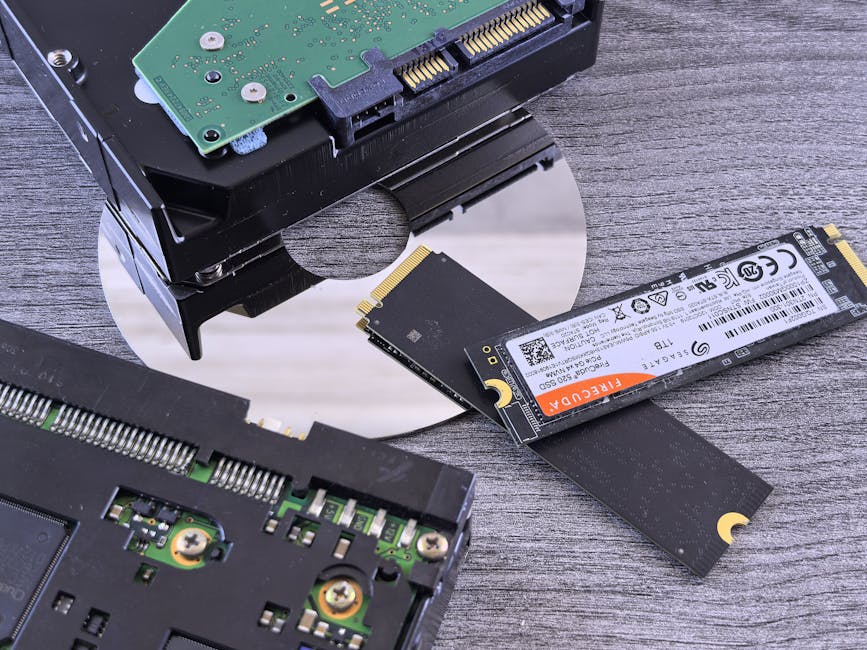
So what should you buy? If you’re asking SSD vs NVMe vs HDD, here’s the direct answer: use an NVMe SSD for boot and gaming when your budget allows, use a SATA SSD when you want a big speed jump for less money, and use an HDD only for cheap, large storage like archives and media libraries.
This guide is written for real life in 2026: you’ll see typical speeds, why games and Windows feel different on each drive type, and which setup I’d choose for boot times, gaming, and large files.
SSD vs NVMe vs HDD: the simple differences that actually matter
The key difference isn’t marketing. It’s how quickly the drive can start sending data and how fast it can feed the CPU when you load programs.
What an HDD is (and why it feels slow)
An HDD (hard disk drive) uses spinning platters and a moving read/write head. It’s good at holding lots of data cheaply, but it has more moving parts. That means delays when the system needs random small files.
When you boot, Windows reads lots of small pieces across different locations. HDDs hate that pattern, so you feel it as longer boot times and more stutter when apps start.
What an SSD is (and what “SSD” usually means in normal talk)
An SSD (solid-state drive) stores data on flash chips with no spinning parts. Most “SSD” in everyday stores means a SATA SSD, which uses the older SATA cable and controller.
SATA SSDs are still a huge upgrade from HDDs. In many PCs, switching to SATA SSDs is the fastest “cheap win” you can do.
What NVMe is (and why it’s faster for boot and games)
NVMe is an SSD design that talks to your PC through the PCIe lanes. PCIe is the fast highway inside your computer. NVMe SSDs skip the older SATA limits.
In plain terms: NVMe can reach data faster and move it faster. That’s why it helps with boot, loading levels, and game patching.
Real-world boot times: what I’ve seen when switching drives
Boot time isn’t just “how fast the drive is on paper.” It’s about random reads, driver loads, and how quickly your system pulls together everything it needs.
Typical boot time expectations (modern Windows 11 PCs)
These numbers vary by CPU, RAM, BIOS settings, and whether your drive is close to full. But in 2026, these are the kinds of ranges I see in builds and upgrades:
- HDD: often 45–120 seconds to a usable desktop
- SATA SSD: often 15–45 seconds
- NVMe SSD: often 8–25 seconds
Notice the pattern. NVMe doesn’t just speed up “the last 10%.” It often changes the whole experience.
The one thing people get wrong: “bigger HDD = faster boot”
Many people upgrade from a 1TB HDD to a 4TB HDD and expect faster boot. It rarely happens. Boot feels slow because of seek delays and random access, not because the drive is larger.
If your goal is boot speed, you need SSD tech, not just bigger capacity.
My practical setup for fastest boots
On my main desktop, I keep Windows on an NVMe drive and keep apps like Steam, Discord, and creative tools there too. For storage-heavy stuff (videos, game media, old downloads), I use a second drive.
That keeps the “busy” drive less full, and it helps the system keep snappy performance over time.
Gaming performance: what storage affects (and what it doesn’t)
Storage affects more than people think, but it doesn’t control everything. Your GPU still decides FPS. Your CPU still decides some frame pacing. Your storage mostly affects when things appear.
What changes with HDD vs SATA SSD vs NVMe
Here’s what you’ll actually notice:
- Game launch time: HDD feels slow; SSD feels quick; NVMe feels very quick.
- Loading screens: NVMe usually shortens them more than SATA SSD.
- Streaming in open worlds: HDD can cause more visible pop-in or pauses.
- Patches and downloads: faster drives help, especially when unpacking and copying files.
In competitive games, the biggest win isn’t “higher FPS.” It’s fewer stalls and faster map changes.
Why NVMe feels smoother even at the same FPS
Most modern games stream assets while you play. That means the game keeps asking the drive for small chunks of data. NVMe’s quick response time helps it keep that stream steady.
On an HDD, those file requests can get delayed by head movement and slower random access. The result feels like stutters, not just “slow loading.”
How to pick storage for your current gaming habits
Pick based on what you do most:
- If you play one or two big games a lot: put them on an NVMe SSD.
- If you rotate lots of games: SATA SSD can be a good middle ground for cost, but still keep the newest installs on SSD.
- If you keep a huge library: use an HDD for older games you don’t touch often, and move the ones you play weekly to SSD.
I’ve done this with my Steam library. Using SSD for the “active” games kept my system feeling fast even when the rest of my library grew.
Large files and backups: when HDD still wins

For large files, HDD isn’t just “old tech.” It’s often the best value per dollar.
Best uses for HDDs in 2026
HDDs shine when you want lots of storage without paying “premium” prices:
- Movie and TV archives
- Home photos (especially if you already back them up)
- Old game installs you rarely open
- Big downloads, disk images, and backups
Just don’t use an HDD as your main boot drive if you care about speed.
The real risk with HDDs: failure and recovery costs
HDDs are more likely to fail over time than SSDs because of mechanical wear. That doesn’t mean SSDs can’t fail. It means you must treat all drives as temporary.
My rule: if the data is important, it lives on at least two places. For many people, that’s a mix of a local drive plus cloud backup. If you want to think about safer storage for your files, you might also like our guide on ransomware basics—because good backups are your best defense.
SSD vs NVMe vs HDD comparison table (quick buying guide)
If you just want the “at a glance” version, use this table as your checklist.
| Drive type | Typical best use | Where it shines | Main downside |
|---|---|---|---|
| NVMe SSD | OS + gaming + apps | Fast boot, quick game loads, great random access | Costs more per GB |
| SATA SSD | Budget upgrades + general storage | Big speed jump vs HDD, good for everyday apps | Slower than NVMe on load-heavy workloads |
| HDD | Cheap large storage + archives | Low $/GB, holds lots of data | Slow random access, worse stutters and boot times |
How to choose the right drive in 5 steps (no guesswork)
Here’s the method I use when I’m helping friends pick parts. It works because it starts with your real use, not specs on a box.
Step 1: Decide what “fast” means to you
Fast for you might be:
- Lower boot time
- Less stutter in games
- Faster loading in creative apps
If you care about boot and gaming, you’re basically deciding between NVMe and SATA SSD for your main drive.
Step 2: Check your PC ports and slots
This is where many people get stuck. An NVMe drive only works if your PC has an M.2 slot that supports NVMe. Some M.2 slots support SATA M.2 drives instead.
Before buying, check your motherboard manual or system info.
Step 3: Pick capacity based on how full you let it get
Most SSDs slow down a bit when they get very full. As a practical habit, keep at least 15–25% free space on your OS drive.
On my system, I usually aim for 20% free. It keeps things feeling consistent after updates and game installs.
Step 4: Use a “two-drive” plan for best balance
If your budget allows, a two-drive setup is the sweet spot:
- Drive A (NVMe or SATA SSD): OS + apps + active games
- Drive B (HDD or larger SSD): large files, archives, downloads, backups
This keeps your fast drive less cluttered and helps it keep performance.
Step 5: Clone carefully or do a clean install
When upgrading, you’ll either clone your old drive or do a clean install. Cloning is fast, but I’ve seen it carry over old driver and settings problems.
If your system is acting weird, a clean install on the new SSD usually fixes the root cause. If everything is already stable, cloning is fine.
If you want more hands-on guidance for PC setup choices, check out our How-To Guides category for step-by-step troubleshooting and setup basics.
People Also Ask: SSD vs NVMe vs HDD
Here are the questions I see most often, answered directly.
Is NVMe always faster than a SATA SSD?
In general, yes for real-world usage like boot and game loads. NVMe uses PCIe, while SATA SSDs are limited by SATA speed.
That said, not every NVMe drive is the same. A basic NVMe model can still be slower than a high-end SATA SSD in certain edge cases, but you’ll almost always feel NVMe as faster on typical tasks.
Can I use an HDD for gaming?
Yes, but you’ll feel it. HDDs can cause longer load screens and occasional stutters when games stream assets.
If you play older games or single-player titles with long pauses, it can be okay. For modern open-world games and competitive play, SSD is the better choice.
Do I need an SSD if I have a lot of RAM?
No. RAM helps keep data “near” the CPU while you’re working, but it doesn’t replace storage speed. Storage matters when data isn’t already in RAM.
So even with 32GB or 64GB of RAM, an HDD will still slow down boot and initial loads.
How do I know if my PC supports NVMe?
Look for an M.2 slot and then confirm whether it supports NVMe. Many laptops and desktops clearly list the supported protocols in the manual.
On Windows, you can also check device info tools, but the motherboard or laptop model page is usually the fastest path to certainty.
Will switching from HDD to SSD improve cybersecurity risk?
It won’t stop malware by itself. But faster boot and app loads can make it easier to use security tools consistently, like keeping your system updated and running scans on time.
For actual protection, focus on backups, patching, and safe browsing. If you want more security-focused storage advice, our Cybersecurity posts cover how to protect your files against ransomware with real backup habits.
My recommended setups for common budgets
I’ll give you a few builds I’d recommend as of 2026. These are practical and match how people actually use their PCs.
Budget build (best value for speed)
- OS + main games: 1TB SATA SSD
- Extras: HDD for large downloads and archives
This gives you a huge improvement in boot and daily apps without spending NVMe money.
Mid-range build (sweet spot for most gamers)
- OS + games: 1TB NVMe SSD
- Large files: 2TB–4TB HDD or second SSD if budget allows
This is what I’d choose if you play a few big games regularly and you hate waiting.
High-end build (when you want everything fast)
- OS + games: 2TB NVMe SSD (or two NVMe drives)
- Backups/archives: HDD or separate backup device
At this point, your bottleneck is usually your CPU or GPU, not storage.
Small tips that make a big difference after you buy
Getting the drive is step one. Getting the best feel from it is step two.
Keep your OS drive from getting too full
If you use NVMe for everything and keep it nearly full, you’ll notice slowdowns later. Leave headroom.
In 2026, that’s still one of the easiest performance fixes.
Move your game library smartly
Don’t scatter every game everywhere. Set your launcher (like Steam) to install active games on your SSD.
For Steam, I usually keep the “played this month” games on SSD and move the rest to HDD. It keeps things fast without making you buy a huge SSD immediately.
Enable TRIM for SSDs
TRIM is a feature that helps the OS tell an SSD which blocks aren’t needed anymore. Most modern Windows setups handle this automatically.
If you’re using older systems or custom setups, check that TRIM is enabled for your SSD.
Watch your motherboard slot speeds
Not all M.2 slots are equal. Some are capped by PCIe lanes or shared bandwidth with other ports.
If you buy an NVMe drive and it seems slower than expected, check the slot layout in your motherboard manual.
Conclusion: choose NVMe for speed, SATA SSD for value, HDD for big storage
If you want the best boot times and smoother gaming loads, pick an NVMe SSD for your OS and active games. If you’re trying to save money but still want a big upgrade, a SATA SSD is the smart “minimum effort, big results” choice.
Keep HDD for large files, archives, and older games where speed matters less. Then protect your important data with real backups, because drive speed doesn’t change the fact that storage can fail.
If you’re deciding right now, do this: choose the drive that will hold your Windows folder and your main games. Everything else is secondary.
Featured image alt text suggestion (use with your hero image): “NVMe vs SATA SSD vs HDD comparison for fast boot times and gaming storage.”