Android vs. iOS Security: A Practical Comparison of Permissions, Updates, and App Review Risks
Quick answer: If you want fewer random apps getting through, iOS is usually stricter. If you want faster “push-button” controls and clearer user permission prompts, both platforms work well—but Android’s permission system is more uneven across devices. When it comes to updates, iOS wins on speed and consistency, while Android depends heavily on the phone maker and carrier.
I’ve tested both ecosystems as a regular user and as someone who cares about security. Over time, the biggest real-world difference hasn’t been “who has better encryption.” It’s been two quieter things: how permissions behave in day-to-day life, and how quickly a security fix reaches your exact model. That’s where most people get burned.
Below is a practical comparison of Android vs. iOS security, focused on permissions, updates, and app review risks—plus what you can do right now to reduce your exposure.
Android vs. iOS security in 2026: what actually changes your risk?
The takeaway is simple: your risk drops when (1) apps ask for less access, (2) updates arrive quickly, and (3) app store checks catch risky apps before install. iOS is stronger on the “checks” part, while Android can be very safe if you manage permissions carefully and keep the phone updated.
Security is not just a feature on paper. It’s a chain. One weak link breaks the whole chain. On mobile, the chain usually breaks at updates or at permissions people don’t fully understand.
What “permissions” means: Permissions are rules the phone uses to decide whether an app can read your contacts, use your microphone, track your location, or see files. Good permission design makes harmful access harder by default.
What “app review risks” means: App review risks are chances that a bad or sloppy app gets past the store rules. When a store is strict, fewer sketchy apps reach users. When it’s looser, users rely more on their own caution.
Permissions compared: who asks better, and what you should watch for?
The takeaway here: iOS tends to ask for permission in a clearer, more “single-purpose” way. Android asks in many forms, and some phones get messy with special permissions. On either system, the dangerous move is the same—granting something “just this once” and forgetting why you did it.
iOS permissions: clear prompts, but pay attention to timing
iOS uses a permission flow that feels consistent. When an app wants location, camera, or microphone, you usually get a prompt with a reason. Apple also uses app-level privacy controls in Settings.
Here’s what I look for on iOS: whether the app asks for access right when it’s needed. A shopping app asking for contacts on first launch is a red flag. If the same app later asks for notifications, that’s normal.
Also watch for location mode choices. “Precise” location is more sensitive than “Approximate.” If you don’t need turn-by-turn navigation, turn off precise and your risk drops.
Android permissions: more controls, but more ways to mess up
Android permissions are powerful, and you can lock things down hard. The problem is that different phone brands interpret and display permission settings differently, and some apps request “more than they need” because the platform allows it.
On Android, there are a few permission categories people often misunderstand:
- Runtime permissions: granted while you use the app (or denied). This is the modern approach.
- Special permissions: things like “Display over other apps,” “Install unknown apps,” or “Accessibility.” These can be risky if you give them without reading.
- Background access: apps can keep running or check things even when you’re not using them.
My rule: if a new app asks for Accessibility, treat it like a request to control your phone. Legit apps ask for it for a reason (like screen readers or some automation tools), but most random apps don’t need it.
Permission comparison table: what to check in Settings
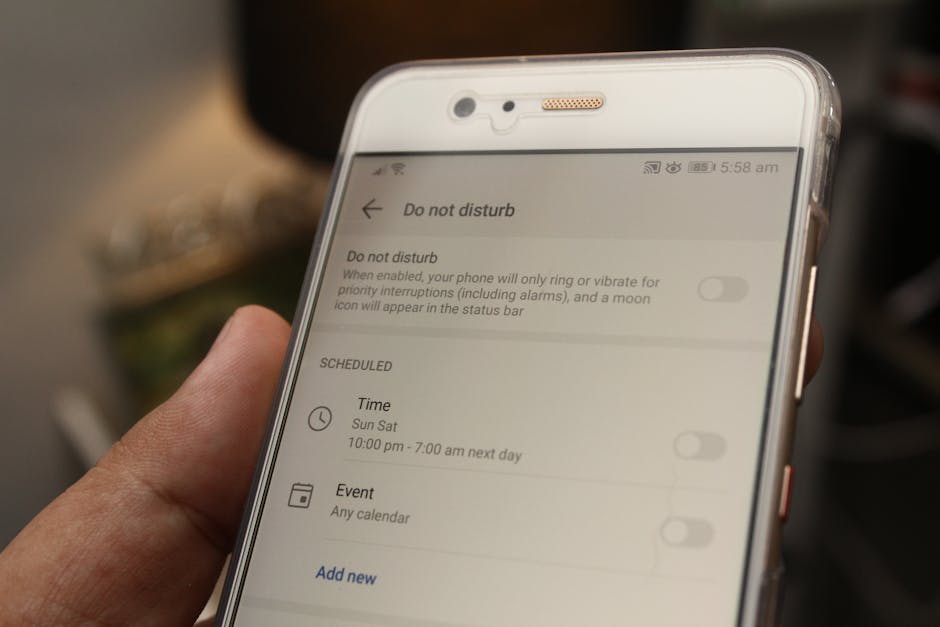
The takeaway: you can reduce risk on both systems with the same checklist—location, microphone, camera, contacts, files, notifications, and background access.
| Area | What to look for | Android practical check | iOS practical check |
|---|---|---|---|
| Location | Is it precise? Is it always? | Settings > Location > App permissions; disable “Allow all the time” | Settings > Privacy & Security > Location Services; turn off Precise |
| Microphone | Does the app need it for your task? | Settings > Privacy > Permission manager > Microphone | Settings > Privacy & Security > Microphone |
| Camera | Who has camera access? | Permission manager > Camera | Privacy & Security > Camera |
| Contacts | Is it needed or just “nice to have”? | Permission manager > Contacts | Privacy & Security > Contacts |
| Files & photos | Full access vs limited | Settings > Apps > (app) > Permissions; set to “Photos only” where available | Photo access is often limited; review app setting |
| Background behavior | Does it run when you don’t use it? | Battery > background restrictions | Background App Refresh (turn off for apps you don’t need) |
| Notifications | Can it show content on the lock screen? | Lock screen notification settings | Notifications > Show on Lock Screen |
Updates and patch speed: why this matters more than people think
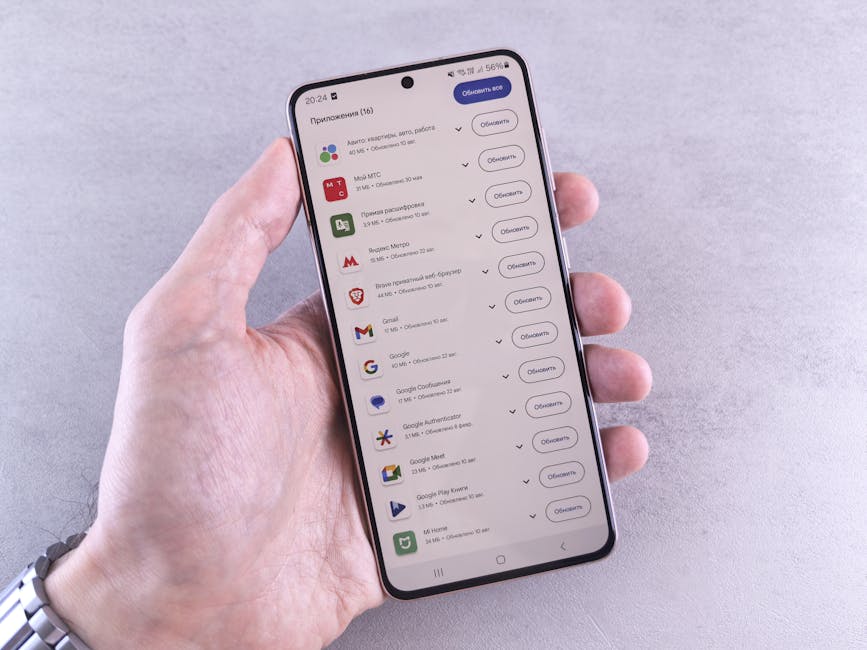
The takeaway: updates are where the biggest “real” security wins happen. Even perfect permissions don’t save you if you’re running an old phone with a known hole.
As of 2026, iOS update delivery is usually fast and consistent. When Apple pushes iOS updates, most supported iPhones can get them quickly. That means security patches land for a large chunk of users at about the same time.
Android is different. The Android OS is only part of the story. The phone maker and sometimes the carrier add their own delay. Two people can own the same Android version number and still have different security patch levels.
What the “security patch level” is (plain English)
A security patch level is a tag that shows the date of the last security fixes applied to your device. It’s not the same as the “big update” version you see once in a while.
On Android, you can often check this in Settings > About phone. On iOS, the patch timing is tied to iOS versions, but Apple generally keeps the schedule straightforward.
My 30-minute update test (the one I recommend)
The takeaway: you can reduce risk in one short session by doing three steps: update, then check which apps got new permissions, then review bank/social apps.
- Update your OS (Wi-Fi first).
- Review permission changes right after updating. Some apps get new asks after an upgrade.
- Focus on high-risk apps: email, banking, password managers, VPNs, and any app that can read contacts or send messages.
It takes about 20–30 minutes. I’ve done this right after major releases and caught at least one app that silently requested “Contacts” again.
App review risks: why the app store rulebook changes your threat model
The takeaway: iOS generally has stricter app review, which lowers the chance of a shady app slipping in. Android can also be safe, but you have more responsibility because sideloading and store differences vary by device.
Both platforms have security teams and automated checks. The difference is the average experience for developers and users. iOS review is usually more consistent across the board, while Android varies more depending on store source and device settings.
What users get wrong about app review
People often think, “If it’s in the store, it must be safe.” That’s not true. App review mostly checks policy and common malicious patterns, not whether the app will behave responsibly over time.
Real threat cases happen when an app is “allowed” but later changes behavior through updates. That’s why you still need permission review after you update apps.
Real-world scenario: the “camera and contacts” combo
Here’s a scenario I’ve seen discussed in cybersecurity circles: a photo editing app asks for contacts and microphone. That combination can mean a normal sync feature—or it can mean the app is building a profile and recording more than it should.
If you’re on iOS, the prompt makes you pause. On Android, the app may still have permissions already granted, so you need to manually check the permission manager and special permissions.
People also ask: Android vs. iOS security
Is iOS more secure than Android?
Yes, in most real-world cases iOS is more secure by default, mainly because of faster and more consistent updates and tighter app store rules. That doesn’t mean Android is unsafe—many Android users run secure setups—but it takes more effort to match iOS defaults.
Are Android permissions safer now than before?
They’re safer than they used to be because modern Android uses runtime permissions and better permission categories. The catch is that some permissions (like Accessibility and “display over other apps”) are still high risk, and they’re easy to grant by accident.
Does sideloading make Android insecure?
Sideloading increases risk because you’re bypassing store review. If you do sideload, only install from trusted sources, verify the app’s signature if your tools support it, and avoid apps that ask for Accessibility unless you fully understand why.
How do I spot a risky app before I install it?
The takeaway: don’t rely on stars and comments. Look at permission requests, the app’s update history, and whether it matches its purpose.
- Permissions: if a flashlight app asks for contacts, that’s suspicious.
- Developer history: check if the same developer has a lot of sketchy apps.
- Recent changes: after updates, re-check permissions.
- Network behavior: avoid apps that show heavy “background” behavior without a clear reason.
What I recommend in practice: a “safe phone” setup for both
The takeaway: you don’t need paranoia. You need a few solid defaults, then a quick check every few weeks.
Step-by-step: build safer permission habits
- Start strict: when you first install an app, allow only what it needs for its main feature.
- Use “while using”: for location, prefer while-you-use over always.
- Block microphone/camera by default for random apps: only enable when you actively use the tool.
- Review notifications: turn off lock-screen previews for apps that show personal info (messages, email, banking).
- Remove stale apps: old apps keep old habits. If you haven’t used it in a month, delete it.
Step-by-step: keep updates under control
- Turn on auto-updates for your OS when available.
- Set a monthly check for Android security patch level and app permission changes.
- After big updates, review permissions again. New app versions can ask for more access.
One limitation: if you use a carrier-locked Android phone that doesn’t get timely patches, your update path is slower no matter what you do. In that case, consider moving to a device with better update support.
Extra “belt and suspenders” moves that actually help
- Use a password manager and turn on passkeys if your accounts support it. If you want a practical setup guide, see our piece on password manager setup best practices.
- Turn on device encryption (most phones have it by default now).
- Watch app accessibility settings on Android. On iOS, review any “safety” settings apps ask for.
- Don’t install “cleaner” and “booster” apps from random publishers. They often ask for risky permissions and don’t improve security.
Best choice depending on your life: which phone fits which security style?
The takeaway: pick the platform that matches how you manage risk. If you want low effort, iOS is usually the easier win. If you like fine controls and you’re willing to check permissions often, Android can be great.
- Choose iOS if: you want consistent patch timing and tighter app review by default. This matters for people who don’t want to think about phone settings.
- Choose Android if: you want deeper control and you’re okay doing a quick permission review. Also useful if you rely on certain hardware features or app ecosystems.
Here’s my “honest angle” opinion: the safest phone is the one that you keep updated and check occasionally. People with great security instincts often make Android safer than iOS for themselves, simply because they review settings.
Conclusion: reduce Android vs. iOS security risk with one routine
The actionable takeaway: Permissions and updates matter more than app store promises. If you want the lowest risk out of the box, iOS generally delivers that through stricter review and faster patch behavior. If you use Android, treat permission reviews like basic hygiene and verify your security patch level regularly.
Do this today: update your phone, scan your app permission list for location/microphone/camera, and remove any app that asks for access it clearly doesn’t need. That routine cuts your risk fast on both Android and iOS.
If you’re building broader cyber habits, you’ll probably like our related guide in mobile phishing scams and how to stop them. Many app and account attacks start the same way: a permission prompt you didn’t think about.
Featured image alt text: Android vs iOS security permissions and update comparison on a phone screen in 2026