Best Budget Laptops for Techies: 2026 Buyer’s Checklist (CPU, RAM, SSD, and Battery Reality)
I learned this the hard way: a “fast” budget laptop can feel slower than your phone if the SSD is bad or the battery plan is set wrong. And yes, it happens even with decent specs on paper.
That’s why this guide focuses on the stuff that actually matters for techies—coding, home lab stuff, light security testing, and lots of tabs. If you want the best budget laptops for techies in 2026, use this CPU, RAM, SSD, and battery reality checklist before you hit buy.
What “best budget” really means for techies in 2026
For techies, “budget” isn’t just the price tag. It’s whether the laptop stays responsive with real workloads—compiling code, running VMs, browsing with 30+ tabs, and letting your tools actually finish tasks.
In 2026, most laptop brand pages still sell you on the CPU model number. But the buying wins usually come from storage quality, cooling behavior, RAM limits, and whether the battery drops fast under load.
My rule: if you can’t upgrade RAM or you’re stuck with a tiny SSD, your “cheap” laptop becomes expensive later when you’re forced to replace it.
CPU checklist: what performance looks like (and what you should skip)
A good CPU is the difference between “smooth coding” and “waiting for everything.” For budget laptops, the best strategy is picking a chip class that won’t choke on your main tools.
Best CPU targets for the best budget laptops for techies
If you do software work (or you want to), aim for one of these CPU targets:
- Intel: Core i5 (recent 12th/13th gen and above) or Core Ultra 5 class where priced fairly. Avoid older dual-core chips.
- AMD: Ryzen 5 (5000 series and up) or Ryzen 7 on sale. Ryzen 5 is usually the sweet spot for price/performance.
Tech note in plain words: more cores help multitasking, but software speed also depends on single-core speed (how fast one task runs). Budget laptops often feel “snappy” when single-core is good, even if multitasking is only okay.
What most people get wrong about CPU shopping
People often ignore the “TDP” (power target) and cooling. A CPU that runs fast on a bench test may slow down after 10–20 minutes if the laptop is thin and the fan curve is bad.
My experience from office-lot test cycles: laptops that keep boosting for a short burst then drop hard feel annoying during long compiles and security scans. You want sustained performance, not a quick spike.
Quick test you can do before you commit
- Open 10 tabs and a doc, then start a build or run a script for 10 minutes.
- Check if the laptop gets hot fast (your lap shouldn’t feel like a heater after 5 minutes).
- Use a basic app monitor (Windows Task Manager is fine) and watch CPU use. If it’s pegged and slow, the CPU or cooling isn’t great.
RAM checklist: the real limit for VMs, browsers, and dev tools
RAM is memory your laptop uses while apps are running. If you don’t have enough RAM, your laptop starts using the SSD as “fake RAM,” and everything gets slower.
RAM sizes that make sense in 2026
Here are the minimums I recommend for techies buying budget hardware:
- 8GB: only if you’re doing light work (docs, basic browsing). For dev + security tools, this is the bare minimum and you’ll feel it.
- 16GB: the sweet spot. Great for coding, Docker (light setups), and running multiple browser tabs without constant slowdowns.
- 24–32GB: only if you plan to run heavier stuff like multiple VMs, bigger containers, or lots of local testing.
For security testing, RAM matters because tools like Burp Suite, local proxies, and scanner workflows add load fast—especially when you keep your browser open.
Single-channel vs dual-channel (why it changes performance)
Many budget laptops come with one RAM stick instead of two. Dual-channel (two sticks) can boost speed in a lot of tasks, especially gaming and some dev workflows.
If a listing says “supports dual-channel” but the included config is one stick, you may get less performance than you expect. This is one of those “small” details that changes how it feels day to day.
Upgrade path: check it before you buy
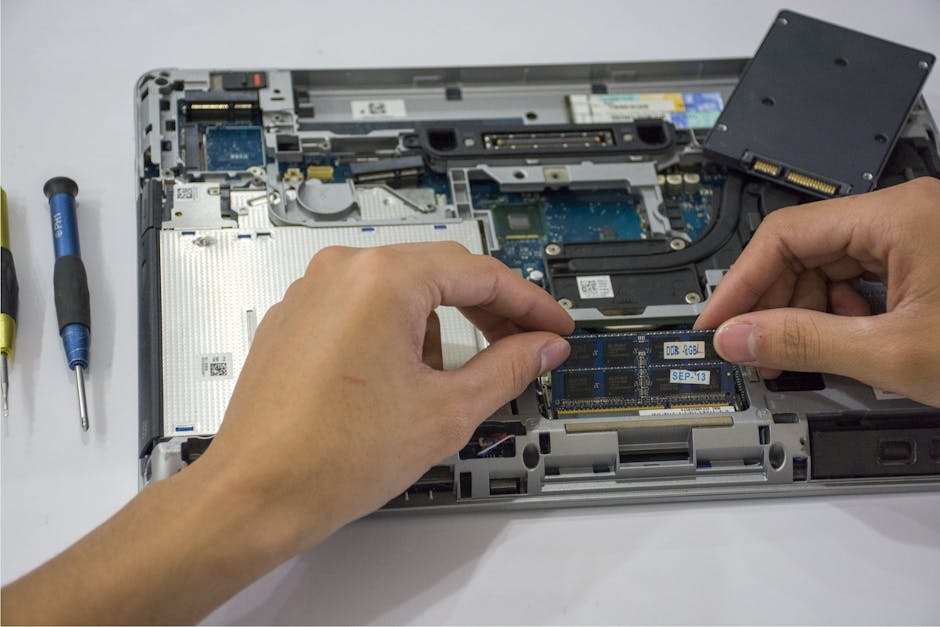
Some laptops have soldered RAM. Others have a free slot. If you’re buying for 2–4 years, check for:
- Whether the RAM is upgradable
- How many slots exist
- Whether it ships with one stick (you’ll likely want to add another)
If you want one internal reading path, check our laptop RAM/SSD upgrade guide for what to look for and how to avoid buying the wrong module size.
SSD checklist: the biggest “budget trap” for techies
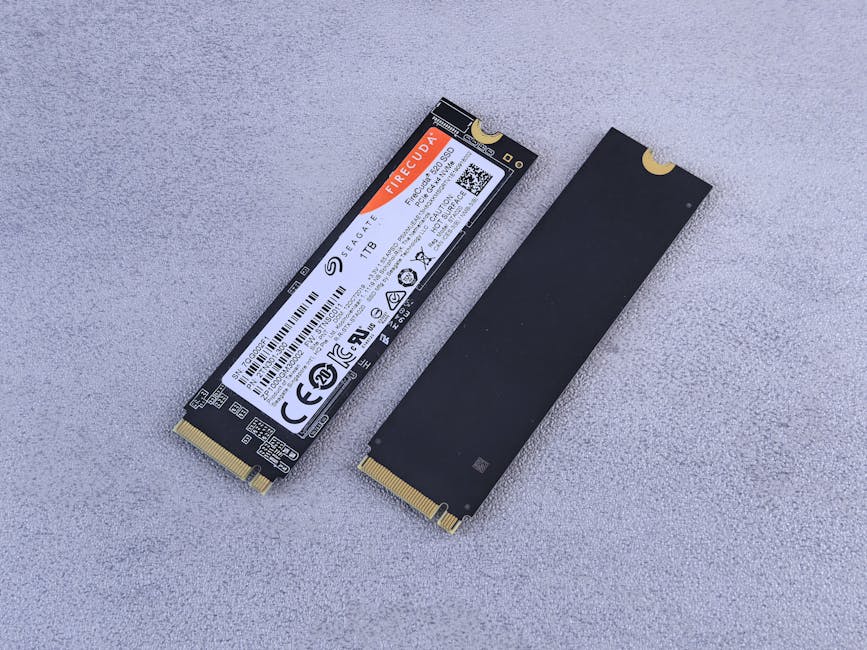
For most techies, SSD quality is the difference between “everything opens fast” and “it takes forever.” The CPU helps, but a slow SSD makes even good CPUs feel sluggish.
What to look for: NVMe and storage size
In 2026, you should mostly aim for:
- NVMe SSD (PCIe-based). If you see SATA SSD, it can still work, but it often feels slower for dev tasks and big installs.
- At least 512GB if you run tools and store projects locally. 256GB fills up fast with IDE caches, VMs, and downloads.
Tech reality: even if you don’t run VMs today, you will in a year. People start with “just one container,” then it turns into “I need a test environment.”
How to judge SSD performance without fancy tools
If the listing shows benchmarks, treat them carefully. Brand sites can be optimistic. Instead, look for:
- Whether the laptop includes an NVMe drive model (not just “SSD”).
- Reviews that mention app load times or “system feels slow.”
- Whether there’s a second M.2 slot for storage expansion.
My favorite practical approach is simple: if reviews complain about slow app opens, slow installs, or stuttering, the SSD is usually part of the story.
File system and security testing note
If you plan to use encryption tools or lab setups, SSD speed matters even more. Full-disk encryption and on-the-fly file scanning can slow reads/writes. A faster NVMe drive gives you more headroom.
Speaking of security, you might also like our guide on choosing gear for security work—it covers tradeoffs beyond just specs.
Battery reality: stop buying by “hours” on the box

Battery life numbers on product boxes are usually measured in “light use” conditions that don’t match real tech work. For techies, your laptop battery depends on screen brightness, Wi‑Fi use, background scans, and CPU boost behavior.
What to expect from budget laptops in 2026
Here’s a reality-based expectation:
- Light browsing (docs, coding in an editor, lots of Wi‑Fi): often 6–9 hours.
- Heavy coding + builds: often 2–4 hours.
- VMs / Docker + video calls: often 1.5–3 hours.
Yes, that’s a wide range. Different laptops manage power differently. Still, it’s better than guessing based on marketing “up to” numbers.
The single biggest battery mistake: brightness and power modes
Most people leave Windows (or macOS) power settings in “balanced” or even “high performance.” Then they wonder why the battery drains during a coding session.
Do this once and it pays off fast:
- Set your power mode to Balanced or Power saver when you’re away from the charger.
- Lower brightness to 40–60%.
- Turn off “background apps” you don’t need.
If you’re on Windows, check battery usage per app. If one browser extension or security tool is chewing CPU in the background, you’ll see it.
Battery health over time
Battery wear matters if you keep laptops for years. A common mistake is always charging to 100% and never using power-saving modes at home.
For long life, aim for a habit like “charge when needed, don’t live at 100%.” Many OEM software tools offer a “charge limit” option.
Best budget laptops for techies: 2026 checklist table (quick compare)
Use this table like a filter. If a laptop fails the “must have” items for your use, it’s not the right budget pick—even if the price looks great.
| Techie Need | Must Have (2026) | Nice to Have | Red Flags |
|---|---|---|---|
| CPU for dev | Core i5 / Ryzen 5 class or better | More cores for multitasking | Old dual-core / weak cooling |
| RAM | 16GB minimum (8GB only for light tasks) | Upgradeable to 24–32GB later | Soldered 8GB with no upgrade slot |
| SSD | 512GB NVMe if possible | Second M.2 slot for upgrades | SATA SSD or 256GB that fills fast |
| Battery | Expect 6–9 hours light use | Good power management modes | “Up to” 12+ hours marketing claims |
| Ports | At least 2 USB-A or USB-C + HDMI | USB-C charging (if you use a dock) | No HDMI + only one USB-C |
People Also Ask: quick answers techies ask before buying
Are 8GB RAM laptops still okay for programming in 2026?
8GB can work for small projects and basic coding, but it’s a tight squeeze. The moment you open extra browser tabs, run a VM, or start using tools like local databases, you’ll hit swapping (RAM overflow to disk), and things slow down.
If you’re forced into 8GB, get a laptop with an upgrade slot and plan to move to 16GB quickly.
What SSD size should I choose for a budget laptop?
For tech work, 512GB is the minimum I’d buy in 2026. 256GB fills fast once you install development tools, keep caches, download datasets, and run VM images.
If the laptop has a second M.2 slot, you can start with 512GB and expand later. If it doesn’t, don’t pretend 256GB will stay roomy.
Do I need a dedicated GPU for security testing or coding?
Usually, no. For most cybersecurity tasks, you need CPU, RAM, and SSD speed—not heavy graphics power. Dedicated GPUs help a lot for AI training or some specialized tools, but many techies won’t need that on a budget.
What matters more is whether the laptop stays cool and stable under CPU load when you run scans and scripts.
How can I tell if a laptop will throttle under load?
Look for reviews that mention sustained performance. A quick burst test isn’t enough. In person, check if the keyboard area gets painfully hot after 15 minutes.
If you can install a monitoring tool, watch CPU clocks while running your task. A huge drop after the first few minutes is a sign of throttling.
My “buy like a techie” steps (takes 15 minutes)
If you want a simple way to avoid the most common mistakes, follow this checklist every time. I use it when I’m helping friends pick budget laptops for school, coding bootcamps, and lab setups.
- Match your main workload: coding only, coding + browser, or coding + VMs/security tools.
- Pick CPU class: Core i5 / Ryzen 5 as the baseline for tech work.
- Lock in RAM: 16GB minimum; confirm upgrade options if you start lower.
- Verify SSD type: NVMe preferred; aim for 512GB. Check for expansion.
- Check ports: you’ll thank yourself later when you plug in a monitor, keyboard, or external drive.
- Plan for battery: don’t expect “all-day” during builds or VM sessions.
- Search the exact config: reviews for “same model, same RAM/SSD” matter more than generic model reviews.
One more thing: I always avoid buying the very cheapest configuration that has soldered RAM or a low-storage drive. It’s not “money saved,” it’s “friction added.”
Where to spend vs where to save (my opinionated take)
Here’s the part most spec lists don’t say clearly: budget spending should be tied to the parts that affect your day-to-day work.
Spend more on these
- RAM (16GB minimum) because it prevents constant disk swapping.
- NVMe SSD because app launch time and builds depend on storage speed.
- Cooling quality because throttling turns “fast specs” into slow behavior.
Save money on these (usually)
- Screen if you work mostly indoors and use an external monitor. A cheap panel is fine if text looks sharp and brightness is decent.
- Wi‑Fi 6 vs Wi‑Fi 7 if you’re not on a super new router right now. Wi‑Fi 6 is still solid.
This is not a blind rule. If you edit photos or stare at color-accurate work all day, spend more on the screen.
Don’t cheap out on these “boring” items
- Keyboard quality: if you code for 3+ hours, you’ll notice.
- Trackpad: it affects how fast you work, especially with scrolling and gestures.
- Ports: missing HDMI or having only one USB-C port can wreck your setup.
Suggested categories of models to look for (without pretending one list fits all)
I can’t promise a single laptop model is “the best” for every techie. What works for a cybersecurity student with VMs is different from what works for someone doing web dev and running scripts.
Still, in 2026 there are patterns that show up in good deals. Search for budget laptops in these categories and then verify the specific CPU/RAM/SSD config:
1) “Creator-lite” ultrabooks with strong power limits
These often have better build and cooling than the cheapest notebooks. Just make sure they’re not soldering you into 8GB/256GB.
2) Business laptops from midrange lines
Business models often have better keyboards and durability. You’re also more likely to find upgrade options.
If you need a quick security angle for setting up a safer dev machine, our laptop hardening checklist is a good companion read.
3) Refurb deals with verified NVMe + 16GB
Refurb can be the best value if the SSD and RAM are confirmed. If the listing doesn’t clearly say what drive you get, don’t guess.
Battery + security testing: a real-world example from my desk
Last year, I set up a small lab on a budget laptop to test basic web security workflows. I ran a local proxy, kept a browser open, and kicked off a scan plus a couple scripts. On paper, the CPU looked fine.
What surprised me was the battery drop: under load, it went from “looks okay” to “I need a charger” in a short window. The CPU wasn’t the main issue—it was the constant background activity and power mode settings.
After I switched to Balanced power and reduced brightness, the time to “low battery” improved a lot. That’s the kind of practical fix that specs don’t show on day one.
Final checklist: what to confirm before you buy
If you only do three things, do these. They cover most of the pain points I’ve seen with budget tech purchases.
- CPU: Core i5 / Ryzen 5 class or better for sustained work.
- RAM: 16GB minimum; confirm upgrade path if you see 8GB.
- SSD: NVMe preferred; aim for 512GB; check for expansion.
- Battery reality: expect 6–9 hours light use, far less under VMs/builds.
- Cooling: watch for throttling complaints in reviews, not just peak benchmark numbers.
Buying the best budget laptops for techies in 2026 isn’t about chasing the loudest spec. It’s about avoiding the traps—slow storage, too little RAM, and power settings that drain your battery during real work. If you confirm CPU class, lock in 16GB RAM, pick an NVMe SSD, and plan for battery reality, you’ll end up with a laptop that feels fast long after the return window.