Cloud Backup vs Local Backup: The Pros, Cons, and a Simple 3‑2‑1 Setup Guide
Here’s a scary but real scenario: you wake up, your laptop won’t boot, and ransomware is sitting there with a ransom note. In my case (years ago, before I got serious about backups), the drive had the “important stuff,” and I still spent days trying to piece things back together.
The quick answer is this: use cloud backup and local backup together if you care about getting your files back fast and reducing the chance of losing everything. The best common method is a 3‑2‑1 backup setup: 3 copies, 2 types of storage, 1 copy stored offsite.
In this guide, I’ll compare cloud backup vs local backup in plain terms, explain what most people get wrong, and give you a simple 3‑2‑1 setup you can set up in an afternoon. I’ll also cover “People Also Ask” questions like whether cloud backups protect against ransomware and what happens if your internet goes out.
Cloud backup vs local backup: what each one really protects
Cloud backup is mainly protection against physical disasters and theft, while local backup is mainly protection against quick restore needs. Most people think backups are just “copy my files somewhere,” but the real goal is recovery when something goes wrong.
Cloud backup is a remote copy. A service stores your data on their servers, and you can restore files from another device. Local backup is a copy on a drive you own, like an external SSD or a NAS box in your home.
In plain words: local gives you speed. Cloud gives you distance.
Cloud backup is remote storage for your files
Cloud backup refers to a service that takes file copies from your computer and stores them online. As of 2026, most reputable services also support version history (older copies of files), encryption, and optional “point-in-time” restore features.
I like cloud backup for things that don’t change daily, like photos, scanned documents, and work files. For faster recovery, you still want a local copy.
Local backup is your own storage you control
Local backup means you copy your data to hardware you own. This includes external hard drives, external SSDs, USB flash storage (less ideal for large backups), and network storage like a home NAS.
I keep a local drive because restoring from the cloud can take time when you have a lot of files. If you’re dealing with a small number of folders, cloud is fine. When it’s your whole life’s worth of photos, speed matters.
Pros of cloud backup (and why it matters in 2026)
Cloud backup is strong at protecting against “life events” like a stolen laptop, fire, flood, or even just a failed drive. It’s also easier to restore to a new computer without dragging drives around.
Here are the biggest pros I see in real use:
- Offsite copy: Your files aren’t in the same building as your computer.
- Restores from anywhere: If you sign into your account, you can download files.
- Version history: Many services keep old versions, which helps after accidental deletes.
- Works after hardware replacement: You can move to a new PC/Mac without finding “the right external drive.”
- No need to manage rotation as much: Some services handle snapshots and retention for you.
In 2026, many services also do better at catching changes and backing up in the background. The result is less “I forgot to plug in the drive” regret.
Cloud backup use cases I actually recommend
If you’re deciding what to back up first, these are good targets:
- Photos and videos: Usually large, personal, and irreplaceable.
- Tax and ID documents: Sensitive and time-bound.
- Device backups: If your service supports it, back up the folders where your key apps store data.
- Work files: If you lose them, you lose time.
For gadgets and tech enthusiasts, it also helps with stuff like downloaded installers, saved firmware files, and notes from projects.
Cons of cloud backup (things people only learn after trouble)
Cloud backup isn’t magic. It can’t protect you if the data never got uploaded, if the account gets locked, or if your restore plan is missing. It also comes with ongoing cost.
Common downsides:
- Monthly cost: Storage adds up, especially for video-heavy libraries.
- Upload time: First-time backups can take days depending on your internet.
- Restore time: Downloading everything at once can be slow.
- Account risk: If someone gets your login, they might delete your cloud data.
- Ransomware confusion: If ransomware encrypts your files and your cloud agent keeps syncing, you can upload the damage too.
The last one is where I get firm. Cloud backups can protect you from ransomware, but only if you use versioning, retention, and features like “immutable” or “ransomware protection” where available. More on that below.
What most people get wrong about cloud backups
This is the mistake I see most: people back up only a few folders once, assume it’s done, and never test a restore. A backup you never test is just storage.
My rule: test a restore every few months. Pick a folder with a handful of files, delete something, then restore it. It shouldn’t take more than 10 to 15 minutes.
Pros of local backup (speed, control, and real-world restore)
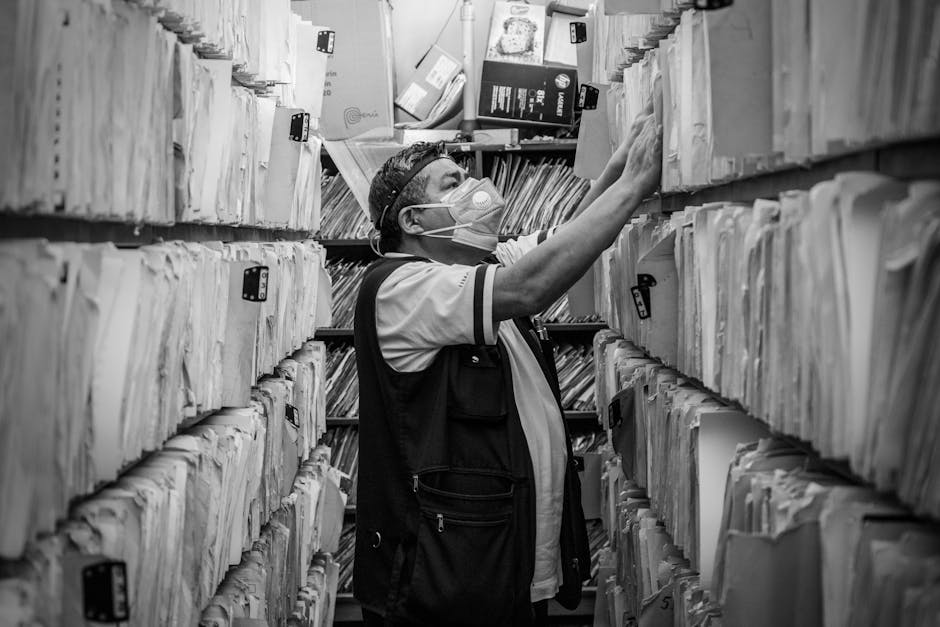
Local backup wins on speed and hands-on control. When you need your files today, not next week, a local drive can restore in minutes.
Key pros:
- Fast restores: No internet needed.
- Full control: You choose what’s backed up and when.
- No subscription fees: After you buy the hardware, your cost drops.
- Works even during outages: If your internet is down, you still have access.
- Easy to keep “offline” copies: You can unplug drives to reduce ransomware risk.
I like local backups for “big moments,” like moving to a new laptop or doing a clean reinstall. You can rebuild fast without waiting for 300 GB to download.
Local backup use cases for tech + gadget owners
If you tinker, test new apps, or manage lots of files, local backups are extra useful for:
- System images: Full disk backups if you want quick bare-metal recovery.
- App data folders: Notes, project folders, and downloaded resources.
- Local archives: Manuals, firmware, and model-specific configs.
If you’re also into cybersecurity, local backups can reduce your exposure because you can keep a drive disconnected most of the time.
Cons of local backup (the part people don’t want to hear)
Local backup is not safe by itself. If your home has a power surge, fire, theft, or flood, your “backup drive” can die with your computer.
Common local backup problems:
- Same-location risk: One event can wipe both the original and the backup.
- Drive failure: External drives fail. They fail silently sometimes.
- Forgetting to plug in: Many people do backups only when they remember.
- Ransomware spread: If your local drive stays connected, ransomware can encrypt it too.
- Bad restore testing: If your backup is corrupted, you only find out during a restore.
That’s why the best approach is a mix: cloud + local, and at least one copy offsite.
What most people get wrong about local backups
They treat the backup drive like a permanent part of the computer. If it’s always connected, it becomes an easy target during an attack.
For local storage, the “offline” idea matters. Unplugging an external drive after the backup finishes is simple, and it works.
Cloud vs local backup comparison table
Here’s the trade-off in a quick table so you can decide what fits your life.
| Factor | Cloud Backup | Local Backup |
|---|---|---|
| Recovery speed | Fast for small restores, slower for large restores | Usually fastest restores (no internet) |
| Protection from theft/fire/flood | Strong (offsite by default) | Weak if everything is in the same location |
| Ransomware risk | Can be high if syncing keeps uploading encrypted files | High if drive is always connected; lower if drives are offline |
| Cost over time | Ongoing subscription | Mostly one-time hardware cost |
| Setup effort | Usually easy (install app, pick folders) | Medium (choose drive, set schedule, test restores) |
| Best fit | Photos, documents, offsite safety | Quick restore, system images, speed |
The 3‑2‑1 backup rule: the simplest plan that actually works
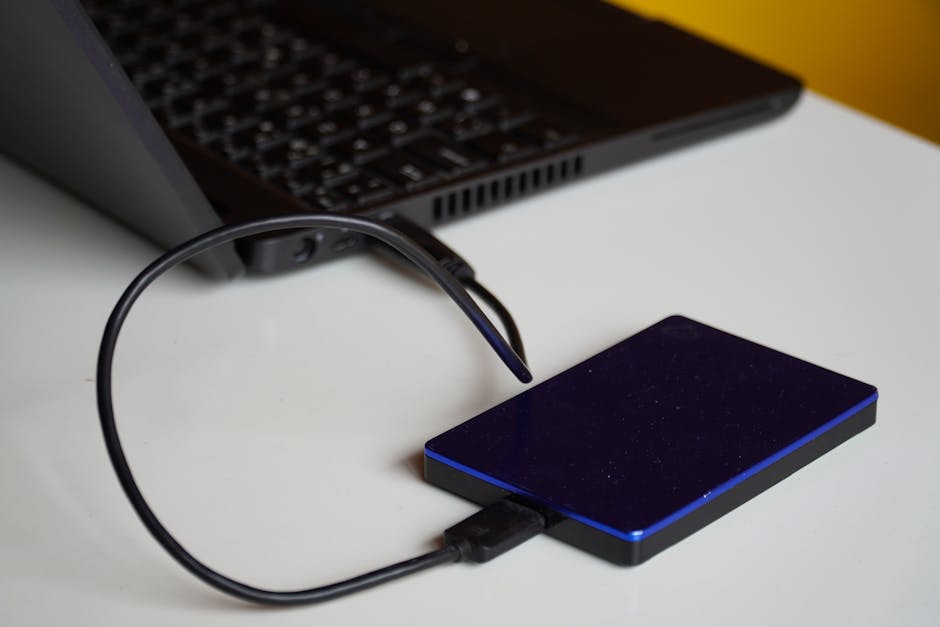
3‑2‑1 is the best baseline because it’s hard to break. “3” means three copies of your data. “2” means two different storage types. “1” means one copy offsite.
X is a backup copy that you can restore from. Y is the original data stored on your computer or device. The rule matters because disasters don’t care about your intentions.
A common setup for most people looks like this:
- Copy 1: Your main computer (original).
- Copy 2: Local backup (external SSD/HDD or NAS).
- Copy 3: Cloud backup (offsite copy).
If you want to be extra safe, add a second local drive so you have rotation. That’s not required by the basic rule, but it makes a big difference in the real world.
My recommended 3‑2‑1 setup for home users (simple + safe)
This setup matches how most home people use computers, tablets, and phones. It’s also easy to explain to someone who isn’t techy.
- Storage type 1: External drive (local)
- Storage type 2: Cloud storage (offsite)
- Extra safety: Optional second external drive for rotation
You’ll still meet 3‑2‑1 because you have at least one offsite copy. The second local drive is a “belt and suspenders” move.
Simple 3‑2‑1 setup guide (step-by-step, no fluff)
Do this in order and you’ll end up with a backup plan you can trust. I’ll keep this practical and focused on actions, not theory.
Step 1: Pick what you’re backing up (start small)
Pick folders that matter and that you can’t easily remake. For many people in 2026, it’s one of these:
- Documents (Word, PDF scans, spreadsheets)
- Photos and videos
- Desktop folder (yes, people forget this)
- Important browser downloads (if you keep installers)
Don’t start by backing up everything if your drives are small or your internet is slow. Start with 50–100 GB you care about most, then expand.
Step 2: Set up local backup with versioning + schedule
Local backups need a schedule and a way to keep older versions. versioning means keeping older copies so you can roll back after mistakes.
Here’s a simple approach:
- Buy a reliable external drive. For a typical home setup, 1–2 TB is common, but choose based on your current data size and how fast it grows.
- Plug it in and run your backup tool once.
- Set a daily or weekly schedule depending on your risk.
- Enable version history if your tool supports it.
- After the backup finishes, unplug the drive if you can. This reduces ransomware risk.
Tools vary, but I’m a fan of using a dedicated backup tool instead of “manual copy/paste.” If you want a system-level guide style approach, you’ll probably like the same mindset in our guide on what ransomware does and how to stop it.
Step 3: Set up cloud backup with ransomware-friendly settings
Cloud backup should be configured for recovery, not just for “it’s stored somewhere.” In particular, look for:
- Version history: Old file versions you can restore.
- Retention: How long old versions stay.
- Ransomware protection: Some services offer special detection or “safe restore” flows.
- Two-factor authentication (2FA): Extra login protection.
When you set it up, start with the same folders you chose for local backup. Let the first upload run at a time when you won’t need your internet for gaming or video calls.
In my experience, the first full upload is the hardest part. After that, it usually gets faster because it only sends changes.
Step 4: Test restores like you mean it
This is the step most people skip. A backup that can’t restore is basically a false sense of safety.
Test like this:
- Pick a small folder (like a “Receipts” folder).
- On your computer, delete 2–5 files from it.
- Restore them from local backup. Confirm the versions are correct.
- Repeat the process with cloud restore.
If either restore fails, fix that immediately. Don’t wait for a disaster to discover it.
If you want a broader cybersecurity angle, also check why password managers and 2FA matter together. Account security is part of backup safety.
People Also Ask: Cloud backup vs local backup
Does cloud backup protect against ransomware?
It can, but only if your settings prevent damage from being copied. Ransomware encrypts files, and if your backup app keeps syncing those encrypted versions, your cloud copy could end up being just as bad.
What to do:
- Turn on version history.
- Enable ransomware detection or “safe restore” features if your service offers them.
- Use 2FA on the account so attackers can’t just delete your backups.
- Keep local drives offline when you’re not actively backing up.
My personal rule: if I’m depending on cloud backup for ransomware recovery, I verify I can restore an older version. That test is the real proof.
Is local backup safer than cloud?
Local backup is safer from account hacks, but not safer from physical disasters. If your local drive is always connected, ransomware can hit it too. If it’s unplugged, you reduce that risk a lot.
In most home setups, cloud gives you offsite safety, which local alone can’t match. That’s why I recommend mixing both.
What’s better for phones and tablets: cloud or local?
For phones, cloud backup is usually the practical choice. Local backups are harder because phones don’t always “play nice” when you want full copies, and space gets expensive.
But you can still add safety:
- Use cloud backup for photos and app data where available.
- Keep a local copy of key items when possible (like photos to a computer monthly).
- If you use a computer backup app, confirm it includes your phone photos.
If you want more on account safety, our secure device checklist for 2026 pairs well with a backup plan.
How often should I back up my data?
Most people should back up at least weekly, and daily for “changing a lot” folders. If you create important files every day—like work documents or new photos—daily is best.
If your schedule is more relaxed, weekly backups are fine as long as you test restore. The “how often” question matters less than making sure backups actually run.
Do I need both cloud and local backups?
Yes, if you want the best balance of safety and speed. Cloud handles offsite disasters. Local handles quick recovery and restores without waiting for downloads.
If you pick only one, you’re making trade-offs. The 3‑2‑1 plan exists because those trade-offs eventually bite people.
Extra security tips that pair with backups
Backups are part of cybersecurity, not separate from it. Here are the practical moves I make sure people don’t skip:
- Use 2FA: Your backup account is a target. Turn on 2FA everywhere it’s available.
- Keep OS and apps updated: Updates close security holes that ransomware often rides through.
- Separate admin accounts: If you can, don’t browse the web on an admin account.
- Scan your external drives: If you bring a drive into a new computer, scan it first.
- Watch for “sync” settings: Make sure your cloud app isn’t set to delete remote files when local files change unexpectedly.
I also recommend writing down your restore steps in a simple note. When something breaks, your brain won’t want to read a “how to” manual.
A simple decision guide: choose your backup combo
If you’re stuck between cloud backup vs local backup, use this shortcut.
- If you care most about speed, do local first, then add cloud.
- If you care most about disasters (theft, fire, flood), do cloud first, then add local.
- If you care about both, do the 3‑2‑1 setup with cloud + offline local.
As of 2026, the best “minimum effort” approach for most people is: cloud for offsite safety and a local drive for fast restores, plus occasional restore tests.
Conclusion: set up 3‑2‑1 and test restores this week
The real goal isn’t picking cloud backup or local backup. It’s being able to restore your real files when something bad happens.
If you do only one thing after reading this, set up a simple 3‑2‑1 plan: local backup for fast recovery, cloud backup for offsite safety, and a version history approach to reduce ransomware damage. Then test a restore. That small step turns backups from “something you pay for” into “something that saves you.”
And if you want a quick starting point, start with your photos folder and one documents folder today. Your future self will thank you the next time a drive fails or an email scam hits.