
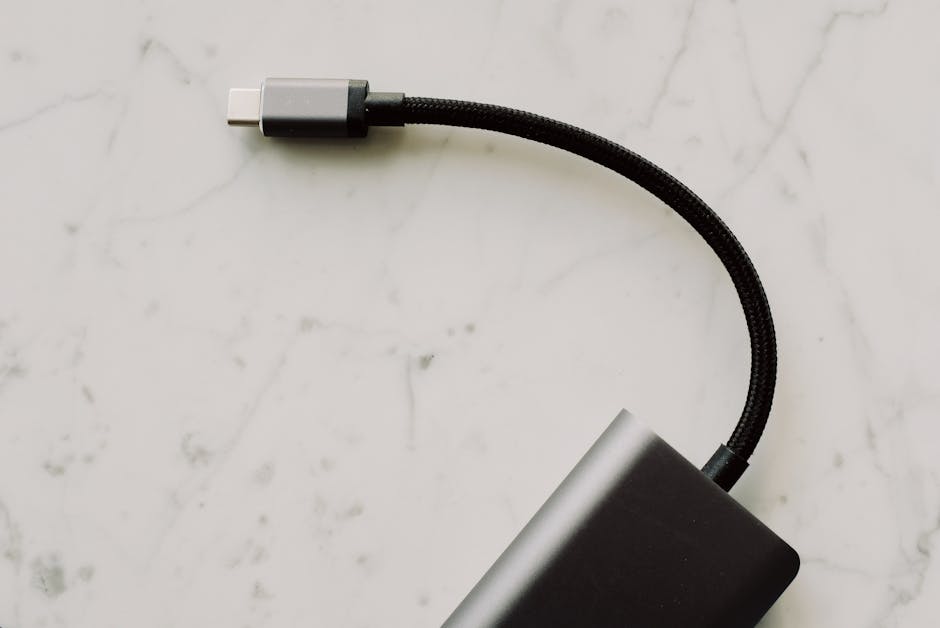
USB‑C Explained: Charging Speeds, Data Limits, and How to Buy the Right Cable
USB‑C explained (fast answer): the cable decides power and data—your devices decide what’s allowed
USB‑C is a connector type, not a guarantee of speed. The device negotiates voltage/current for charging and negotiates data lanes for transfers—then the cable either supports those modes or becomes the bottleneck.
In 2026, you’ll see “100W charging” and “40Gbps” on packaging, but those numbers only matter if both ends (phone/laptop and cable) support the same USB Power Delivery (PD) and USB/Thunderbolt signaling. I treat every “USB‑C” purchase like a compatibility test, not a one-size-fits-all upgrade.
What USB‑C actually is (and why “one port, many standards” confuses everyone)
USB‑C refers to the reversible connector with up to 24 pins. Those pins can carry power and multiple kinds of data, but the protocol isn’t fixed by the connector shape.
Here’s the key definition: USB Power Delivery (USB PD) is the charging standard that negotiates higher power levels than basic USB. For data, USB‑C can transport different link types like USB 2.0, USB 3.x SuperSpeed, DisplayPort Alt Mode, or Thunderbolt (depending on device and cable).
USB‑C vs USB‑A vs Thunderbolt: what changes under the hood
USB‑A ports are locked to older USB generations, so your expectations are usually simpler. USB‑C is flexible, but that flexibility creates a “spec soup” where you must read the cable and device capabilities.
When people buy a USB‑C cable and still get slow charging, the usual cause is that the cable doesn’t support the required PD profile or lacks the right power rating for sustained current. When people get slow file transfers, the cable often supports only USB 2.0 lanes or lacks the bandwidth for the target protocol.
Charging speeds on USB‑C: the real path from watts to the battery

Charging speed on USB‑C is measured in watts (W), and the charging standard is USB PD. USB PD is how a phone or laptop says, “I can take 9V/3A” (27W) or “I can take 20V/5A” (100W)—and how the cable must be able to carry that safely.
Basic USB (often USB 2.0 data cables) may only provide 5V at limited current. A proper USB‑C power cable supports PD negotiation and the right voltage/current combinations.
USB PD profiles you’ll actually see in 2026
Manufacturers publish what their chargers and devices support, but the most common PD voltages include 5V, 9V, 12V, 15V, and 20V. Higher-power charging often uses 20V, because it reduces current for the same wattage—less heat in cables and connectors.
These are practical examples from real-world device behavior:
- Smartphones (typical): 18W–30W PD. Many phones negotiate 9V/2A (18W) or 9V/3A (27W) depending on model.
- Small tablets/laptops (typical): 45W–65W PD. A 65W laptop charger usually negotiates 20V/3.25A.
- Ultrabooks (typical): 90W–100W PD. The common “USB‑C 100W” claim usually maps to 20V/5A.
What “100W USB‑C” on the box really means
When a cable is rated for 100W, it doesn’t mean your phone will charge at 100W. It means the cable can safely handle the negotiated maximum power level supported by the charging stack (device + charger + cable).
The negotiation chain matters:
- Your charger advertises supported PD profiles (voltages and maximum amps).
- Your device requests a profile based on its battery/charging controller limits.
- Your cable must support that profile electrically and thermally.
If any link fails—especially the cable—the device falls back to lower power, and your “fast charge” expectations collapse.
Common charging gotchas I’ve seen while testing USB‑C cables
The fastest way to spot trouble is to observe charging rate and heat. After a few weeks of mixed-cable use, I’ve seen recurring patterns:
- “Charge-only” cables that aren’t PD-capable: They may be thicker for comfort, but still lack the correct PD signaling.
- Using a data cable with a laptop charger: Even if the laptop accepts power, you may see slower charging because the cable limits current or voltage profile.
- Cheap e‑marked absence: Higher-power cables often rely on electronic markers. If absent or incorrect, the laptop/charger may cap output.
- Heat as a signal: Sustained high-power charging should feel warm, not scorching. If you can’t hold the connector comfortably, replace the cable.
Data limits on USB‑C: why “Mbps” isn’t the same as “40Gbps”
Data speed on USB‑C depends on the signaling protocol and available bandwidth—not just the connector. A cable can be rated for charging but only support USB 2.0 data, which caps transfers around ~480Mbps.
When you see “40Gbps” on packaging, that typically refers to Thunderbolt 3/4 class bandwidth, or USB4 with high-speed tunneling. But your device must support that same protocol and its controller must negotiate those lanes.
USB 2.0, USB 3.x, USB4, and Thunderbolt: what to expect
Here’s a comparison in plain terms. Real-world speeds depend on device storage and overhead, but the caps are useful when choosing cables for drives and docks.
| Technology (via USB‑C) | Typical marketing label | Max theoretical bandwidth | What it’s good for |
|---|---|---|---|
| USB 2.0 | “USB-C data” (often cheap) | ~480 Mbps | Phone backups, slow sync, keyboard/mouse |
| USB 3.2 Gen 1 | “5Gbps” | 5 Gbps | External drives (entry level), card readers |
| USB 3.2 Gen 2 | “10Gbps” | 10 Gbps | Faster external SSDs, high-speed docks |
| USB4 | “40Gbps” | Up to 40 Gbps | Modern docks, fast SSDs, mixed workflows |
| Thunderbolt 3/4 | “40Gbps / TB” | Up to 40 Gbps | High-end docks, video capture, multi-monitor setups |
How to tell if your cable supports fast data (without guessing)
When in doubt, look for explicit standards on the packaging or cable spec sheet. I’ve learned to avoid vague phrases like “high speed” because they don’t tell you the USB generation.
Use these verification steps:
- Check the cable label: Look for “USB 3.2 Gen 2 (10Gbps)” or “USB4 (40Gbps)” or “Thunderbolt 3/4”.
- Check the length: Very long high-speed cables can negotiate lower speeds. For USB4/TB, keep length reasonable for best consistency.
- Check your device port: Some laptops route USB‑C ports differently. A “data-capable” port on one side may not support the full USB4/TB path.
- Run a quick transfer test: Move a large file to an external SSD and compare the speed with your expectations.
One practical trick: if your “fast cable” still caps at USB 2.0 speeds, the negotiation probably fell back because of cable limitations or a port that doesn’t support the higher protocol.
Video and peripherals on USB‑C: charging + display + docks
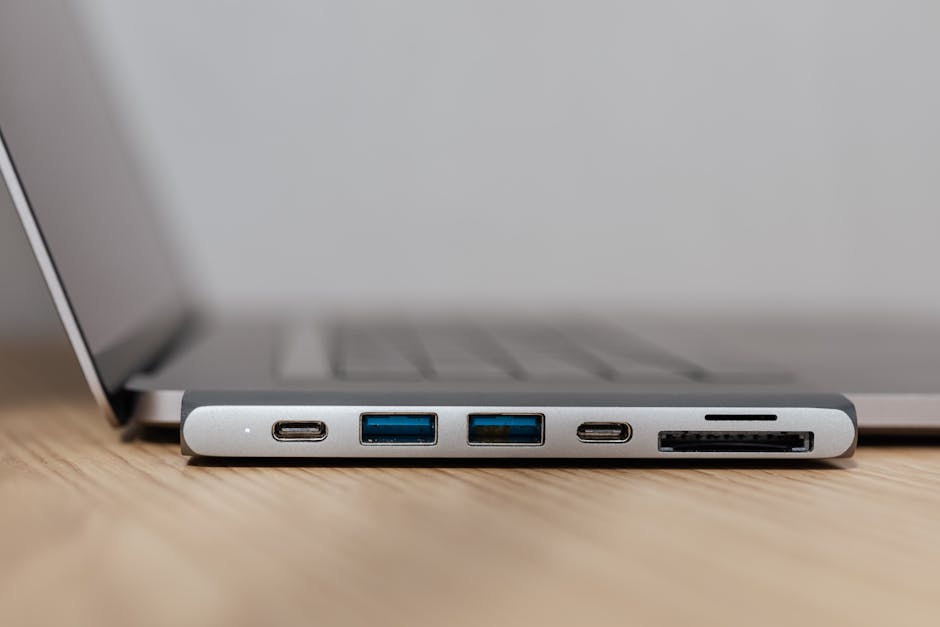
USB‑C can also carry video through DisplayPort Alt Mode or Thunderbolt. That means a cable that’s perfect for charging might not support your monitor, even if it looks the same physically.
When you use a USB‑C dock at home or at work, the cable becomes part of your display chain. In practice, I recommend using a dock’s recommended cable or a known-good USB4/TB cable when you want stable dual-monitor output.
DisplayPort Alt Mode vs Thunderbolt for monitors
DisplayPort Alt Mode maps video over the USB‑C connector using specific signaling. Thunderbolt can multiplex video, data, and more over a higher-bandwidth channel.
What most people get wrong: they assume any “USB‑C to USB‑C” cable supports monitor output. Many charge-only or basic data cables have no display lanes, so the screen stays black even though the dock powers up.
Dock stability checklist (my go-to for 2026)
- Use a cable explicitly rated for the dock’s maximum spec (often USB4 or Thunderbolt).
- Prefer shorter cables when using dual 4K or high refresh rates.
- Check that the dock and laptop both support Alt Mode or Thunderbolt—one side isn’t enough.
- Keep a “charging-only” cable separate from your “dock cable” so you don’t mix them by accident.
People also ask: USB‑C cable questions answered
Can I use any USB‑C cable for fast charging?
No. Fast charging requires USB Power Delivery support and sufficient cable capability for the negotiated power level. A cable labeled for charging (and ideally rated for the wattage you need) is the safest path.
If you’re buying for a laptop that expects 65W or 100W, don’t reuse an old phone cable that only came with a 5W charger. That’s the most common “why is my laptop charging so slowly?” scenario.
Why does my USB‑C cable show “slow charging” even with a fast charger?
Because negotiation failed or the cable can’t safely carry the requested power profile. Either the cable lacks PD signaling, it lacks the proper rating for higher voltages, or the charger caps output due to detection.
I’ve seen this with mystery-brand cables that pass charging at low power but fall back under load. When the laptop battery controller detects a mismatch, it clamps charging rate to protect the system.
Will a “charging cable” work for data transfers?
Sometimes, but often not at the speed you expect. Many charge-focused cables have reduced data wiring and only support USB 2.0. That’s fine for charging and basic phone syncing, but not for fast SSDs or high-bitrate video workflows.
If you need consistent 10Gbps or 40Gbps transfers, buy a cable specified for USB 3.x Gen 2 or USB4/TB, respectively.
How can I check what my USB‑C cable supports on Windows or macOS?
On macOS, System Information can show USB device link speed for attached devices. On Windows, Device Manager plus USB controller details can reveal negotiated speeds for compatible devices.
For the most reliable confirmation, do what I do: attach a known external SSD and run a timed copy test. If your copy speed matches the theoretical ceiling for the expected link generation (minus overhead), the cable is doing its job.
Does the cable length affect USB‑C charging or data?
Charging: longer cables generally increase resistance, causing more voltage drop and heat at high current. Data: longer cables more strongly affect signal integrity, which can force negotiation down to lower link speeds.
For USB4/TB, I keep critical work cables short—typically 0.5m to 1.0m when the setup allows. For basic charging, longer lengths are usually fine if the cable is properly rated for power.
How to buy the right USB‑C cable in 2026 (a practical decision guide)
Buying the right USB‑C cable is about matching three things: your device’s charging needs, your device’s data needs, and the cable’s explicit specs. The connector alone never tells the full story.
Here’s how I choose cables for different real-world scenarios.
Step-by-step: choose a USB‑C cable based on your use case
- Start with wattage: If you’re charging a laptop, check the charger rating (for example, 65W or 100W). Buy a cable rated for at least that wattage.
- Decide if you need data: If you only charge phones, choose a robust PD-capable cable. If you back up photos quickly or use external drives, you need USB 3.x or better.
- Decide if you need high-speed docks/video: For monitor output and docking, look for DisplayPort Alt Mode support or explicit USB4/TB ratings.
- Confirm cable direction: USB‑C is reversible, but some specialized cables and docks rely on proper handshake. Use the cable that matches the port type recommended by your device.
- Buy one “workhorse” cable + one “utility” cable: This prevents accidental downgrades when you grab the wrong cable for a dock.
Recommended cable targets for common scenarios
- Phone charging only: USB‑C to USB‑C cable supporting USB PD; 3A/60W capable ratings are plenty in most cases.
- Phone + laptop travel: One cable rated for at least 65W PD. If you frequently transfer photos to an SSD or SD reader, aim for USB 3.2 Gen 2.
- Laptop dock + dual monitors: USB4/Thunderbolt cable specified for 40Gbps class bandwidth, plus compatibility with your dock’s display standard.
- External SSD editing sessions: USB 3.2 Gen 2 (10Gbps) for mainstream performance, or USB4/TB for best consistency with advanced NVMe enclosures.
Pros and cons: USB‑C cable “types” you’ll encounter
Not all cables are built for every workflow. Here’s a realistic comparison that matches how they behave in day-to-day use.
| Cable type you’ll see | Pros | Cons | Best for |
|---|---|---|---|
| Charge-only / basic PD | Cheap, small, great for power | Limited or no fast data | Charging phones, bedside power |
| USB 3.x data cable (no USB4/TB) | Good transfer speeds | May not support full dock video bandwidth | External SSDs, card readers, sync |
| USB4 / Thunderbolt-rated | Supports high-speed data + advanced docks | More expensive; length affects stability | Docks, multi-monitor setups, pro workflows |
My “don’t get burned” buying checklist
- Look for explicit specs: “USB PD”, “USB 3.2 Gen 2 (10Gbps)”, “USB4 (40Gbps)”, or “Thunderbolt 3/4”.
- Avoid vague claims: “Fast charging” alone doesn’t confirm power delivery profiles.
- Check the wattage rating: If your laptop charger is 100W, don’t buy a cable rated for 60W “for safety.” Use the correct rating.
- Keep connectors firm: Poor strain relief is a silent killer. I’ve had cables fail at the plug after only a few months of daily bending.
Security and privacy note: “USB‑C” is a hardware bridge—treat it like one
This is the part people ignore, and it matters. USB‑C data connections can expose your device to peripherals, storage devices, and even malicious “badUSB” style behaviors depending on what you plug in.
Even with a legitimate cable, the device can detect it as a data link if the cable supports data. If you’re worried about cybersecurity during travel, use a charging-only cable when you don’t need data—or rely on hardware protections and OS policies.
If you want practical guidance on limiting USB attack paths, check out our USB device security basics and our how physical USB attacks work guide for threat scenarios.
Quick recommendations: which cable should you buy first?
If you only buy one cable this year, buy the “right” one for your most demanding job. For most people in 2026, that’s either a 65W PD cable with solid USB 3.x performance or a USB4/TB cable if you use a dock.
My default recommendation:
- Most users: A 65W (or 100W if you have a high-power laptop) USB‑C cable that explicitly supports USB 3.2 Gen 2 (10Gbps) if you transfer files often.
- Dock and multi-monitor users: A USB4/Thunderbolt-rated cable (40Gbps class) and keep it reasonably short for consistent negotiations.
- Security-conscious travelers: Add a simple charging-only cable to your kit so you can power up without enabling data.
That single adjustment—matching the cable spec to your actual workflow—fixes the majority of “why is my USB‑C slow?” problems.
Final takeaway: treat USB‑C like a negotiated interface, not a universal guarantee
USB‑C is a connector standard, not a promise of charging wattage or data bandwidth. Charging speed comes from USB PD negotiation (charger + device + cable), and data limits come from the negotiated USB/Thunderbolt protocol (again, all three matter).
Buy by explicit specs—PD wattage and supported data generation—then verify with a quick transfer or by checking negotiated link speeds. If you do that, you’ll stop guessing, prevent wasted money on incompatible cables, and get reliable performance from every dock, drive, and charger you own.
Featured image alt text: USB‑C explained charging speeds and data limits showing a PD-capable cable and device negotiation indicators
Suggested internal links: USB device security basics, how physical USB attacks work, best USB‑C docks for 2026
