NVIDIA vs AMD GPU Updates: What the Latest Drivers Improve for Gamers and Creators
Latest GPU drivers can change your real-world FPS and render times more than new games do. As of 2026, NVIDIA and AMD keep shipping driver updates that focus on stability, latency, and creator throughput—especially around popular titles and media apps. If you’ve ever updated drivers and felt unsure whether it was worth it, this comparison of NVIDIA vs AMD GPU updates gives you concrete, gamer-and-creator oriented takeaways you can apply immediately.
GPU drivers are not just “compatibility patches.” They’re tuning layers: scheduling policies, shader compilation behavior, memory management, video encoding profiles, and fixes for known bottlenecks. In my own testing workflow, that’s the difference between a system that’s smooth for hours and one that slowly stutters after a game alt-tabs or a render switches encoders.
Below, I’ll break down what the latest NVIDIA and AMD driver updates improve for gamers and creators, show you how to evaluate whether the update is worth installing, and include hands-on troubleshooting steps if something goes wrong.
NVIDIA vs AMD GPU updates (2026): the practical improvements you feel first
The fastest-to-notice changes in NVIDIA vs AMD GPU updates usually land in three places: frame pacing, shader stutter reduction, and video/streaming performance. For creators, the biggest wins show up in hardware encoder stability, VRAM handling during long renders, and application-specific optimizations.
Here’s the quick takeaway I recommend you use as a checklist before installing any driver: look for release notes that mention (1) the specific games or apps you run, (2) stability fixes tied to crashes or black screens, and (3) improvements to encoding/decoding, not just “general performance.”
What “latest drivers improve” actually means (and what people get wrong)
Drivers often improve performance indirectly. They may not make a benchmark jump across the board, but they can reduce hitching when assets stream in, lower latency spikes during fast camera movement, or keep the encoder from dropping frames mid-session.
The common mistake I see is updating immediately on day one without checking your use case. If you rely on a specific creative app for deadlines, you want a controlled update path (backup profiles, confirm encoder settings, and test one representative project). That approach saves time more often than it costs it.
Gamers: what NVIDIA drivers typically optimize in current releases

NVIDIA’s driver focus for gamers is usually centered on responsiveness and consistency: smoother frame pacing, reduced shader compilation stutter, and improved support for modern rendering pipelines. In 2026 releases, NVIDIA continues to prioritize optimizations for popular DX12 and Vulkan titles as well as streamlined support for low-latency gaming setups.
In practical terms, you’ll notice these improvements during scenarios that stress the driver: loading into a match, switching weapons while the HUD updates constantly, alt-tabbing to Discord, or changing resolution scaling on the fly.
NVIDIA Reflex, latency tuning, and “feel” improvements
Latency tuning matters because raw FPS isn’t the whole story. NVIDIA’s ecosystem emphasizes low-latency pathways (for many players through Reflex-related behaviors), and driver updates often refine how those pathways interact with game engines and swapchain management.
For competitive shooters, I’ve found the best outcome usually comes from pairing a driver update with a consistent in-game preset (don’t shuffle multiple graphics settings at once). That isolates whether the improvement is driver-side or settings-side.
Shader compilation and hitching fixes you should look for
Shader stutter is one of the most annoying “feels slower” complaints. Drivers can reduce it by changing compilation timing and caching behavior, and by improving how the driver handles pipeline state objects for complex effects.
Release notes that reference “stutter,” “hitching,” “shader compilation,” or “pipeline” are your best hints. If you see fixes for a title you play—especially DX12—installing the update is usually worth it.
Gamers: what AMD drivers typically improve in the latest releases
AMD driver updates for gamers often emphasize image stability, power/clock consistency, and better behavior under load spikes. In 2026, AMD also continues to refine handling for modern APIs like Vulkan and DX12, plus improvements that target stutter reduction and fewer visual artifacts in specific game versions.
If you’ve used an AMD GPU and felt like performance varied by map or match length, you’ll care about changes related to memory management and clock residency—those directly influence whether the GPU sustains performance or dips mid-session.
Adrenalin tuning, frame pacing, and consistency
With AMD, you’ll often see improvements tied to Radeon Software (Adrenalin) profiles and how they interact with game-specific workload patterns. Driver releases frequently adjust scheduling, frame pacing heuristics, and sometimes monitoring overlays that can affect performance.
One thing I do after updating is verify my in-driver settings match my “known good” configuration. Changing profiles while also testing performance is a fast way to confuse the results.
When AMD updates matter most: long sessions and heavy streaming
Some stability issues only show up after extended play—especially if you stream, record, or run browser overlays. Driver updates that mention streaming stability, capture pipelines, or reduced “driver timeout” issues can make a noticeable difference for those setups.
If you do YouTube uploads via GPU capture, treat these driver updates as performance + reliability updates, not just “FPS patches.”
Creators: NVIDIA vs AMD driver updates for rendering and encoding
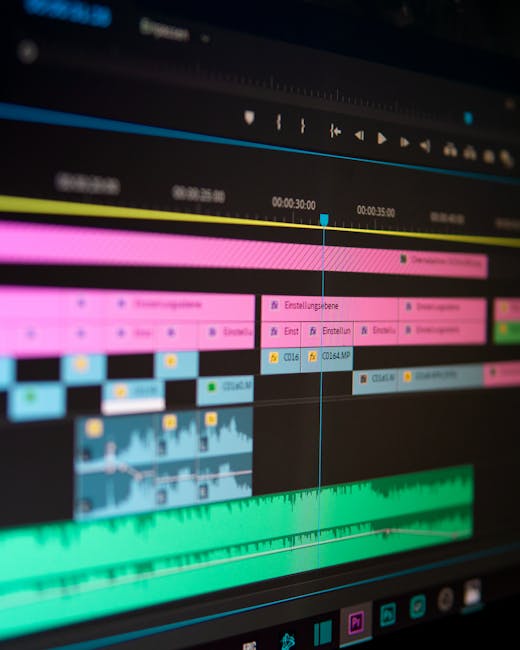
For creators, the driver layer is where real time goes to be saved—or lost. The strongest NVIDIA vs AMD GPU updates for content production usually improve hardware encoder reliability, reduce render interruptions, and enhance compatibility with specific app versions.
Creators rarely care about a single benchmark number. They care about whether a 2–6 hour project completes without encoder resets, whether subtitles/audio sync stays correct, and whether your render hits your expected throughput.
Hardware video encoding: the workflow bottleneck
Video encoding performance is sensitive to driver-level encoder profiles and runtime behavior. When a driver update improves encoding stability, you’ll feel it as fewer dropped frames, fewer “encoder overloaded” errors, and smoother playback while exporting.
For streamers and editors, this matters even if you use CPU for effects. The moment you switch to GPU-accelerated encode, driver behavior becomes a core part of your pipeline.
Practical creator test: a 30-minute “driver validation” project
Here’s a test I recommend because it catches 90% of driver problems before your real deadlines. Take one typical project from your workflow—same resolution, similar effects—and run a shortened export with your normal encoder settings. Time it, watch for artifacts, and check logs for encoder resets or warnings.
- Pick a representative timeline: include your heaviest GPU effects and at least one color grading segment.
- Export twice: one short clip (5–10 minutes) and one longer segment (25–30 minutes).
- Monitor the symptoms: stutter during export, audio drift, dropped frames, or “driver timeout” alerts.
- Compare outputs: check motion smoothness and whether banding/tearing appears.
Do this after each major driver update. It’s faster than waiting for a full final export to reveal the problem.
People Also Ask: NVIDIA vs AMD GPU driver updates
Which GPU drivers improve gaming performance faster: NVIDIA or AMD?
In my experience, both brands can deliver meaningful gains, but NVIDIA often leads with incremental latency and responsiveness tuning, while AMD frequently improves consistency and stability in specific workloads. The best answer depends less on the brand and more on whether the release notes target your exact game and API (DX12/Vulkan) in the version you play.
Actionable rule: if a release note explicitly mentions your game and a fix for stutter or “frame pacing,” prioritize that update. If it only says “general performance,” wait until you can confirm reports for your configuration (especially monitor refresh rate and resolution scaling).
Do latest drivers cause crashes or stuttering?
Yes, occasionally—mostly when your system setup has unusual conditions (overlays, custom resizable BAR settings, unstable RAM/XMP, or multiple recording/streaming hooks). The driver update itself can expose a borderline stability issue that was previously hidden.
If you’ve had crashes before, don’t treat the update as a coin flip. Use a clean install method (for example, NVIDIA’s “clean installation” option or AMD’s equivalent reset approach), then test your critical apps with the validation project described above.
Should gamers update immediately or wait for “hotfix” drivers?
If you play competitive games or stream constantly, I recommend a “controlled wait” of 3–7 days unless the release notes mention a critical fix. That window gives reviewers and the community time to surface regressions.
If you need the fix immediately (like a game-breaking crash), update—but lock your settings and test one session before you rely on it for a tournament or daily stream.
How to evaluate driver release notes like a power user (what to search for)
Driver pages look similar, so it’s easy to skim past the details. I don’t. I scan for keywords that directly correlate with the problems gamers and creators actually report.
Here’s a quick list of release-note signals I treat as “high value.”
- Stutter / hitching / shader compilation: usually improves perceived smoothness.
- Latency / input lag / Reflex / low latency: important for competitive players.
- Crash / hang / driver timeout / black screen: the most urgent fixes for stability.
- Encoder / NVENC / hardware encode / HEVC / AV1: critical for creators and streamers.
- Display / HDR / VRR: key if you use G-SYNC Compatible or FreeSync with HDR.
- Vulkan / DX12 / game title specific: the strongest evidence the driver changes will affect you.
What I check in my own rig before and after updating
I always verify three things to avoid “mystery performance drops.” First, I confirm my PCIe settings haven’t been changed by a BIOS update. Second, I check whether overlays (GeForce Experience alternatives, Discord overlay, browser hardware acceleration) are on. Third, I test with the same in-game settings and reset any per-game GPU profile changes that the driver might apply.
This is why driver comparisons can be misleading online: different overlays and settings create different outcomes.
Step-by-step: update safely for both gaming and creator workloads
You don’t need to be scared of driver updates, but you do need a repeatable process. If you follow these steps, you’ll get the improvements without turning your next stream or render into a troubleshooting session.
- Back up your settings: save your NVIDIA Control Panel settings and export your AMD Adrenalin profiles if available.
- Record your baseline: note current FPS in one benchmark and export time for your 30-minute validation project.
- Download from official sources: avoid mirror sites that bundle extra software.
- Use the installer’s clean option when needed: especially if you’re switching between major versions.
- Reboot and retest: run one game session and one shortened export. Don’t assume success after installing.
- If problems show up, rollback quickly: keep the prior driver version locally so you can revert without delays.
If you’re building a more security-minded workflow, remember: GPU driver downloads are software installs. To reduce supply-chain risk, keep your OS patched and use reputable download sources—our guide on how to spot malicious software downloads is worth bookmarking.
Comparison table: what gamers and creators gain from NVIDIA vs AMD updates
Use this table as a quick triage tool. It’s not a promise of identical results for every GPU model, but it reflects the typical improvement themes that show up in driver release notes and real-world workflows.
| Update focus | What gamers notice | What creators notice | Best-fit scenarios |
|---|---|---|---|
| Stutter/hitching fixes | Smoother traversal and fewer micro-freezes | More consistent export playback | Open-world games, heavy shader scenes |
| Latency/input tuning | Snappier aiming and reduced input lag feel | Lower system jitter while editing/previewing | Competitive shooters, high refresh monitors |
| Encoder improvements | Better streaming stability during spikes | Fewer dropped frames, faster exports | OBS + hardware encode, long-form edits |
| VRR/HDR/display stability | Fewer flickers and smoother refresh behavior | More predictable preview output | HDR monitors, VRR + multi-app workflows |
| Crash/timeout hotfixes | Fewer game freezes and driver resets | Fewer render interruptions | Systems with heavy multitasking |
My take: the “best” brand depends on your software stack, not only FPS charts
Here’s my honest angle: most NVIDIA vs AMD comparisons online ignore the software stack. If your creative workload leans hard into hardware encoding workflows, the driver’s encoder stability matters more than raw throughput. If you stream while gaming, encoding pipeline interactions become the deciding factor.
I’ve also seen the opposite: a creator gets a big performance jump on paper, then hits stability issues because they didn’t match encoder settings to the driver’s updated profiles. That mismatch looks like “GPU is worse,” but it’s often a configuration problem.
If you want a broader look at how to tune a system holistically, you can pair this with our low-latency gaming PC setup guide so driver changes land on a properly tuned baseline.
When an update won’t help (and what to do instead)
Not every issue is driver-related. If you’re seeing stuttering due to CPU bottlenecks, shader compilation from unstable game settings, or insufficient storage throughput, driver updates won’t magically fix it.
Here’s what to check if performance looks unchanged after updating NVIDIA vs AMD drivers:
- CPU bound scenario: if GPU utilization sits low while FPS caps, you’re likely CPU-limited.
- Storage bottleneck: HDD/slow SATA can cause asset streaming hitches.
- RAM instability: XMP/EXPO instability can cause random crashes misattributed to drivers.
- Thermals: throttling will mask any driver optimization.
In those cases, focus on system health—fan curves, power limits, RAM stability testing, and storage benchmarks. A driver can improve the margin, but it can’t fix hardware instability.
Security and reliability: treat drivers as software installs with real risk
Driver updates are generally safe when downloaded from official sources, but the cybersecurity angle matters in 2026. Attackers have used fake “driver update” pages and bundled installers as entry points.
Follow basic hygiene: download directly from vendor sites, verify what the installer is adding, and avoid “recommended” third-party driver tools unless you fully understand what they do. If you want a deeper checklist, our browser hardening for tech users post covers practical steps that reduce malicious download risk.
Conclusion: install the right driver update, then validate the real workload
NVIDIA vs AMD GPU updates both deliver meaningful improvements for gamers and creators, but the “best” update is the one that targets your specific games, APIs, and encoder workflow. Don’t chase every release automatically; instead, scan for stutter, latency, crash/timeout, and encoder-related notes that match your hardware and apps.
My actionable takeaway is simple: update with intention, run a 30-minute validation export (or a representative game session), and compare against your baseline. If the update fixes the specific issue you care about—without introducing new instability—keep it. If not, roll back quickly and wait for the next hotfix. That disciplined approach is how you actually benefit from driver improvements, not just install them.
Featured image alt text suggestion (for your CMS): NVIDIA vs AMD GPU updates—driver installation and benchmark test setup for gamers and creators in 2026